Using the First Insurance Funding Premium Financing integration
Last updated: July 5, 2025
You can set up the integration to automatically get premium finance quotes from your partner using First Insurance Funding as their software provider.
Applies to:
- Agency Owners
- Managers
- Administrators
- Producers
Last Updated: April 2024
This article explains how you can configure and use the First Insurance Funding premium finance integration.
Configuring a new Premium Finance Integration
As an admin go to Admin / Advanced Settings / General.
Go to the Input1 - Finance Company Integration section to configure your integration.
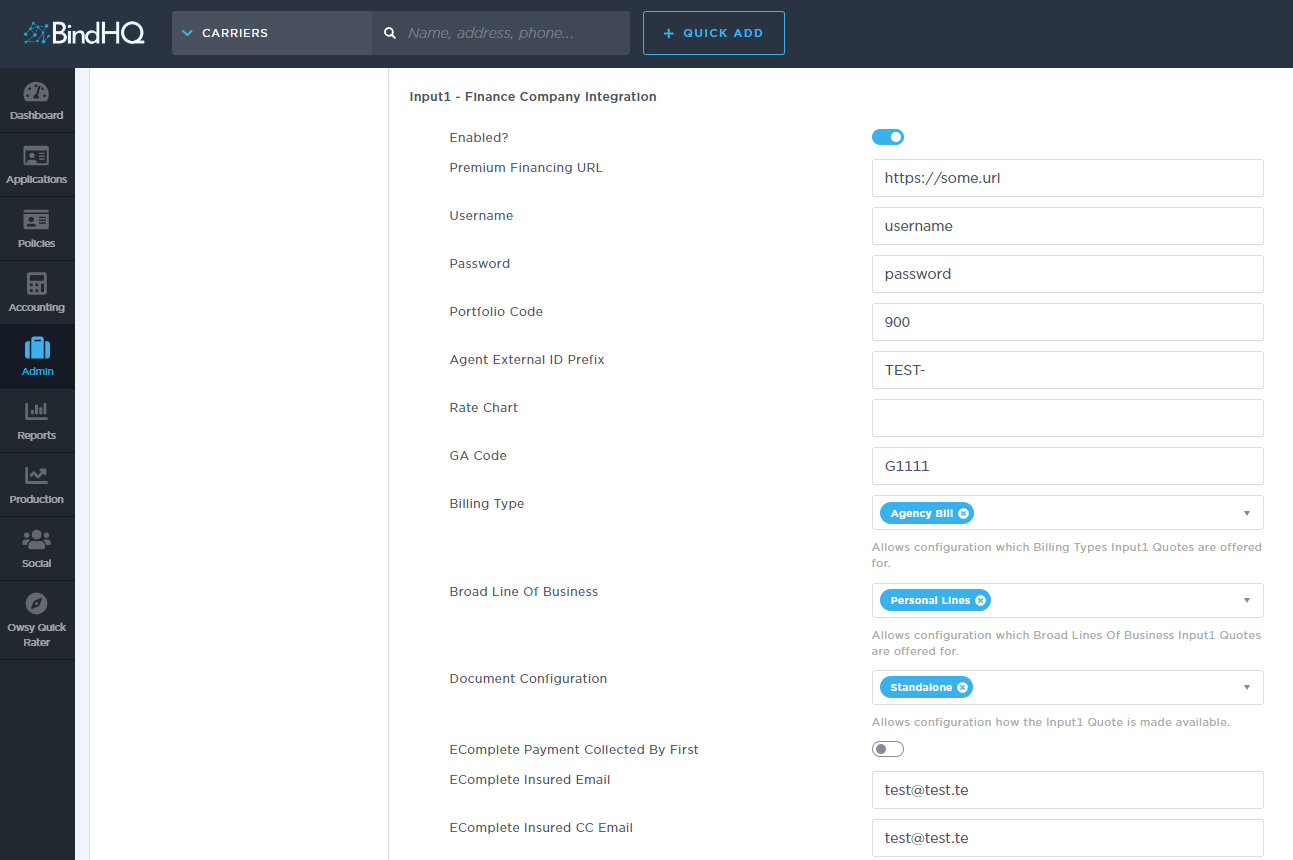
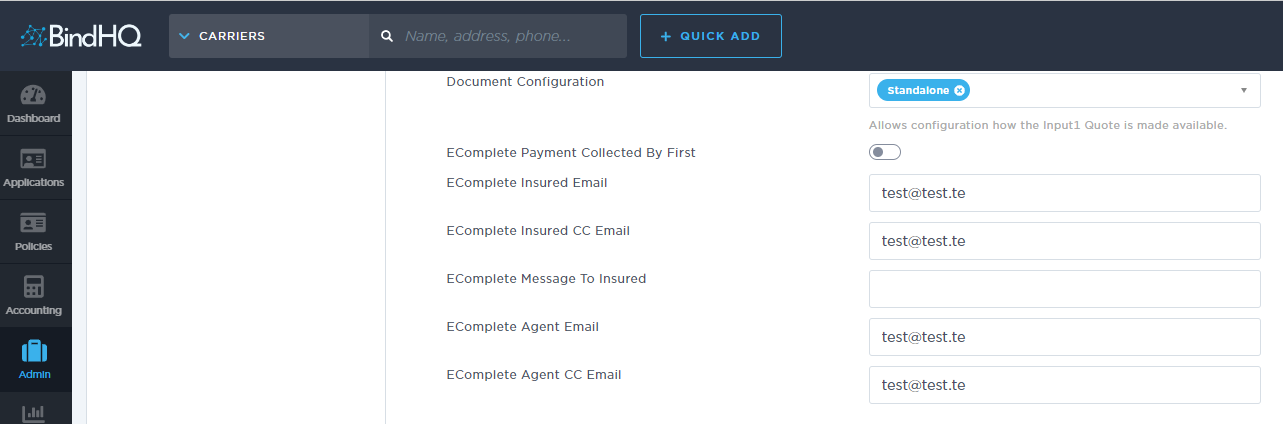
Set the following fields:
- Enabled?: Turn the integration On / Off
- Premium Financing URL: This is the URL for your partner's input system. Provided by the Finance Company.
- Username: This is your username for the integration to get premium finance quotes. Provided by the Finance Company.
- Password: This is the password for the integration to get premium finance quotes. Provided by the Finance Company.
- Portfolio Code: A numeric code to get the right finance quotes. Always 900.
- Agent External ID Prefix: If the Finance Company integration requires a prefix you can configure it here. Provided by the Finance Company.
- Rate Chart: Optional. Provided by the Finance Company.
- GA Code: The internal premium financing code for the Wholesaler/MGA/MGU using BindHQ at the Finance Company. Provided by the Finance Company.
- Billing Type: Select the Billing Types to provide a premium financing quote for them. Supported billing types are: Direct Bill, Insured Direct Bill, and/or Agency Bill.
- Broad Line of Business: Select the Broad Line of Business to provide a premium financing quote for them. Supported Broad Line of Business are: Personal, Commercial, and Farm.
- Document Configuration: Configure how premium financing quotes shall be generated. Supported:
- Append to Quote: The Premium Finance quote will be appended to the end of the Quote document PDF for all supported quotes
- Append to Cover Letter: The Premium Finance quote will be appended to the end of the Cover Letter document PDF for all supported quotes
- Standalone: The Premium Finance quote will be accessible as a standalone document in the Document dropdown for all supported quotes
- EComplete Payment Collected By First: This should be enabled if the down payment is collected by the Finance Company and disabled if the down payment is collected by the agent or outside of the e-Complete workflow.
- EComplete Insured Email: Email address to which the e-Complete login URL with login parameters and Quote Confirmation email are delivered. For Wholesale / MGA workflow it is highly recommended to hardcode it to an internal email address, then share the email with the Retail Agent/Insured
- EComplete Insured CC Email: Email address for the carbon copy of the "EComplete Insured Email" to be delivered.
- EComplete Message To Insured: Optional. The message will be included in the email delivered to the "EComplete Insured Email".
- EComplete Agent Email: Email address to which the notification about the submission with the Agent Login URL is delivered. For Wholesale / MGA workflow it is highly recommended to hardcode it to an internal email address, then share the email with the Retail Agent/Insured
- EComplete Agent CC Email: Email address for the carbon copy of the "EComplete Agent Email" to be delivered.
Accessing the First Insurance Funding e-Complete website
If the Premium Finance configuration is enabled and "EComplete Insured Email" is set, when the quote eligible for premium financing is created, an email from First Insurance Funding will be delivered to that email address.
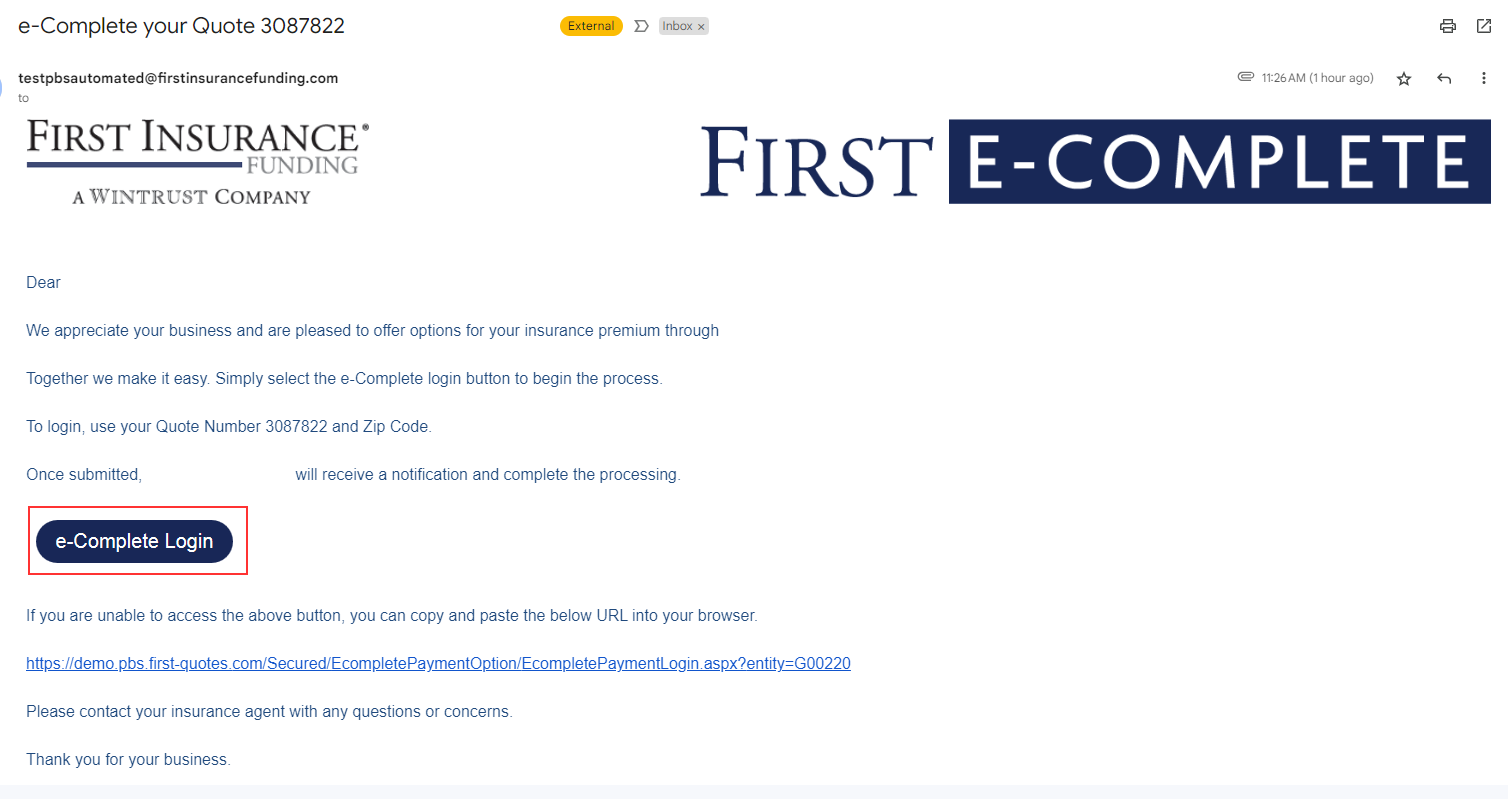
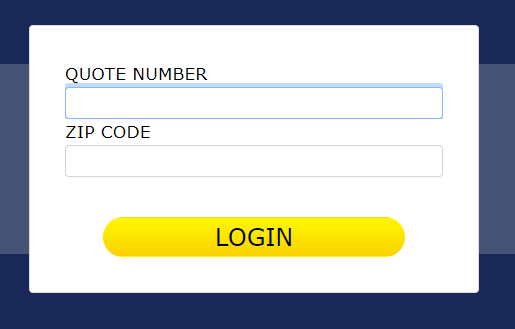
Follow the website workflow by digitally signing your Premium Financing agreement, choosing the loan option, and finalizing the procedure.
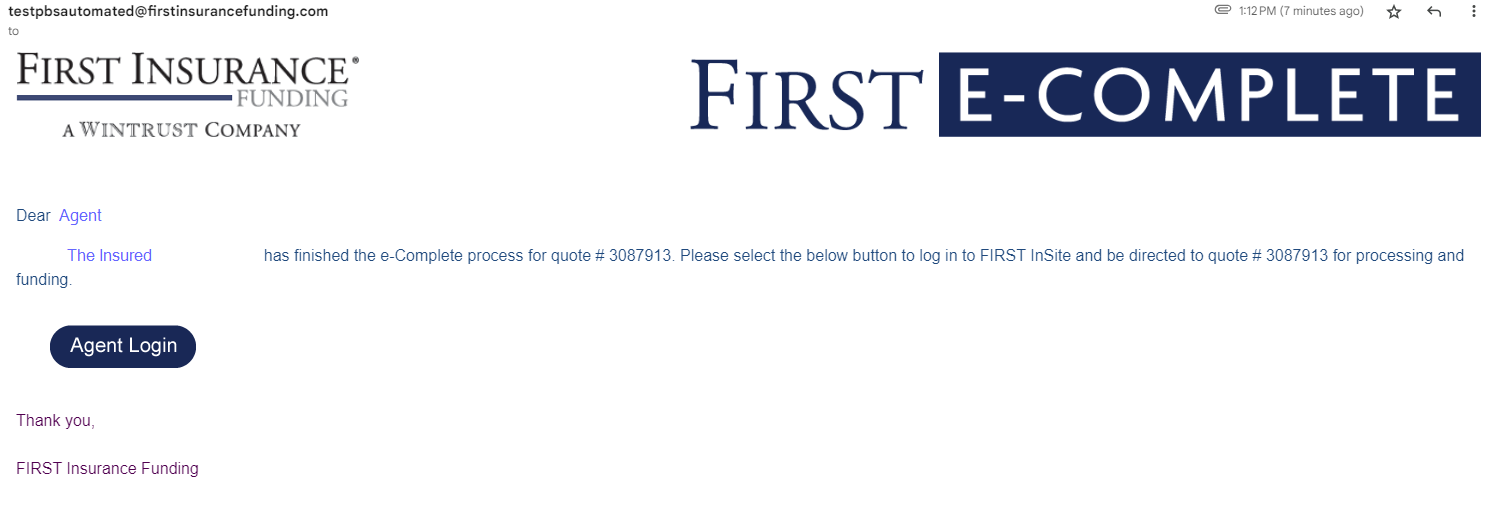
When the e-Complete process is finalized by the insured, the Quote Confirmation email will be delivered to the "EComplete Insured Email".
At the same time, an email from First Insurance Funding will be delivered to the Agent with the notification about the submission and the Agent Login URL.
Accessing the Premium Finance quotes
If the configuration is enabled, then users can access the Premium Finance quotes under each quote's document dropdown, and find additional information on the status of the Premium Finance Quote under the Premium Finance column.
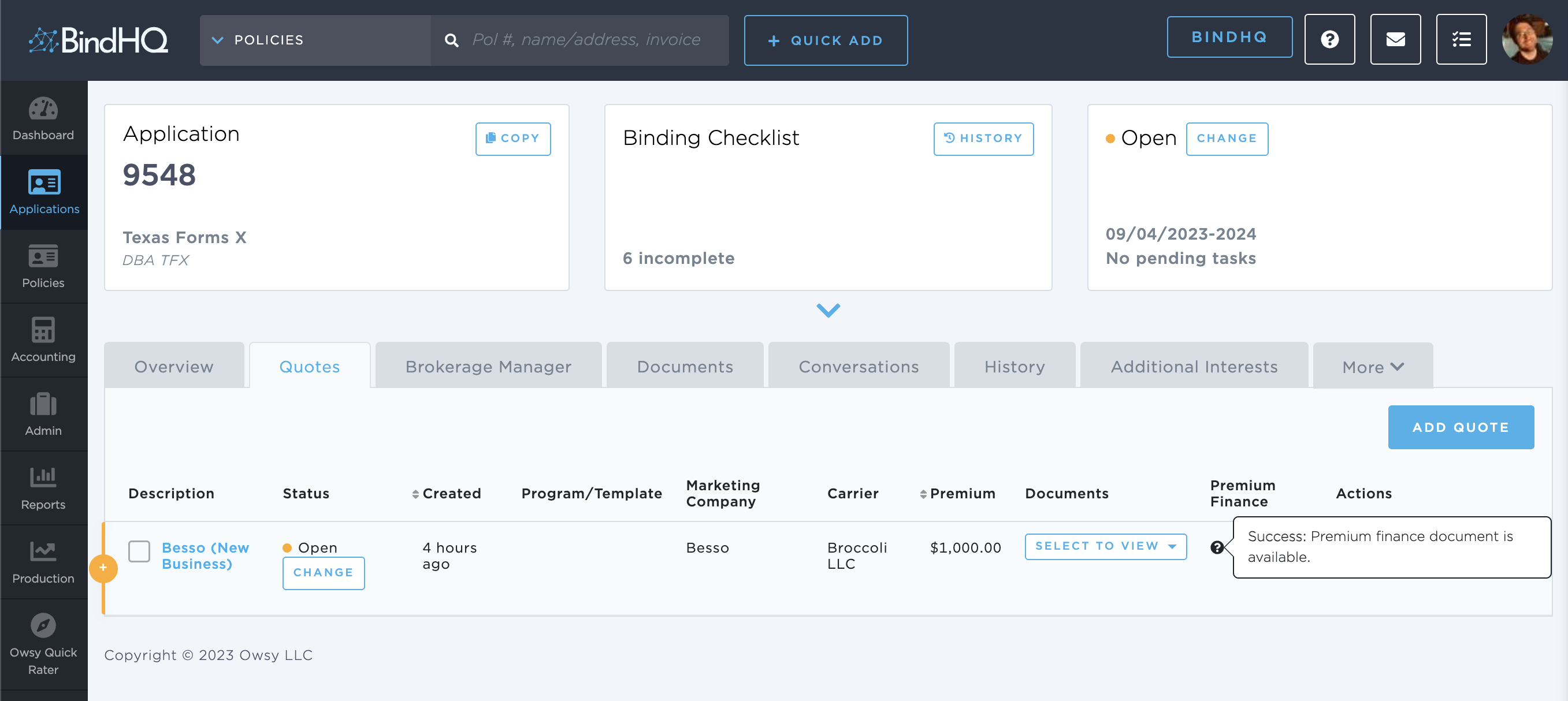
BindHQ maps error messages from Input1 to a human-readable format if the error is known, for instance: requirements do not satisfy the configuration, service is not available, premium needs to be more than $0, etc.
Keywords for Search:
- First Insurance Funding
- Finance Company Integration
- Finance Quote