Cross Division Renewals, Copy Application to New Division
Last updated: July 5, 2025
Applies to:
- Underwriters
- Assistants
Last Updated: December 2022
This article explains how to set up and use the Cross Division renewals to renew expiring policies to a new Division and the Copy Application to new Division features in BindHQ
The sections for this article are:
- Enabling and configuring the Cross Division Renewals and Copy Application to New Division features
- How does the Cross Division Renewals feature work
- How does the Copy Application to New Division feature work
Enabling and configuring the Cross Division Renewals and Copy Application to New Division feature
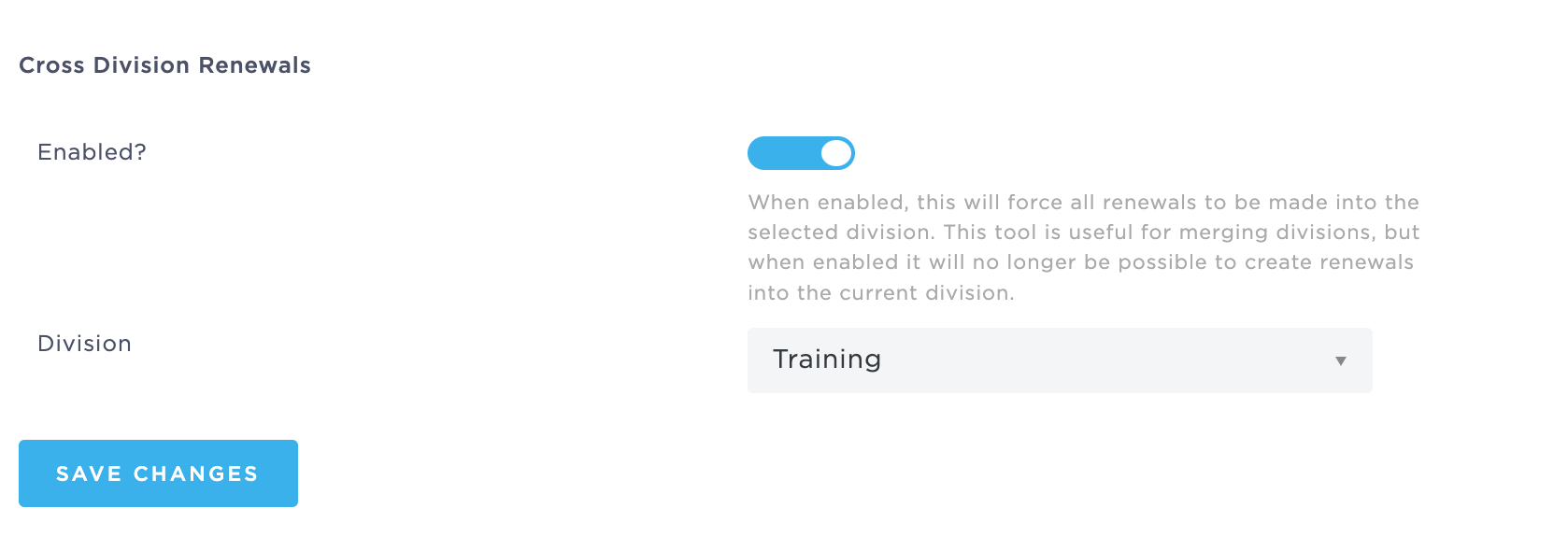
Admins can enable the Cross Division Renewals feature by going to Admin / Advanced Settings / General / Cross Division Renewals and toggling the Enabled? toggle.
When enabled, this will force all renewals to be made into the selected division. This tool is useful for merging divisions, but when enabled it will no longer be possible to create renewals into the current division.
Under the Division drop-down the admin can select the Division where all new renewals will renew to. This is a per Division setting, so if the company is using more than one Division, it needs to be set up in each of the Divisions.
How does the Cross Division Renewals feature work?
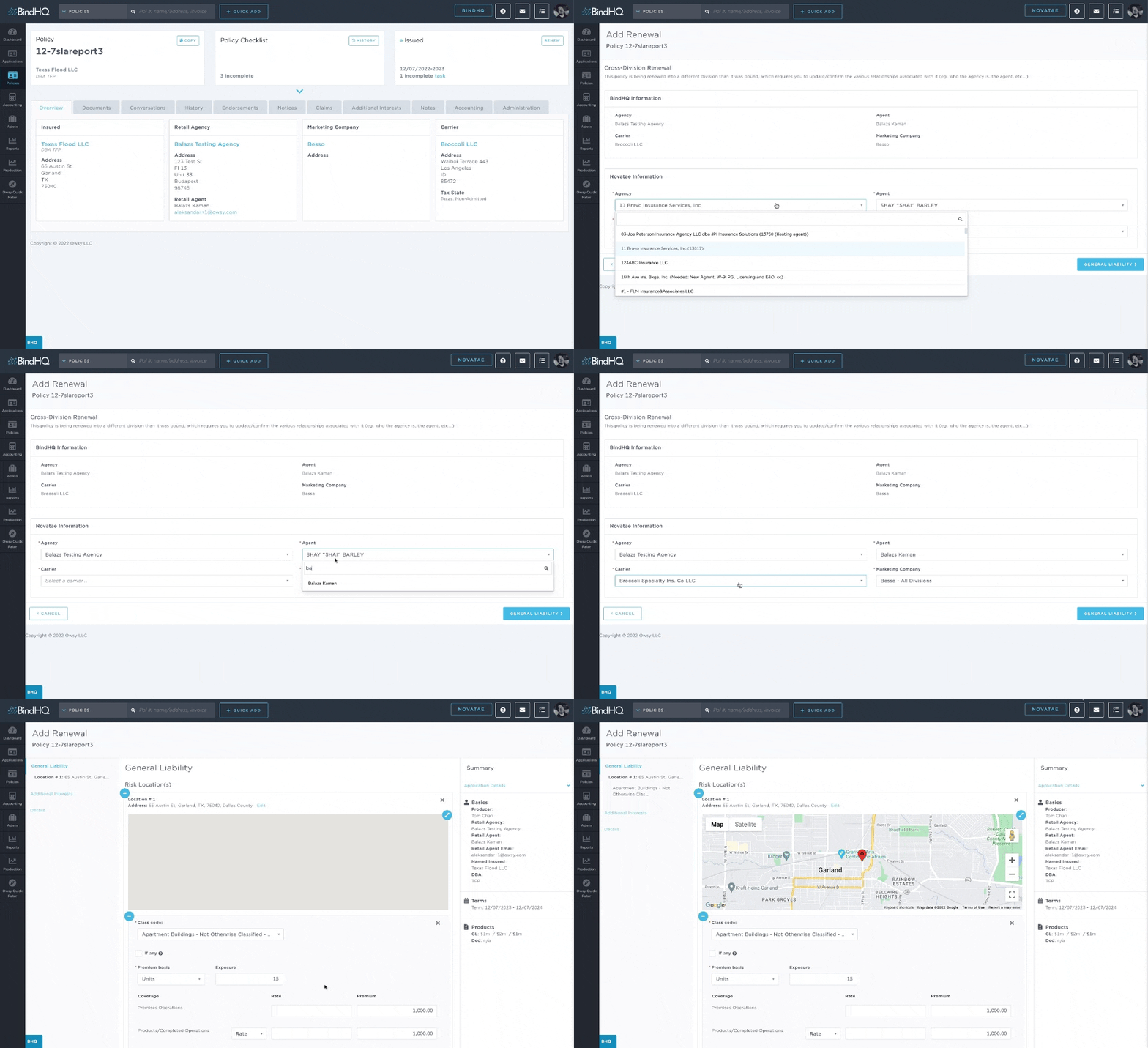
If the Cross Division Renewals feature is enabled then if a policy renewal is initiated a Cross Division Renewal screen comes up.
The user needs to map the:
- Retail Agency
- Retail Agent
- Marketing Company
- Carrier
between the divisions.
Once the selection is confirmed the mapping is saved, so next time the correct entities from the new, renewal division will default.
There are several safeguards that need to be configured for a Cross Division Renewal:
-
The Producer needs to have access to both the Expiring and the Renewal divisions
- The user initiating the renewal needs to have access to both the Expiring and the Renewal divisions
-
The Carrier States need to been configured for the State of the Expiring Policy
How does the Copy Application to new Division feature work?
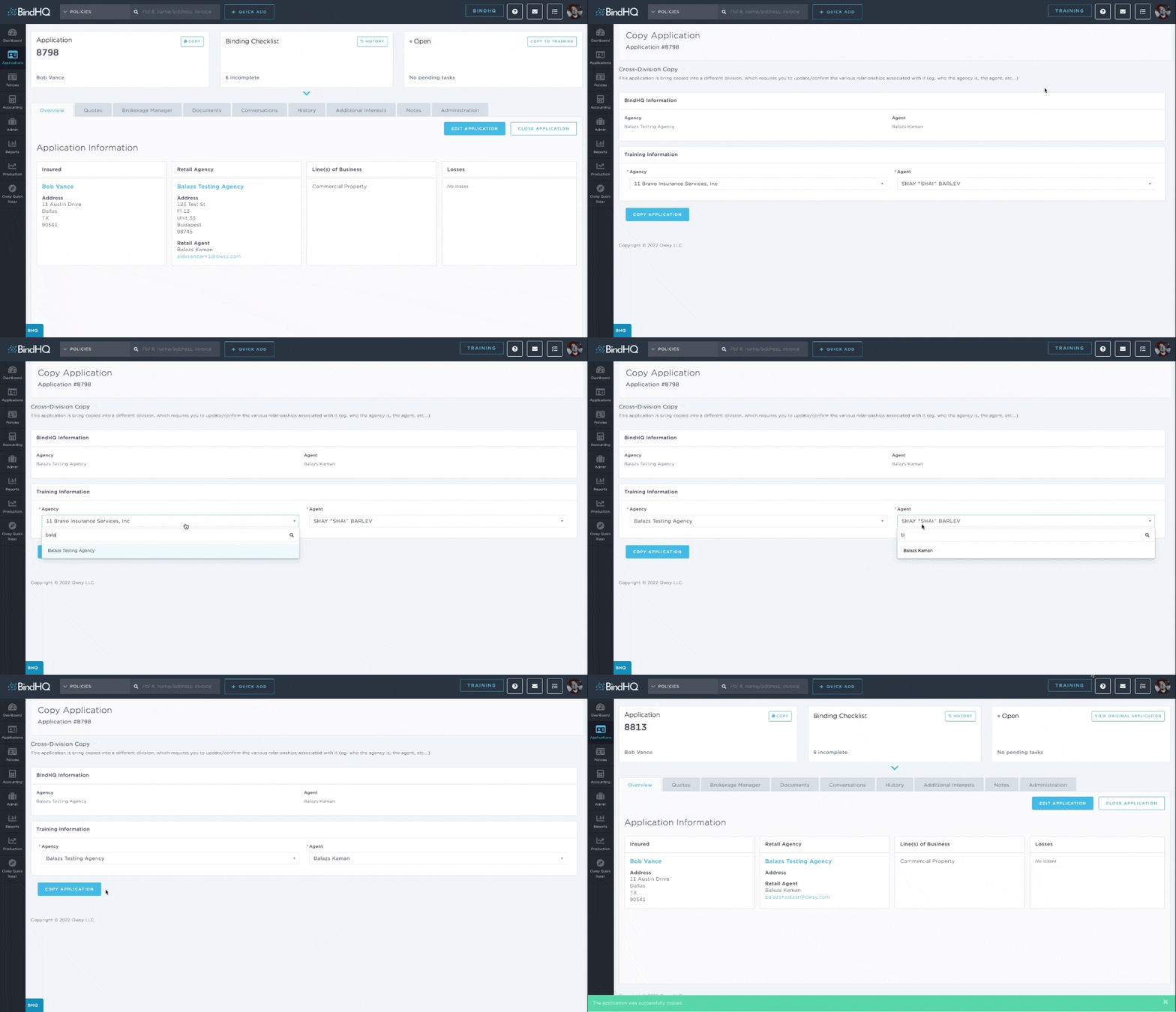
If the Cross Division Renewals feature is enabled that enables the Copy Application to New Division feature as well. If an application copy is initiated a Cross Division Copy screen comes up.
To start the Copy to the New Division press the "Copy to " button in the top right corner of the application.
The user needs to map the following:
- Retail Agency
- Retail Agent
- Marketing Company (for each quote)
- Carrier (for each quote)
between the divisions.
Once the selection is confirmed the mapping is saved, so next time the correct entities from the new, renewal division will default.
When copying an application with multiple quotes, if the quotes contain duplicate carriers/markets and those entities are mapped to different entities in the renewal division then only the last mapping is saved.
The application copy will retain:
- History
- Documents
- Quotes
The application copy in the new division will not retain:
- Document labels and folders
- Subjectivities
- History
- Conversations
- Quote templates (but quote information will copy over)
- Forms* (unless it is a Program managed in BindHQ)
There are several safeguards that need to be configured for a Cross Division Renewal:
-
The Producer needs to have access to both the Expiring and the Renewal divisions
- The user initiating the renewal needs to have access to both the Expiring and the Renewal divisions
-
The Carrier States need to been configured for the State of the Expiring Policy