Editing a PDF in BindHQ
Last updated: June 24, 2026
You can edit documents in BindHQ from within an Application or Policy on the Documents tab using the file editing tool.
The file editing tool allows users to:
Add text annotations
White-out or highlight file content
Apply image stamps
Merge/extract pages
Accessing the File Editor Tool
To access the file editor navigate to the Documents tab (on an application or policy), then click the Edit Files link that appears on the right hand side.

This will open the file editor listing all the documents on that application or policy that are available for editing.
Navigation
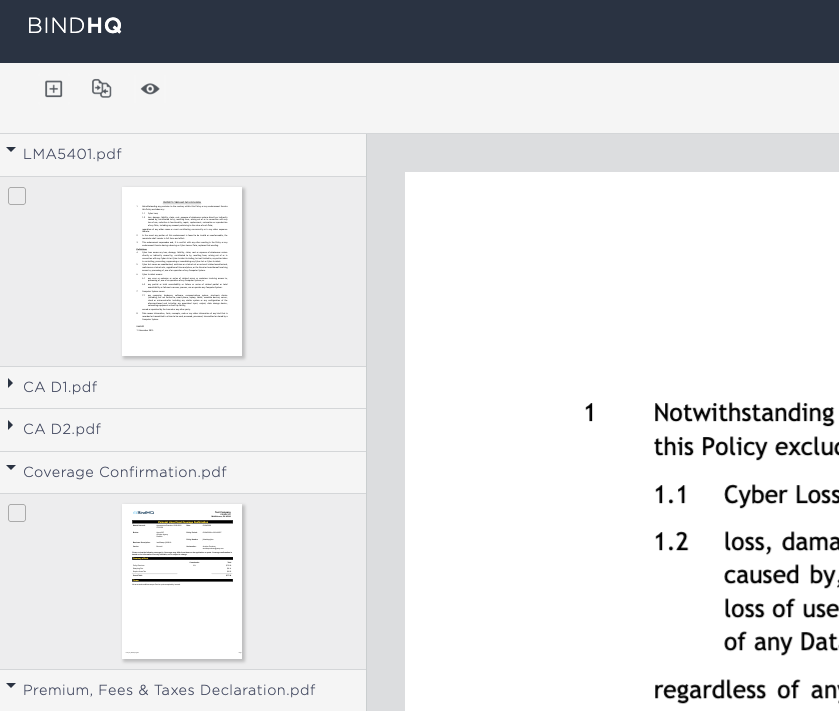
On the left, you'll see a list of all documents attached to this application or policy.
Clicking on a page will open a full-size preview of the document.
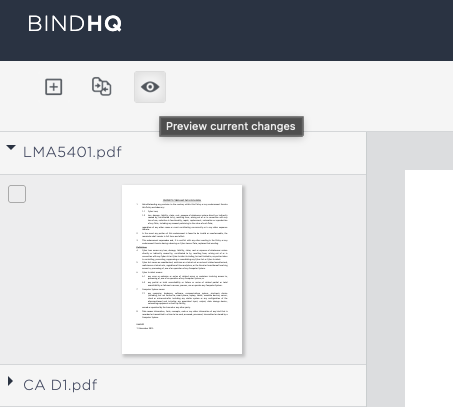
In the upper left corner, you'll see the add, merge and preview buttons.
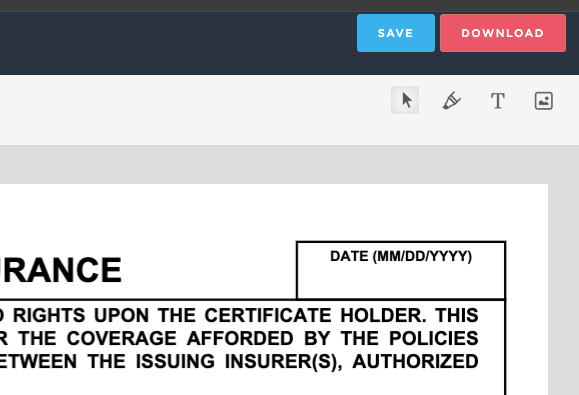
In the top right corner, you’ll find the Save and Download options, along with the PDF editing tools (described in a later section).
Controls
Upload New Documents
To add new documents, click the plus icon in the top-left-hand corner of the editor. You’ll be prompted to choose a file to upload.
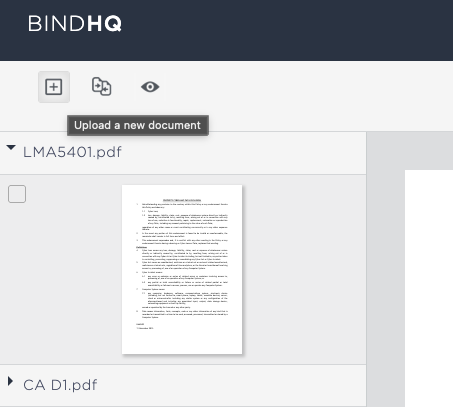
Please note: Files may take a few moments to upload. Once the pages appear on the left, you can click them to begin editing.
The new file will now also be available from the Documents tab of the application or policy you opened the file editor from.
Merge Pages
Next to the upload icon is the Merge Pages button. By checking the boxes next to multiple pages, you can click this button to merge them into a new document.
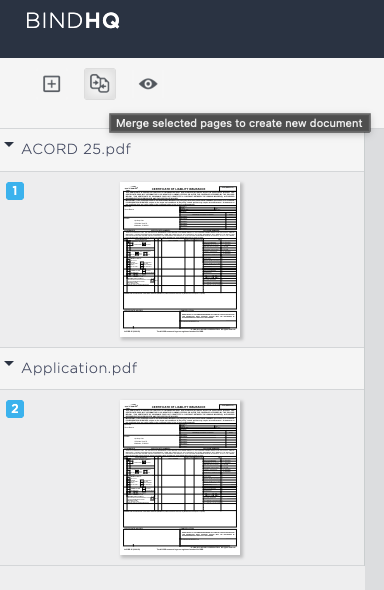
You’ll then be presented with a preview of the new document. Here, you can enter a name for the new file, then click Create Document to create it. The new document will appear in the left-hand files menu.
Preview Document
You can also use the preview button to preview the changes to the document prior to saving.
Editing Tools
The document editing tools are found in the upper-right corner of the document editor.

The Pointer
The Pointer tool allows you to select things that you’ve added to the document (eg, text or images), and then do things like move, resize and delete them.
Highlighter
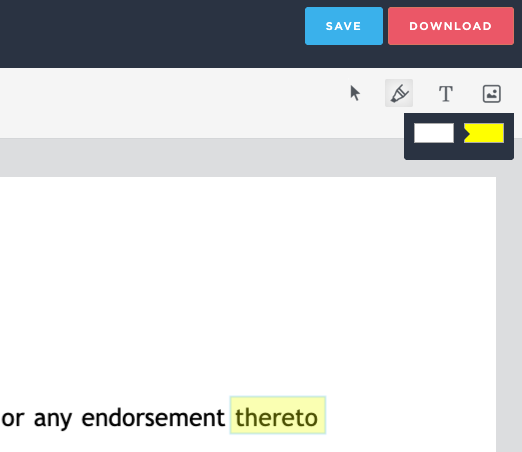
The highlighting tool allows you to add a transparent yellow box to highlight information or an opaque white box to hide information.
Clicking the tool expands the selection box where you can choose which option to use. From there, clicking and dragging on the document will add a box of the selected type.
Text
The Text tool allows you to add text to the document. Click the button to select this function, then click the location in the document where you'd like to add text. Once your text field has been added to the document, a size selector will pop up to allow you to adjust the text size to fit your document.
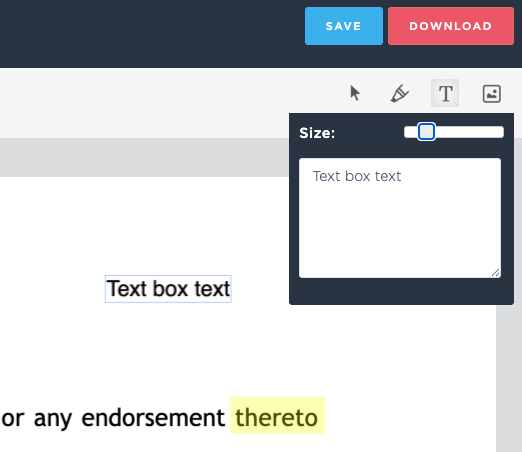
If you need to change the content of the text after you have finished, click the Text tool again, and then click on the text you would like to edit.
Images
The final tool is the image stamper. This tool allows you to access images that can be dragged and dropped onto the document. To use it, click on the icon and a list of recently used images will appear in the top-right corner.
To use an image, just drag and drop it from the list onto the document. You’ll then be able to use the Pointer tool to move and resize it.
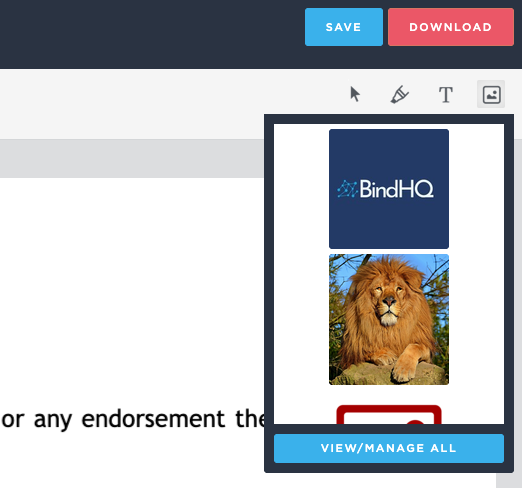
To add an image, click the View/Manage All button.
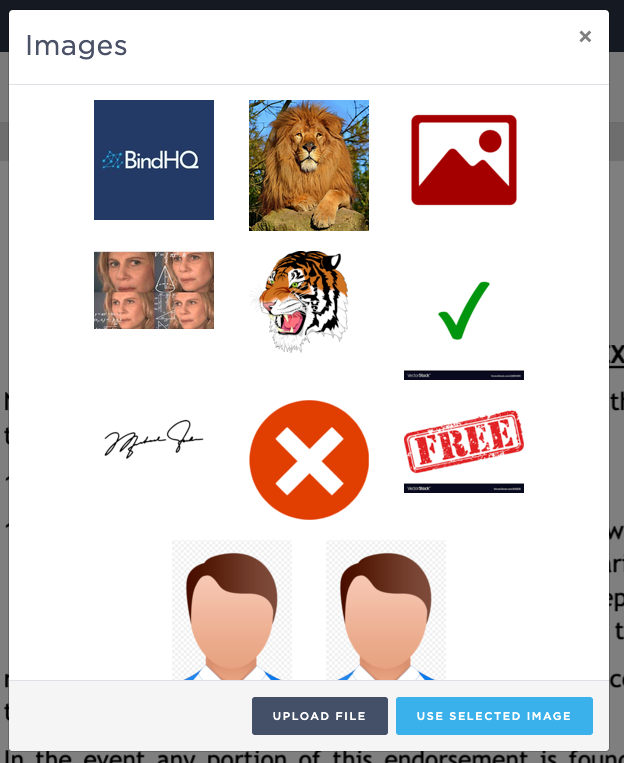
This will open a dialog where you can browse all the images available, and also use the Upload File button to add new ones.
Last Update: June 2026