Creating a Cancellation Endorsement
Last updated: July 7, 2025
Create a cancellation endorsement to cancel a policy
Applies to:
Producers / Underwriters
Assistants
This article explains how to create a Cancellation Endorsement to terminate a policy in BindHQ.
Note: Unlike regular endorsements, Cancellation Endorsements do not require you to issue Endorsement 0 first.
Sections
Start a Cancellation Endorsement
Fill in Endorsement Details
Calculate Return Premium
Save & Issue
Start a Cancellation Endorsement
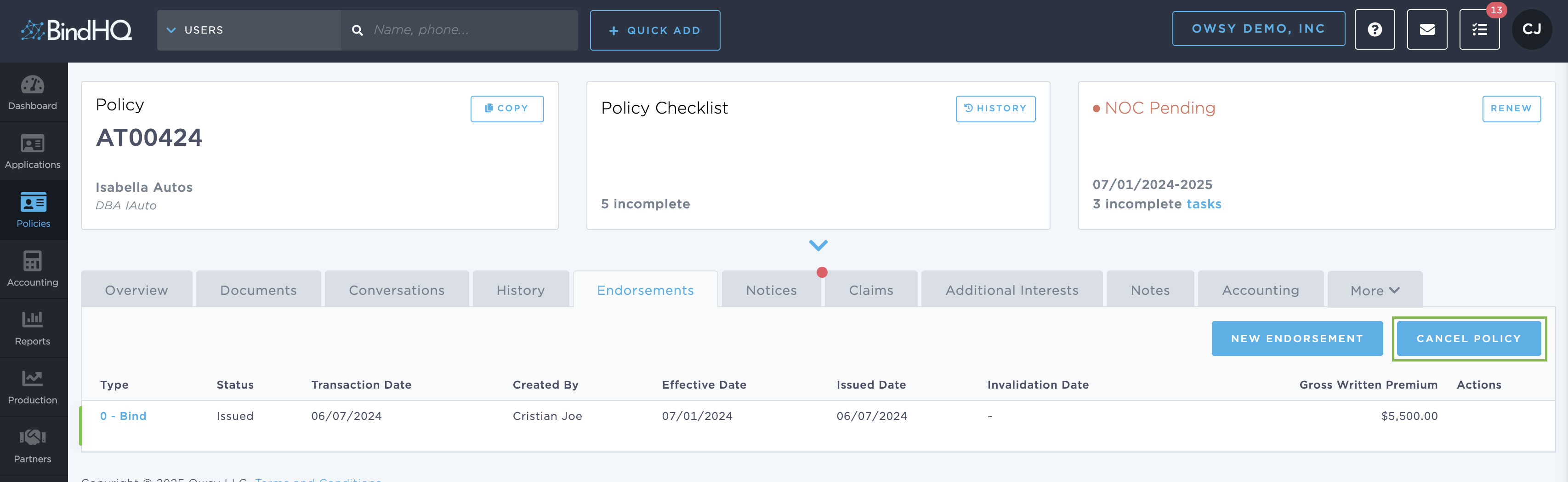
Navigate to a Policy screen.
Select the Endorsements tab.
Click Cancel Policy in the upper-right corner.
Fill in Endorsement Details
The Cancel Policy screen opens.
In the Cancellation Reason dropdown, choose the reason (e.g., Non-Payment).
In the Cancellation Description, explain the reason for cancellation.
Enter the Endorsement Effective Date.
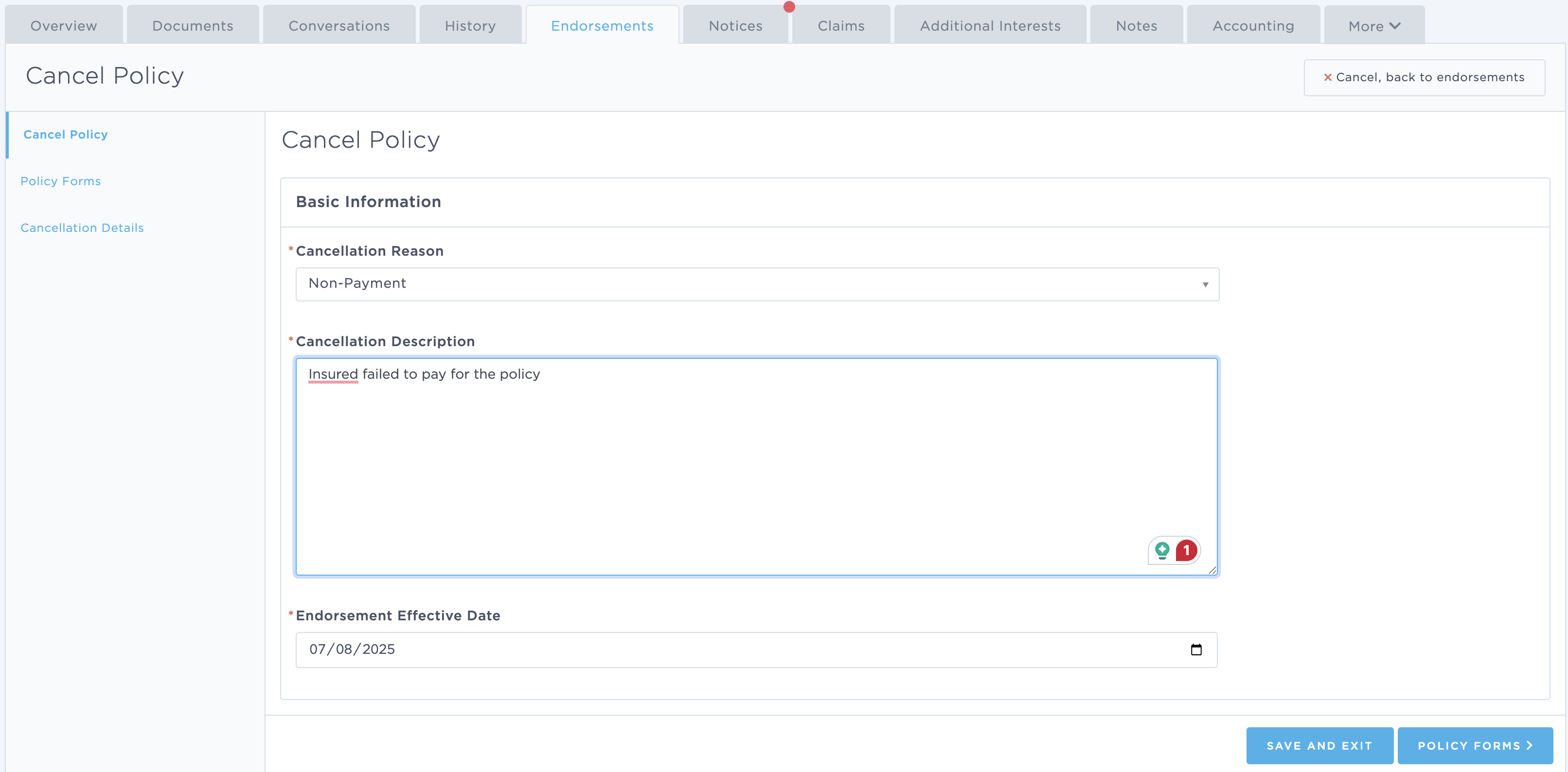
Click Save and Exit to move to premium calculation.
Calculate Return Premium
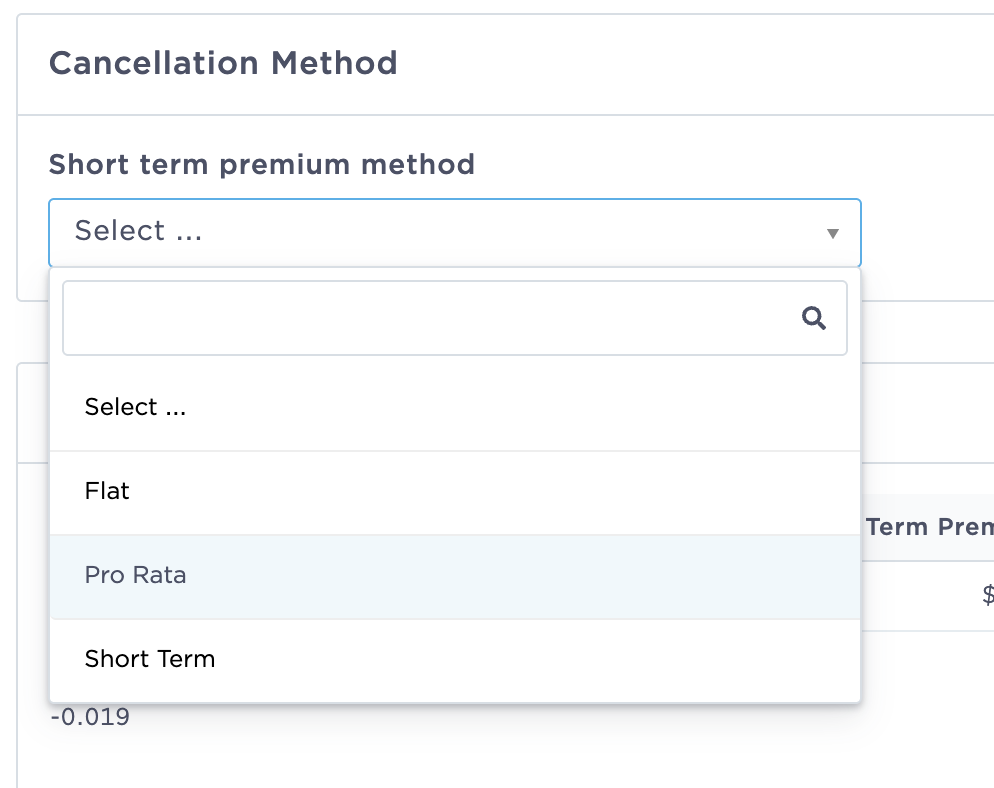
In the Cancellation Method section, choose the appropriate method:
Flat – return 100% of premium if no exposure occurred
Pro Rata – refund for unearned time
Short Term – pro rata minus admin fees
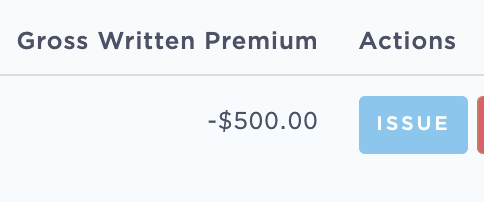
Enter refund values using negative numbers (e.g.,
-500.00) in the Premium section.
Taxes and fees will be auto-calculated.
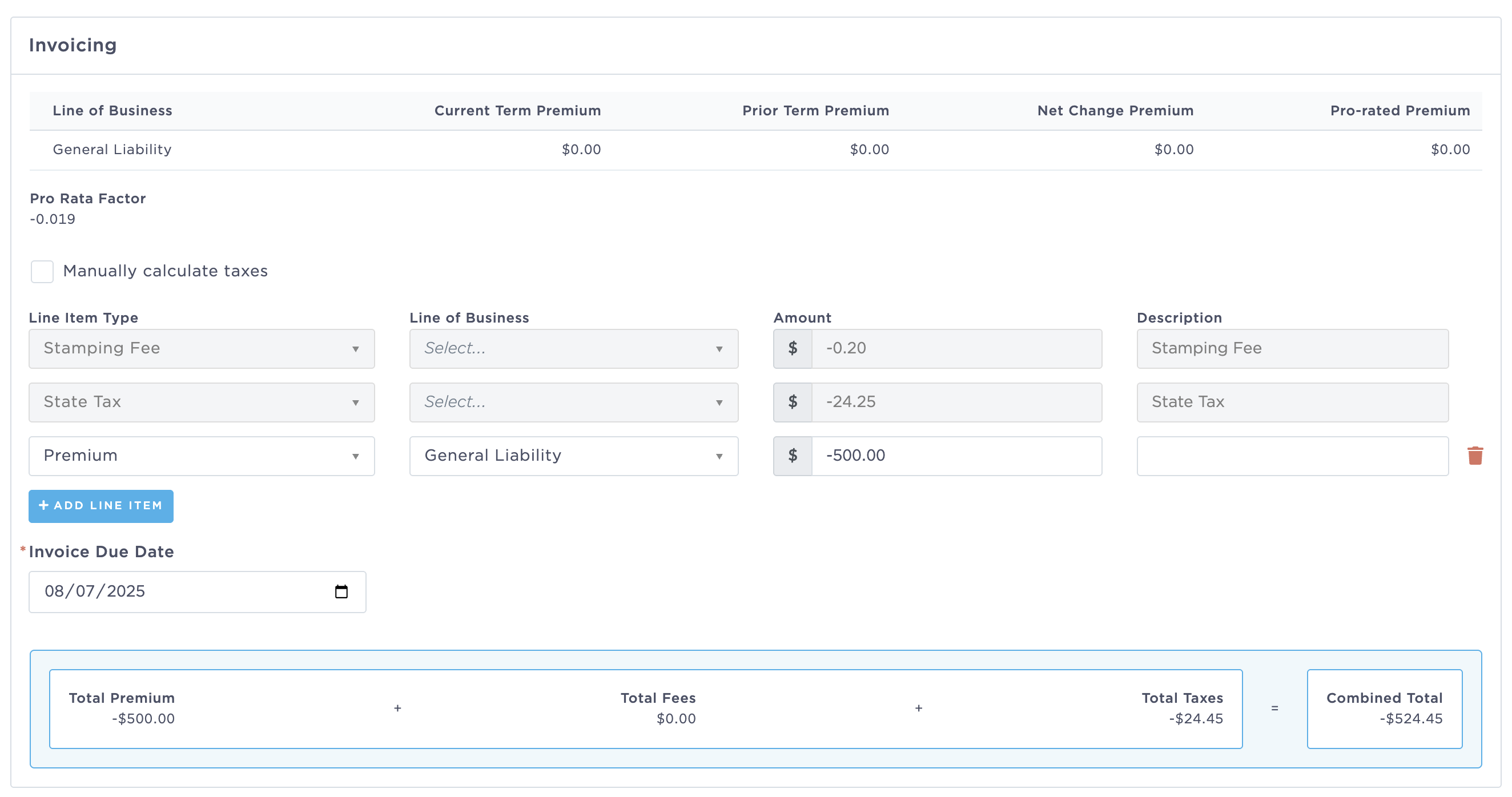
Note: Use a minus sign (–) to enter return premiums.
Save & Issue
Confirm the final refund total in the summary bar.
Click Issue to complete the Cancellation Endorsement.