Creating a Reinstatement Endorsement
Last updated: July 7, 2025
Creating a Reinstatement Endorsement allows Users to reinstate policies that were previously canceled
Applies to:
Producers / Underwriters
Assistants
This article explains how to create a Reinstatement Endorsement to reactivate a previously cancelled policy in BindHQ.
Note: A policy can only be reinstated if a Cancellation Endorsement was previously issued.
Sections
Locate the Reinstatement Option
Fill in Reinstatement Details
Enter Premium & Fees
Finalize and Issue
Locate the Reinstatement Option
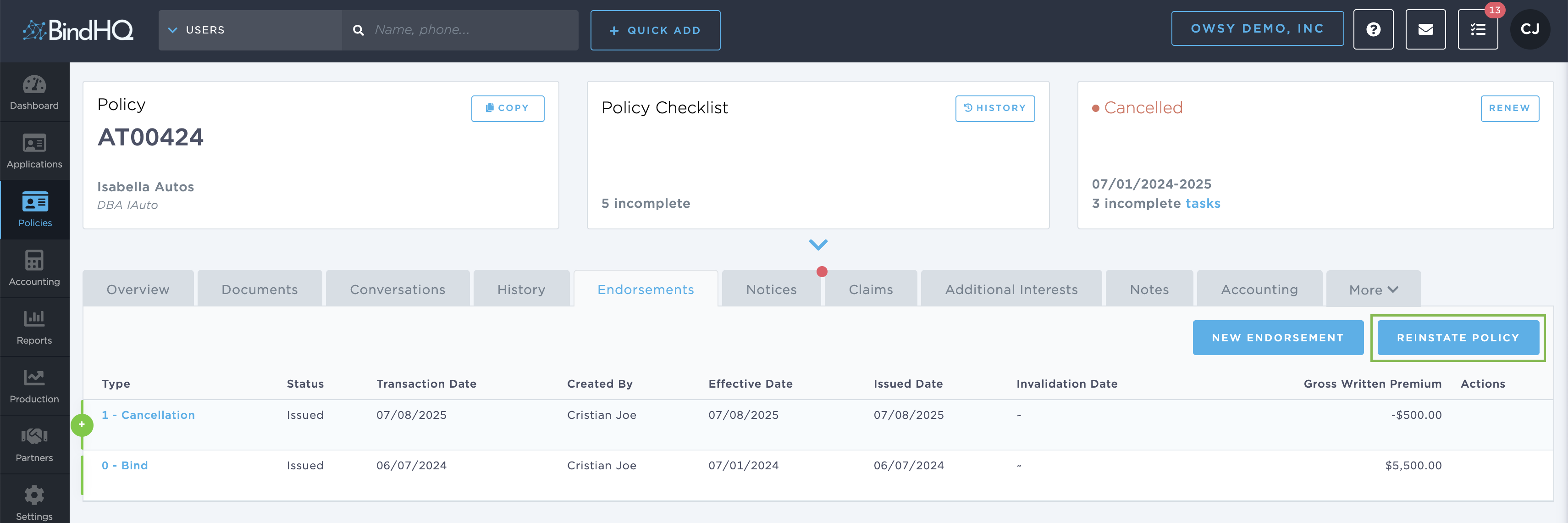
Go to the Policies tab and open the cancelled policy.
Click on the Endorsements tab.
If the policy was previously cancelled, you'll see the Reinstate Policy button.
Fill in Reinstatement Details
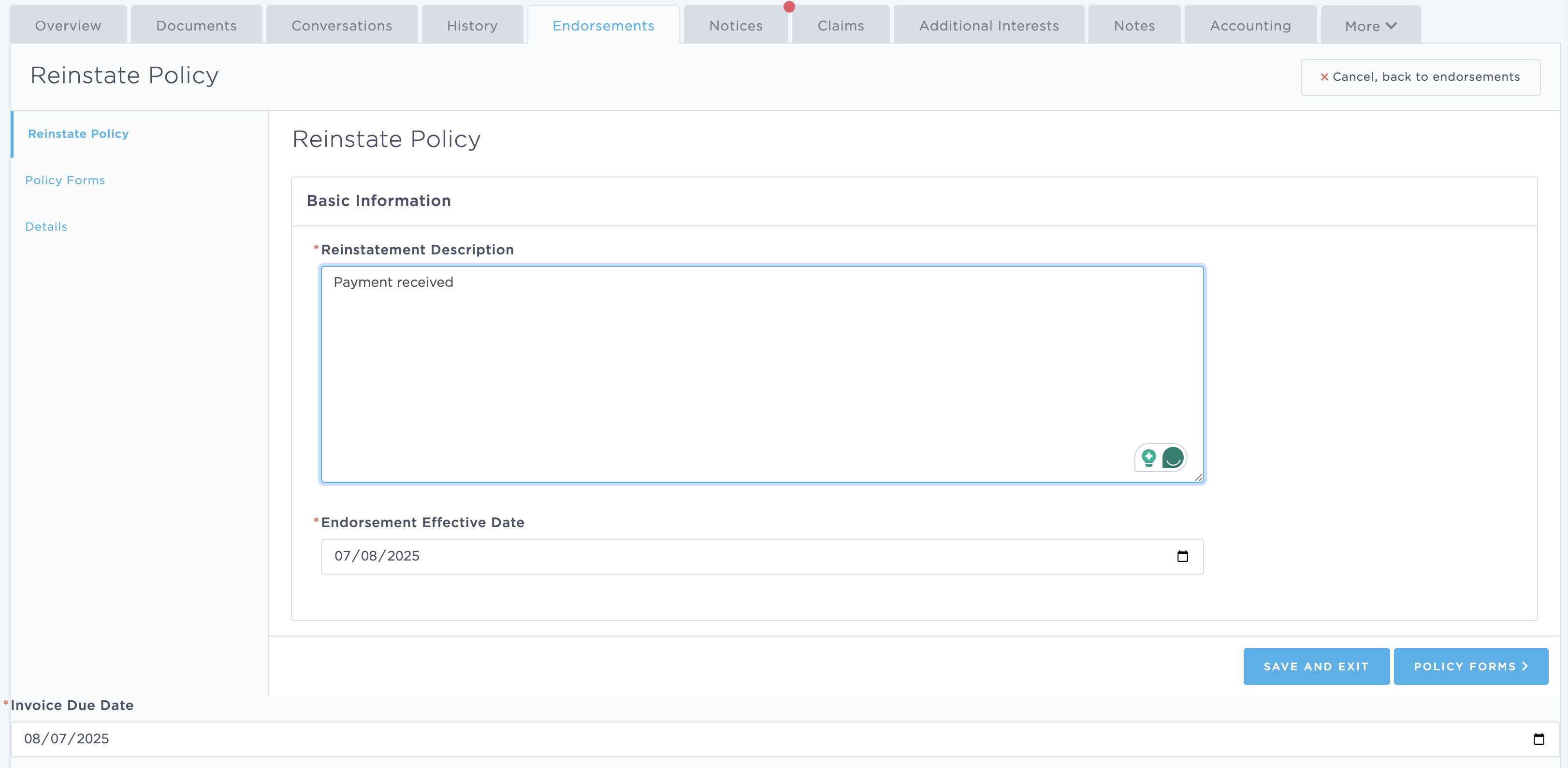
The Reinstate Policy form opens.
Enter a clear Reinstatement Description (e.g., "Payment received").
Set the Endorsement Effective Date.
Click Save and Exit to proceed.
Enter Premium & Fees
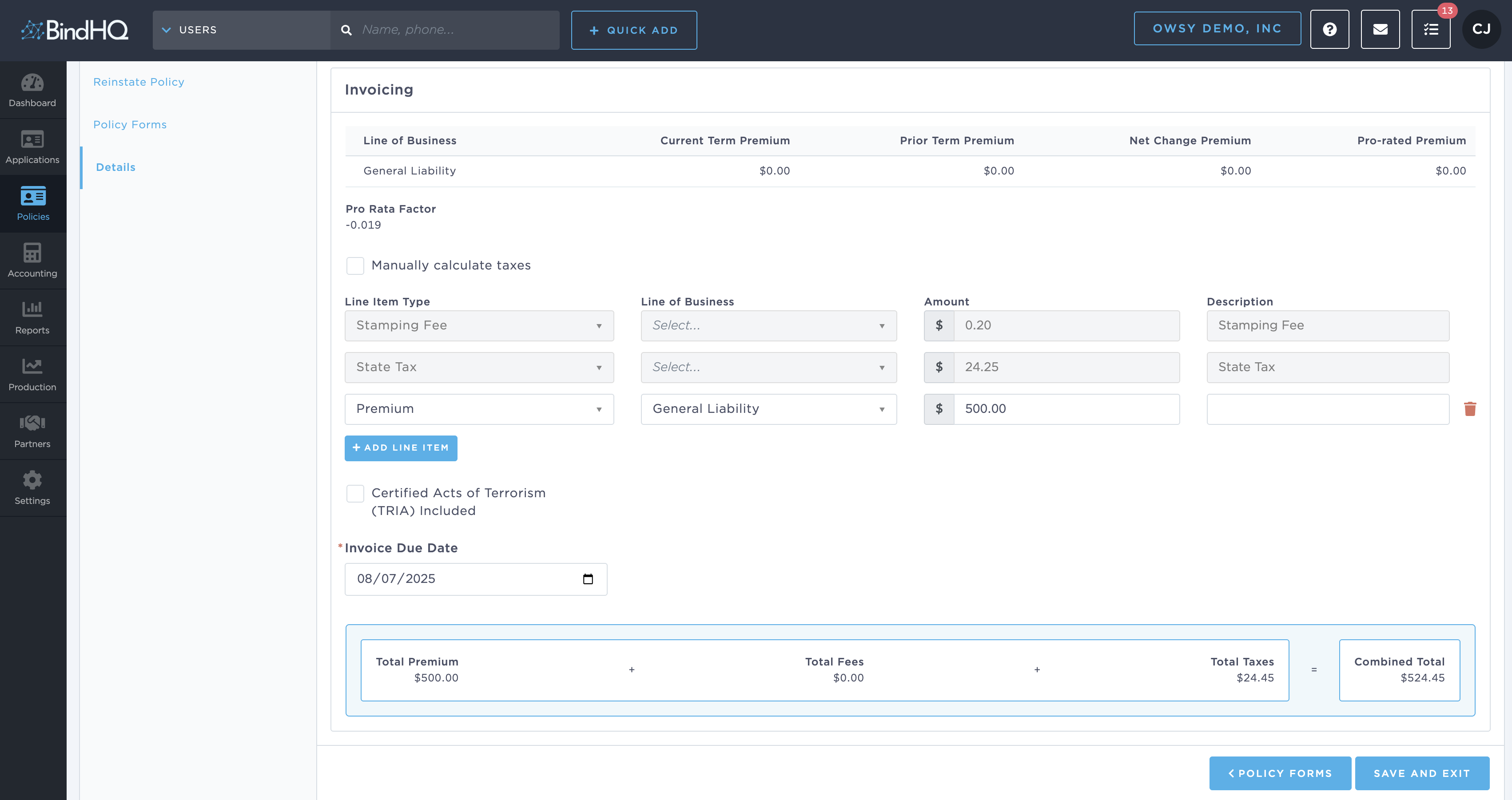
Go to the Details tab.
Use the + Add Line Item button to enter any premiums, taxes, or fees.
Premiums are entered as positive numbers.
Taxes and fees will auto-calculate if enabled.
Finalize and Issue
Review the Combined Total at the bottom.
Click Save and Exit or Policy Forms (If a Program) to preview or finalize.
Once ready, return to the Endorsements tab and click Issue to complete.
After the Endorsement is issued, the Policy’s status is updated to Issued and the Endorsement document is auto-generated under the Documents tab.