Creating Programs in BindHQ
Last updated: August 28, 2026
This article explains how to create Programs within BindHQ.
Administrators and Compliance can create, edit and delete
Programs are required when quoting to help facilitate more efficient, accurate binding. Use programs to define parameters like applicable products and states, and add defaults like line items for commission and fees.
Create a New Program
Navigate to Settings > Quotes & Programs and under Programs select Browse, view & edit programs.
Click New Program.
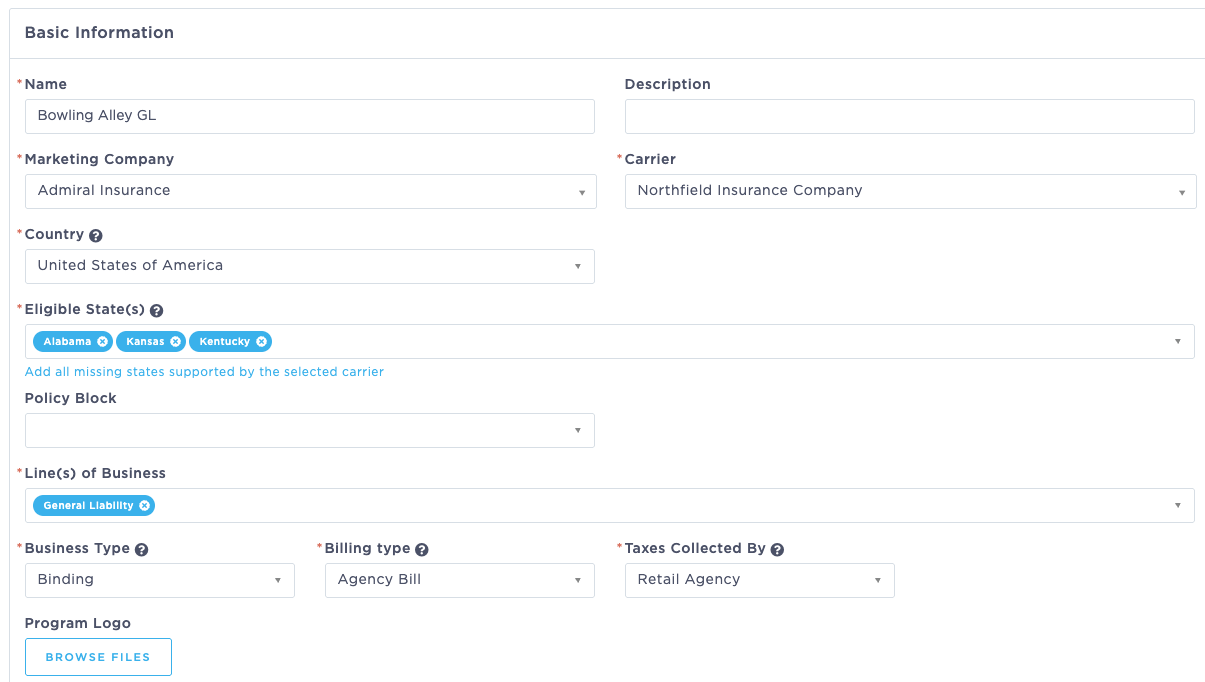
Fill in the Basic Information
Name: Enter an easily identifiable name for the program. Codes can be based on your organization’s internal naming/numbering scheme.
Ensure that program codes help users distinguish between multiple programs in case they are presented with multiple options when quoting. You may want to include an internal reference number, the industry, and the line of business in your codes (for example, 636 - clubgl).Name: Internal program name
Description: Enter a brief description of the program.
Marketing Company and Carrier: Select the marketing and insurance companies associated with the program.
Eligible States: The states available will be restricted based on the marketing company and carrier settings in your system. You can use the provided hyperlink to add all missing states supported by the selected carrier.
Policy Block (optional): See this article for instructions on adding policy number blocks.
Lines of Business: Select the line of business this program will apply to.
Business Type: Select Binding or Brokerage.
Billing Type: Select Agency Bill, Direct Bill, or Insured Direct Bill.
Taxes Collected By: Select In-House, Marketing Company, or Retail Agent.
Program Logo: Note that this logo will be added to program documents. If no logo is added, the default company logo will be used.
Fill in Additional information
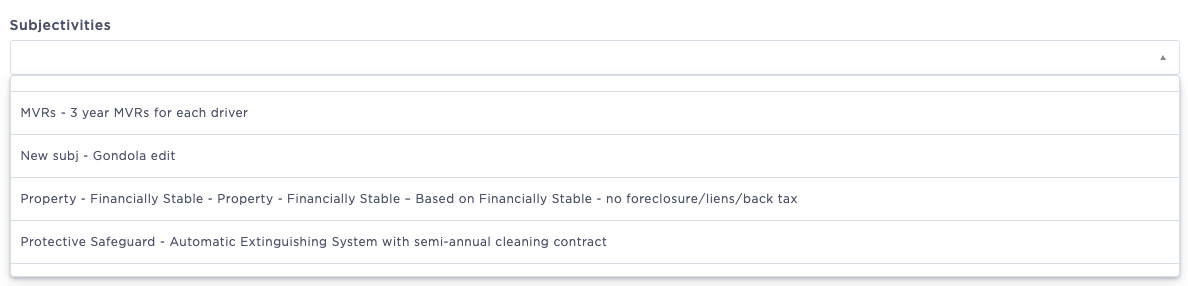
Subjectivities: Select any default conditions associated with the program. You can find this option by going to the "Administration" tab, and then selecting "Taxes & Subjectivities" in BindHQ.
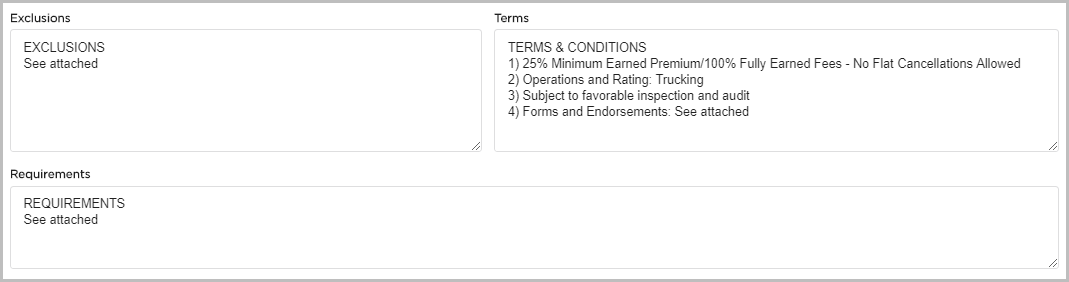
Exclusions, Terms, and Requirements: Enter See attached if you are attaching the form schedule, or list out the terms and conditions.
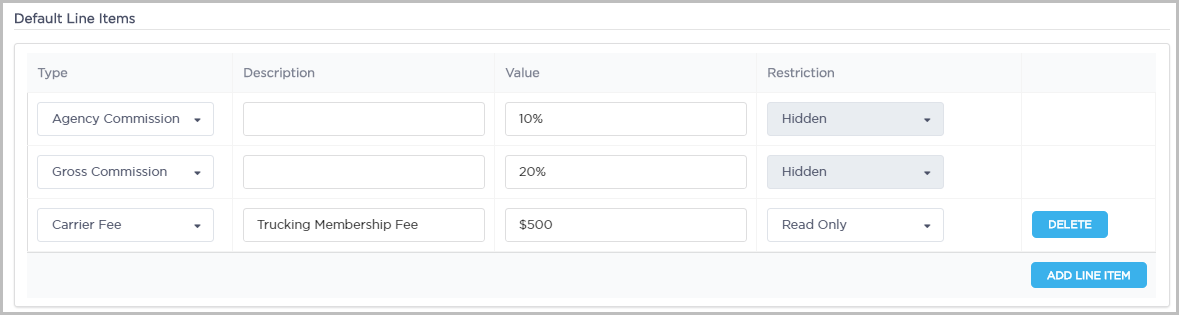
Default Line Items: Add commissions, taxes, fees, or premiums and their values. The values are dollar amounts or percentages depending on the selection. You can set user permissions on each line to be editable, read only, or hidden.
Note: Commissions should always be set to Hidden.
Rates: Enter the minimum earned premium percentage, if applicable, as well as Gross Commission amount and Retail Agency Commission.

Inactive: Check the checkbox to change the status of the program to inactive. This can also be used if you're not ready to release the program for general use yet.
Click Save
Last Updated August 2026