Creating, Editing & Viewing a Quote
Last updated: July 28, 2026
How to create new quotes and edit and view existing quotes within BindHQ.
There are four parts to this article
Creating a new quote
Verifying or Editing Quote Details
Changing an Agent, Broker or Program on a Quote
Viewing a Quote
Creating a New Quote
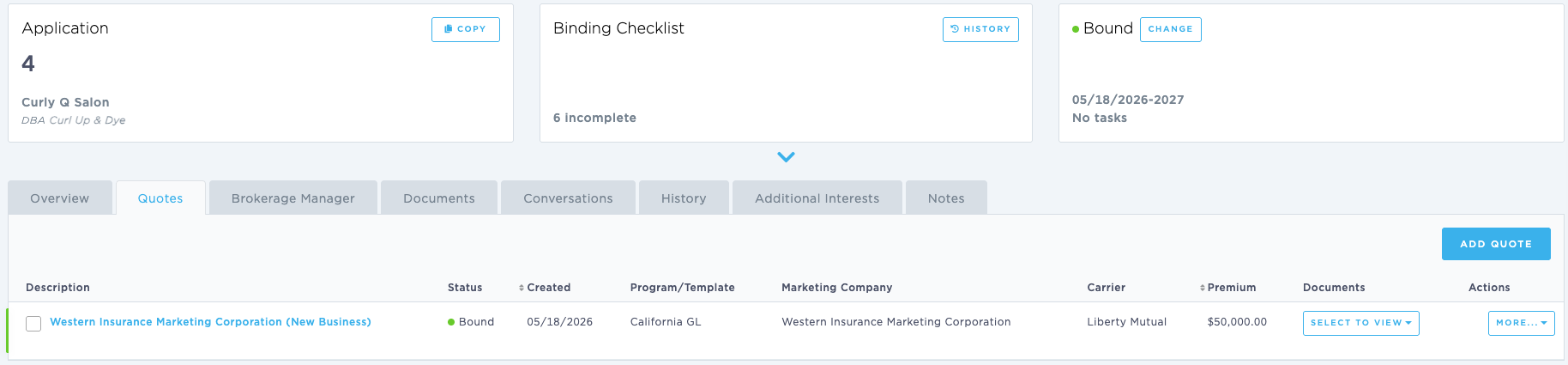
Navigate to the Application and select the Quotes tab.
Any existing Quotes for the Application are displayed in the Quotes list.
On the right, click Add Quote.
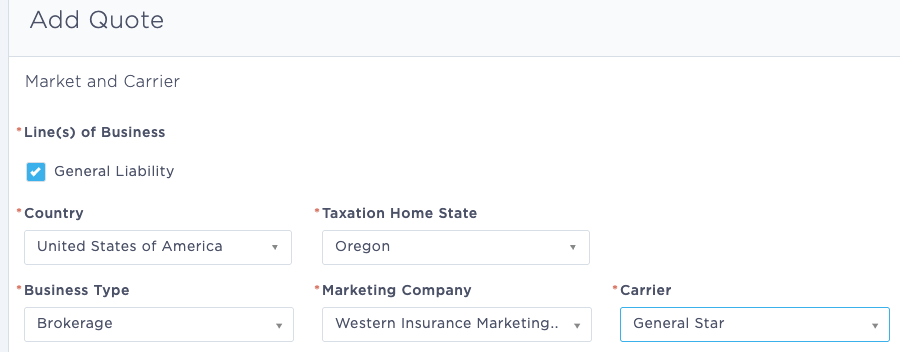
This will open the Add Quote interface, which allows you to select basic market and carrier information for your quote including:Which lines of business to include in your quote - via the Line of Business check boxes.
Country
Taxation Home State (this instructs the system which state to use when calculating taxes, and will not be available if a country other than the United States has been selected)
Business Type (Binding or Brokerage)
Marketing Company (from your available list)
Carrier (from the list available with the selected marketing company)
Once you've made your selection, any applicable programs will appear as Quote Templates. The program includes defaults for endorsements, exclusions, terms, requirements, and fees.
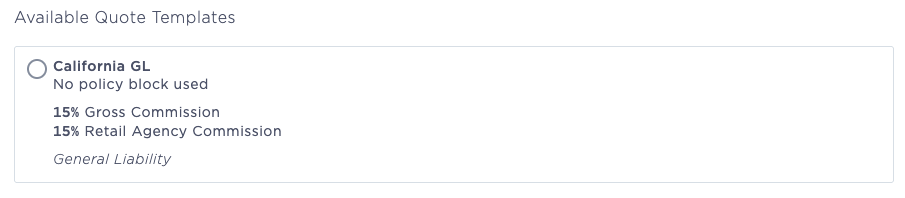
If needed, admins can create a program to add new quote templates.
Note: If you select Brokerage as the Type of Business, you are not required to select a Program.
Click in the lower right to Save and Exit or proceed to the Line of Business:

Verifying or Editing the Quote Details
Review or edit the information on each tab of the Quote:
Risk Information: Add insured details, additional interests, and losses.
Locations: Add the location(s) to be covered.
Coverages: Add classifications, quote limits, deductibles, and additional coverages. This tab is dynamic based on the selected coverages.
Forms: Select any forms that apply to the Quote if applicable.
Quote Summary: Enter additional risk details, rates, taxes and fees, endorsements and exclusions, terms, and requirements.
When your quote is complete, proceed to bind the quote.
Changing an Agent, Broker, or Program on a Quote
When a quote has not yet been bound, you can make changes to the agent, broker or program by editing the application and creating a new quote.
Viewing Quote Documents
Navigate to an Application and select the Quotes tab.
Under the Documents column, click the Select to view drop-down on the Quote you want to view.

Last Updated: July 2026