Tax reports: SLA By State, Tax Report
Last updated: July 5, 2025
Description of the reports used to file taxes to various entities
Applies to:
- Managers
- Accounting
Last Updated: January 2021
This article explains how to access SLA By State, Tax Report
The SLA By State and Tax Report reports can be used to file taxes to various entities.
Each of the 3 reports works slightly differently as outlined below.
If you have the right user permissions, you can access the tax reports via:
Accessing Reports in the Sidebar Navigation SLA Reports
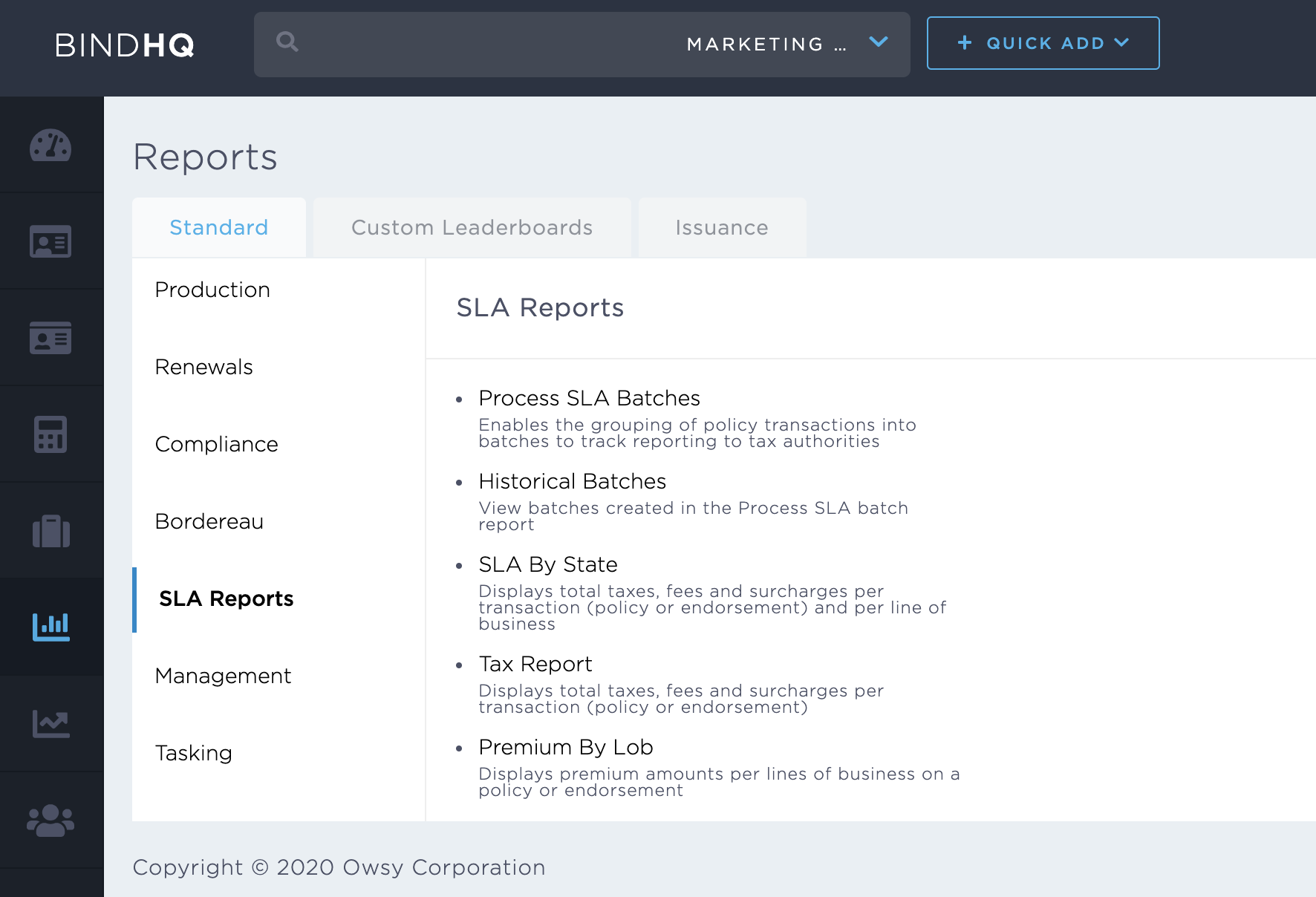
SLA By State
The SLA By State report displays total taxes, fees and surcharges per transaction (policy or endorsement) and per line of business.
- The SLA By State report lists only non admitted policies,
- The SLA By State report includes voided/invalidated invoices. Invalidated endorsements will create back out invoices that negate the endorsement invoice with the same invoice number.
- The SLA By State report includes non monied endorsements.
Tax Report
Displays total taxes, fees and surcharges per transaction (policy or endorsement). The report is NOT broken down by Line of Business.
- The Tax report lists only non admitted policies
- The Tax report includes voided/invalidated invoices. Invalidated endorsements will create back out invoices that negate the endorsement invoice with the same invoice number.
- The Tax report includes non monied endorsements
Filtering
All three reports can by filtered by:
- Date Filter Type: choose between Accounting and Transaction dates. Accounting date is the latter of the transaction or the effective date. Transaction date is the date of the transaction entered into the system.
- From: Starting day of the date range (transactions are included)
- To: Last day of the date range (transactions are included)
- State: This filter might be used to filter transactions by one or multiple States
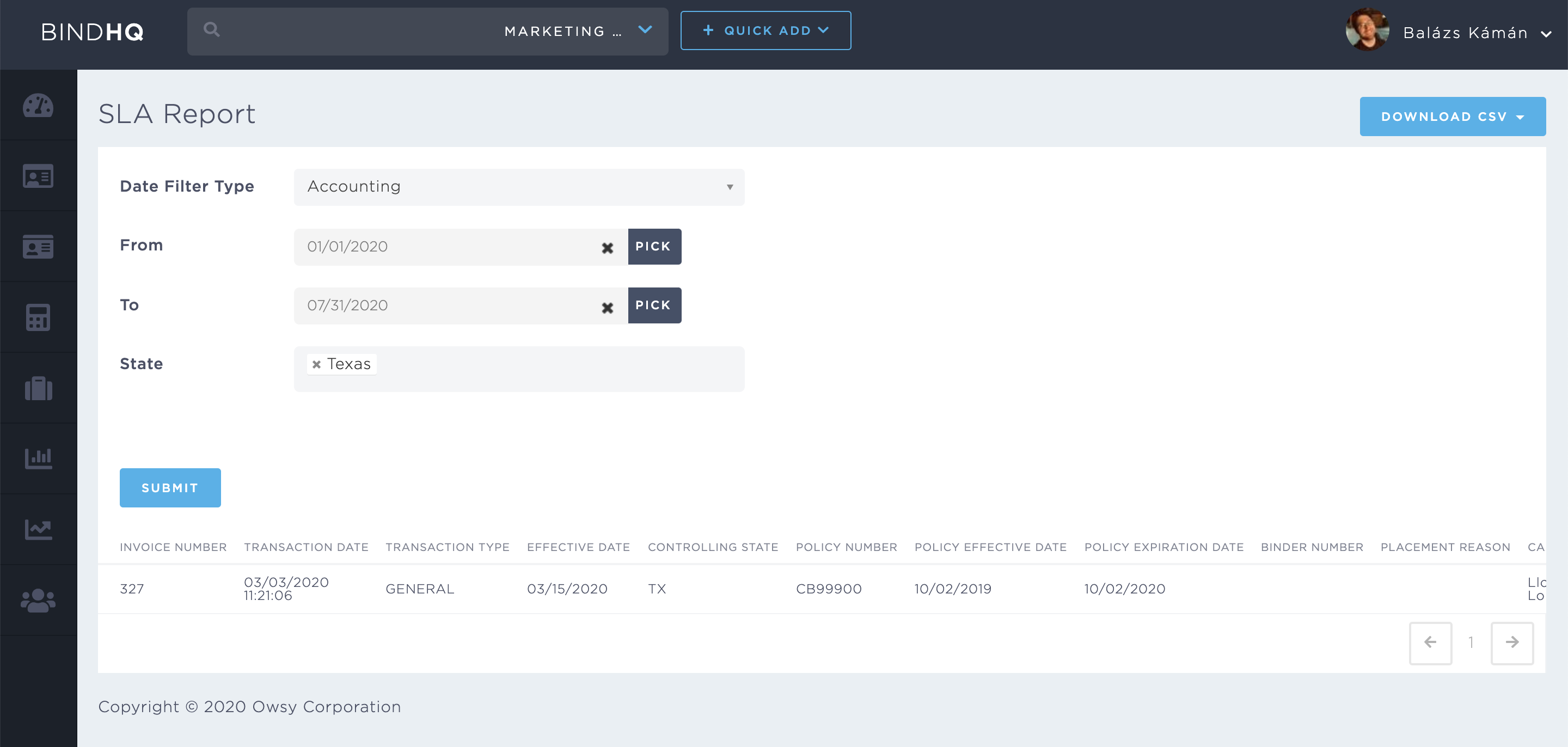
Data points
The following fields are defined in the three reports:
-
INVOICE NUMBER:
The invoice number of the transaction
-
TRANSACTION DATE
Date of the transaction
-
TRANSACTION TYPE
Type of the transaction (BIND, GENERAL, CANCELLATION, etc.)
-
EFFECTIVE DATE
Effective date of the transaction
-
CONTROLLING STATE
Controlling state of the policy. Even if the policy covers properties from multiple states there will be controlling state that is recorded in BindHQ
-
POLICY NUMBER
Policy number of the policy as of the transaction day
-
POLICY EFFECTIVE DATE
Effective date of the policy, the first day the coverage is active. It will be the same as the Effective Date for original bind transactions, might differ from that data point for Endorsements, Cancellations, Reinstatements
-
POLICY EXPIRATION DATE
Expiration date of the policy
-
BINDER NUMBER
The binder number associated to the policy
-
PLACEMENT REASON
Some states might require filing the placement reason. This data can be entered during the binding workflow.
-
CARRIER NAME
Name of the carrier
-
CARRIER NAIC
NAIC number of the carrier
-
AGENCY NAME
Name of the Retail Agency at time of transaction
-
INSURED NAME
Name on the policy as of the time of bind
-
INSURED ADDRESS 1
Primary risk location address. If there are multiple addresses on the policy the risk address of the first location is shown
-
INSURED ADDRESS 2
Primary risk location address. If there are multiple addresses on the policy the risk address of the first location is shown
-
INSURED CITY
Primary risk location City. If there are multiple addresses on the policy the risk city of the first location is shown
-
INSURED STATE
Primary risk location State. If there are multiple addresses on the policy the risk state of the first location is shown
-
INSURED ZIP
Primary risk location ZIP code. If there are multiple addresses on the policy the risk address of the first location is shown
-
POLICY TYPE
NEW or RENEWAL
-
OPERATIONS DESCRIPTION
Some states require filing of the operations description of the insured. This info is entered during the underwriting workflow
-
COVERAGE LIMITS
Sum of all limits on the policy.
-
DEDUCTIBLE
The maximum amount of deductible amount on the policy
-
LOB
List the Line of Business values
-
PREMIUM
Billed premium on the transaction
In the PREMIUM BY LOB report it is broken down by LOB.
in the SLA BY STATE report it is broken down by LOB.
-
RETURN PREMIUM
Return premium on the transaction
In the PREMIUM BY LOB report it is broken down by LOB
-
AGENT FEE
Agent fee on the transaction if applicable
-
CARRIER FEE
Carrier Fee on the transaction if applicable
-
MGA FEE
MGA Fee on the transaction if applicable
-
CARRIER INSPECTION FEE
Carrier Inspection Fee on the transaction if applicable
-
INSPECTION FEE
Inspection fee on the transaction if applicable
-
CLEARING HOUSE
Clearing house fee on the transaction if applicable
-
EMP A
EMP A fee on the transaction if applicable
-
FIRE MARSHALL TAX
Fire Marshall Tax on the transaction if applicable
-
HEALTHY HOMES
Healthy homes fund fee on the transaction if applicable
-
STAMPING FEE
Stamping fee on the transaction if applicable
-
STATE TAX
State tax on the transaction if applicable
-
WILL COMPLY FEE
Will comply fee on the transaction if applicable
-
WIND POOL FEE
Wind pool fee on the transaction if applicable
Downloading data as CSV
By clicking on the Download as CSV button on the top right the data can be downloaded for further manipulation.
Converting a CSV to an EXCEL file
Use the text import wizard in Excel to convert the CSV to an excel file. It is advised to select the cell format as 'text' to keep the ZIP codes starting with a 0 as their original value.
- Data From Text
- Select CSV Import
- Choose 'Delimited' file type Next
- Select 'Comma' only as the delimiter Next
- Select 'ZIP Code' column and set 'Text' as column data format Finish