Configuring Policy Number Blocks (New UI)
Last updated: June 30, 2025
Applies to:
Administration
Last Updated:
June 2025
This article explains how Administrators can configure policy number blocks using the updated BindHQ interface. This includes:
Adding a Policy Block to a Carrier
Creating Policy Numbers from that block
Deleting unused numbers
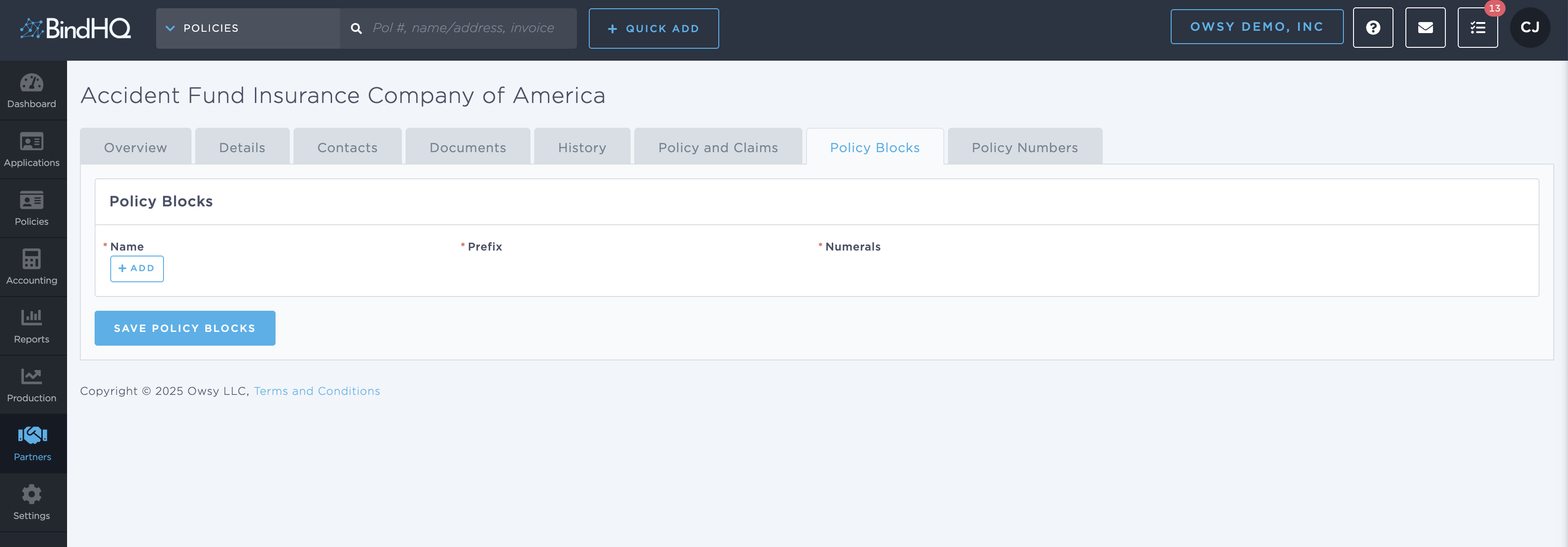
1. Add Policy Number Blocks
Navigate to the Partners section and select a carrier.
Go to the Policy Blocks tab.
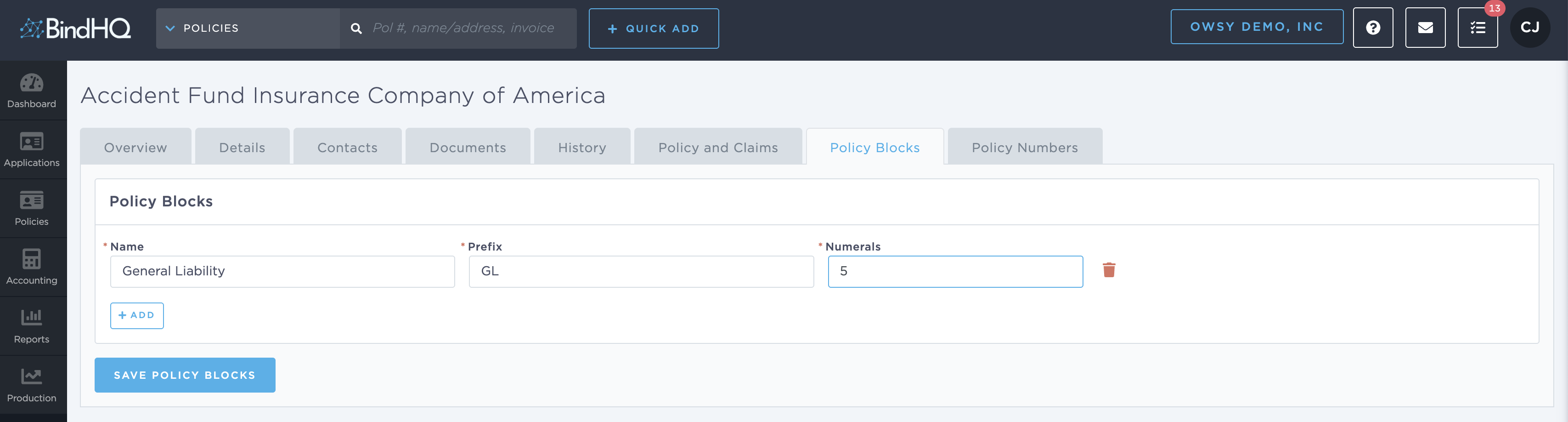
Click + Add to create a new policy block.
Enter the following:
Name: Internal name of the program (e.g., General Liability).
Prefix: Short code to begin the policy number (e.g., GL).
Numerals: Number of digits following the prefix (e.g., 5 results in numbers like GL00001).
Click Save Policy Blocks.
2. Create Policy Numbers
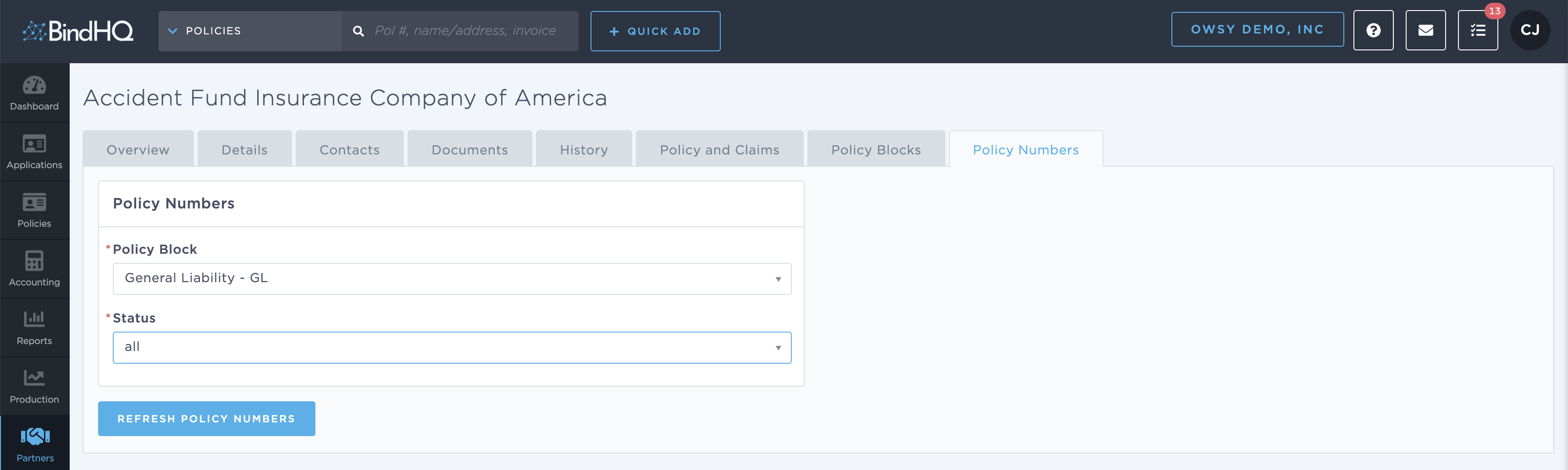
After saving your block, go to the Policy Numbers tab.
Select the Policy Block you just created.
Choose Status: all or Unused to filter results.
Click Refresh Policy Numbers.
Enter the From and To range for the numbers to be created (e.g., 0 to 99).
Click Create Policy Numbers.
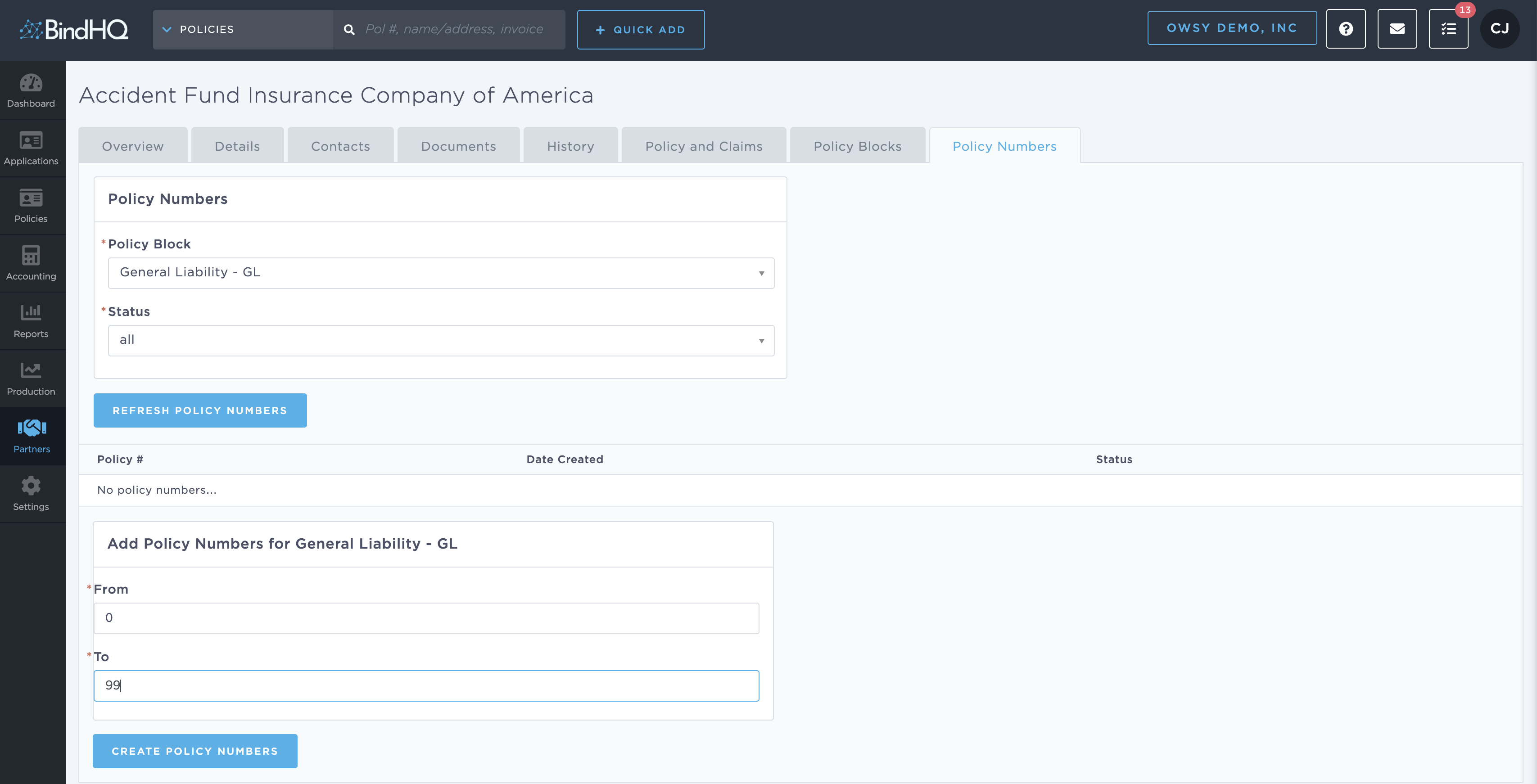
🔎 Note: Numbers are automatically generated using the defined prefix and digit length. BindHQ supports blocks up to 1,000 numbers at a time.
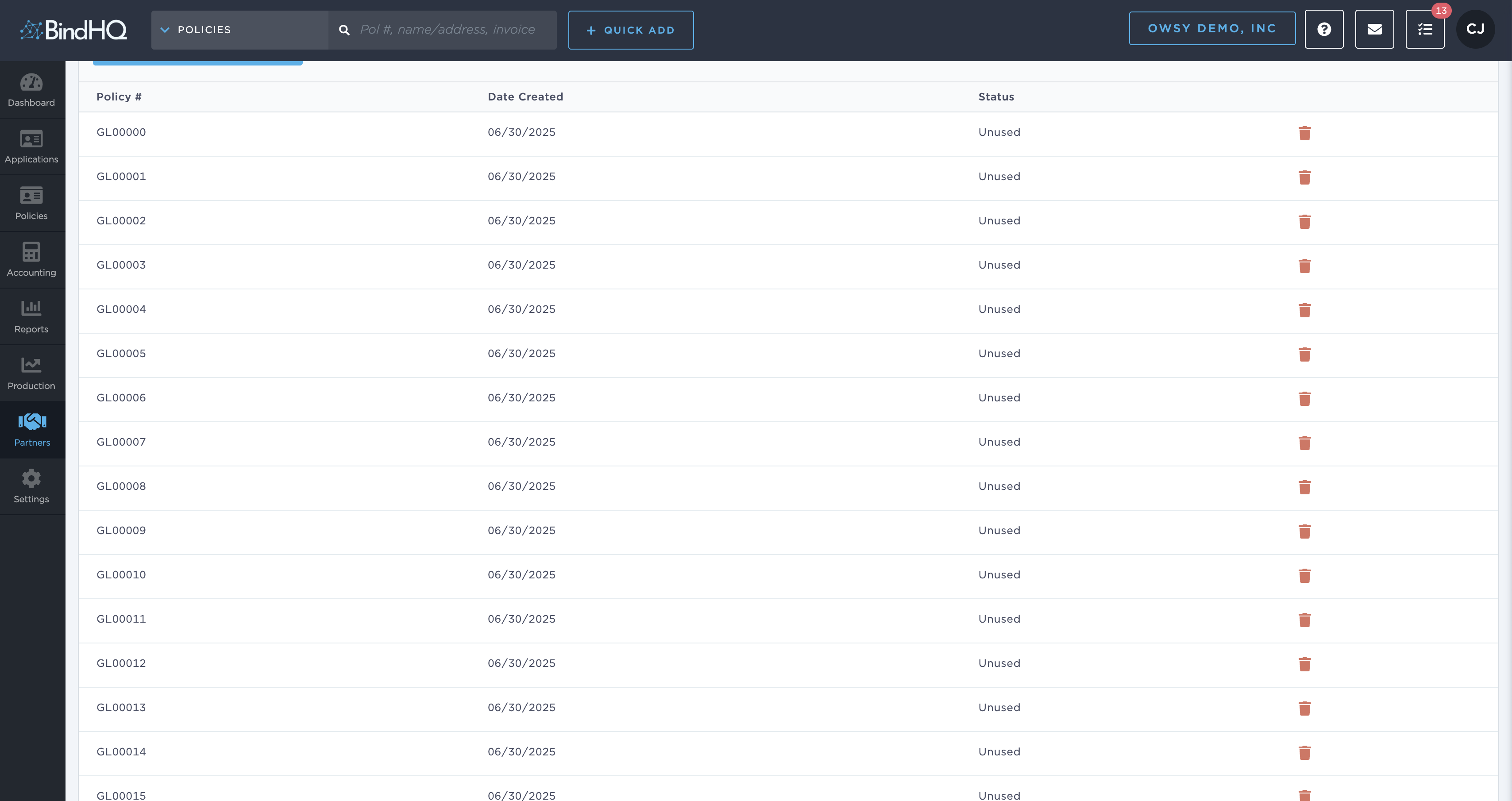
3. Delete an Unused Policy Number
You may only delete numbers in Unused status:
In the Policy Numbers tab, filter by Status: Unused.
Click Refresh Policy Numbers.
Find the number to remove and click the red trash icon beside it.
Confirm deletion.