Using the BindHQ Renewals Manager
Last updated: May 26, 2026
Using the Manage Renewals feature: Renewing Policies and Sending Renewal Emails
The Renewals Manager allows users to send out renewal emails with variable email body and attachments from a single screen, and to create renewal applications without any further manual intervention, saving huge amounts of time for the users doing this work.
This article explains how to:
Access the renewals manager
Renew a collection of policies
Send renewal emails about a collection of policies
Renew & Send renewal emails about a collection of policies in one step
Accessing the Renewals Manager
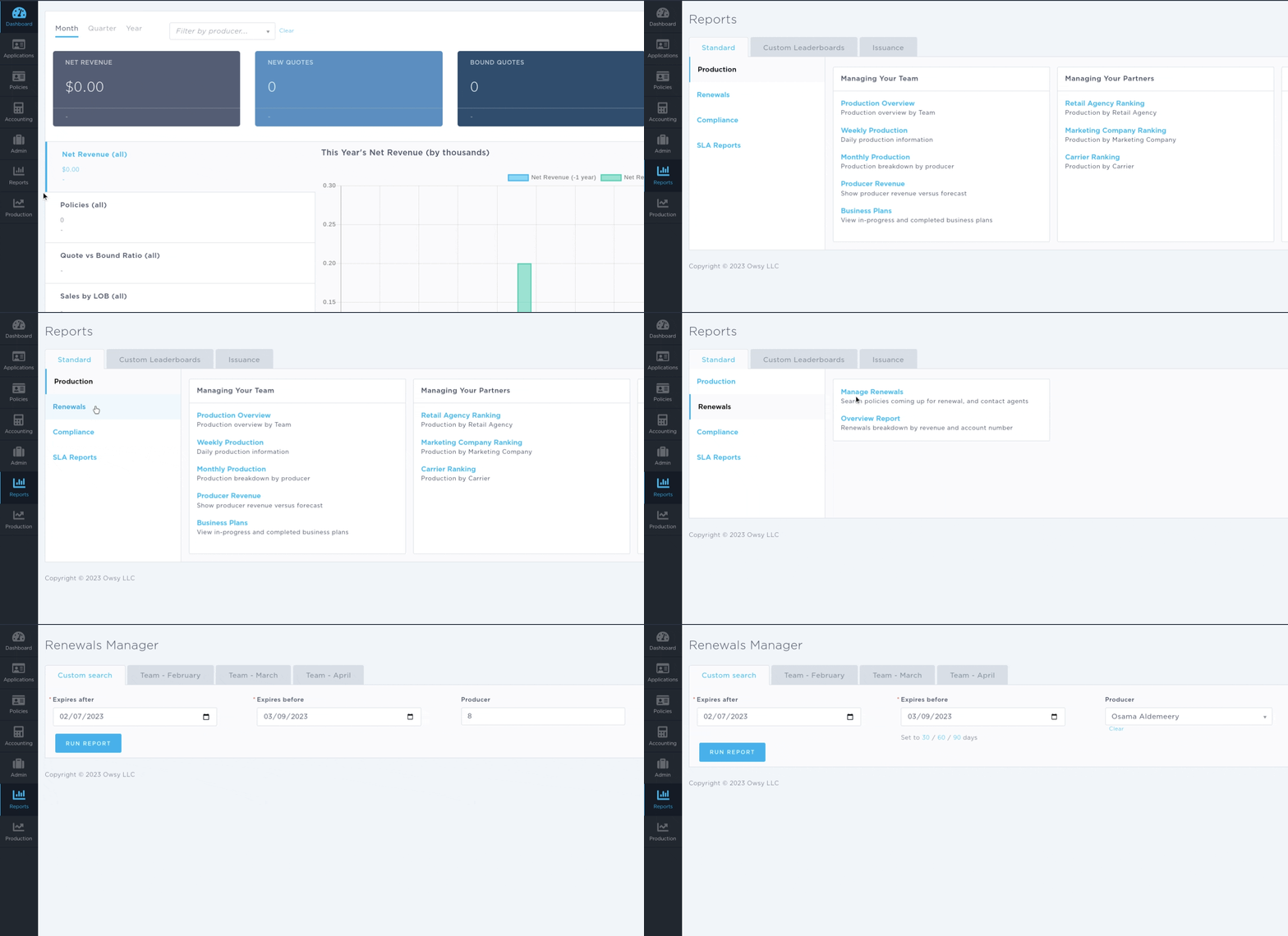
You can access the Renewals Manager by navigating to Reports > Renewals > Manage Renewals
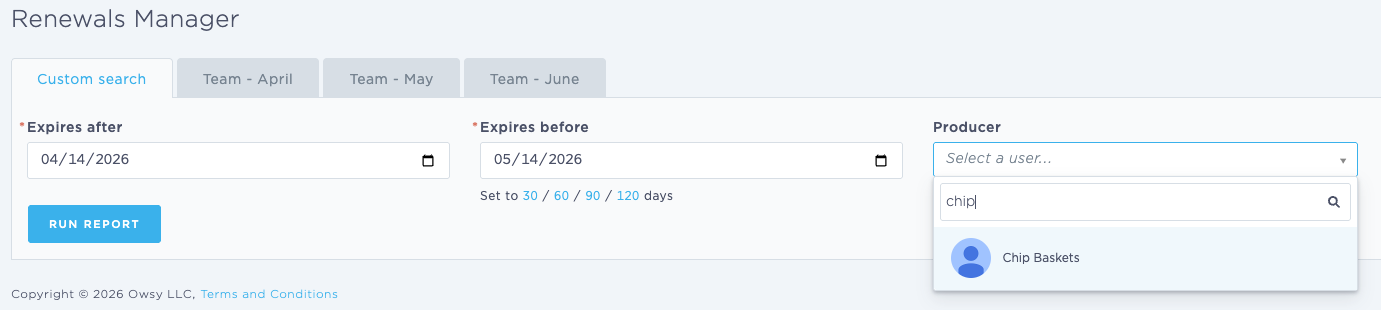
The Renewals Manager allows you to select a date range and Producer (optional) for your renewals list. You can also use the provided tabs to quickly view renewals for your team for a specific month.
From the list of expiring policies, you can click the policy number to open the policy record, or use the renew button to generate a renewal application.
Renewing Multiple Policies
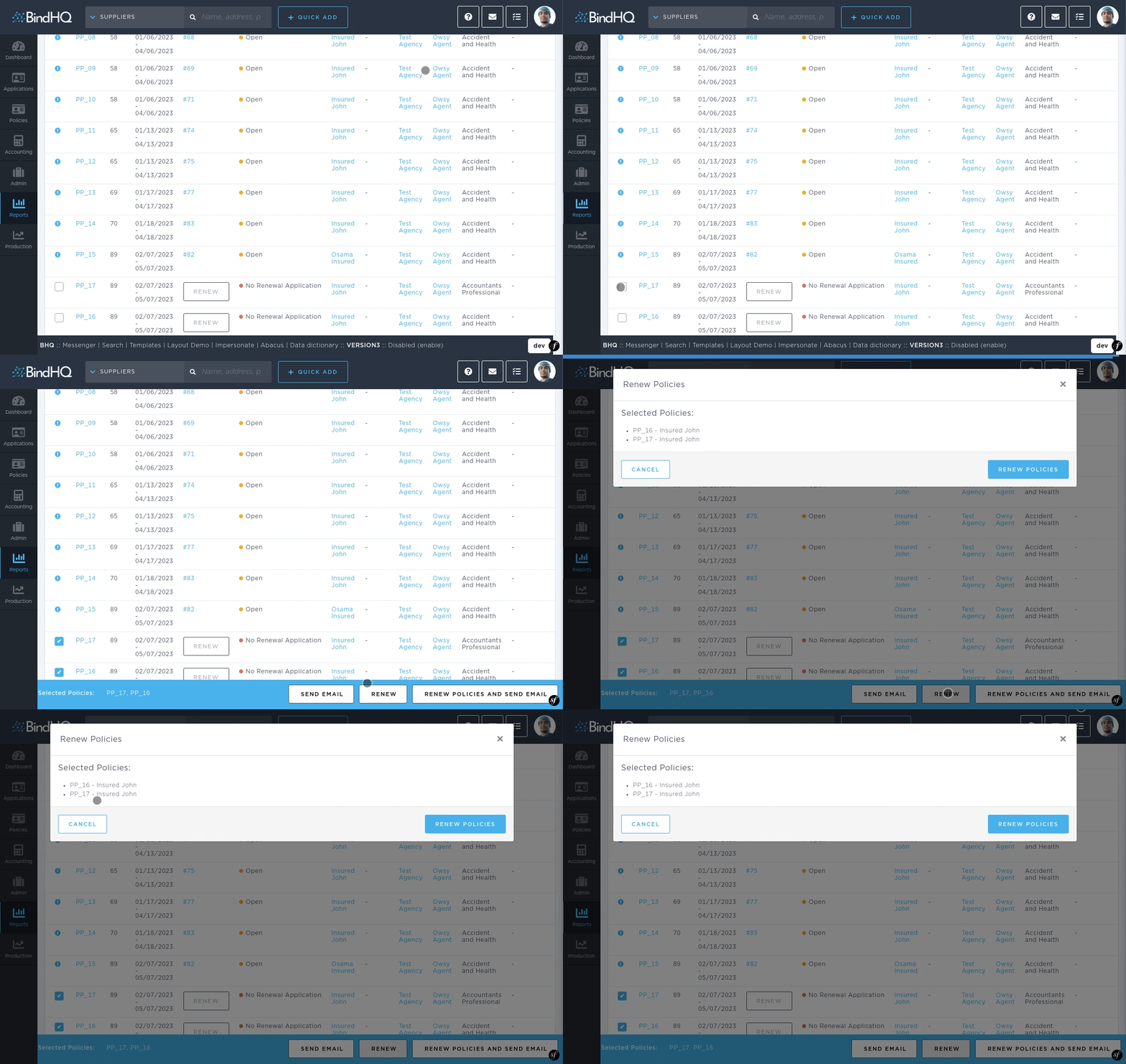
The Renewals Manager allows you to renew multiple policies at once. Just check the boxes to select the policies to renew (or use the box at the top of the list to select all policies). Once you've selected at least one policy, options will appear at the bottom of the screen. Click "Renew".
You will then get a modal containing the numbers of the policies you selected, ensure the selected policies are correct, and click "Renew Policies". This will create renewal applications for all selected policies.
Once you've renewed your group of policies, you'll also see a quick option to update the application status from the Renewals Manager if needed.
Send renewal emails about multiple policies
You might want to send renewal emails but NOT create renewal applications.
To do this, click the "Send Email" button after selecting the policies, which will open the email modal that you can use to compose your email.
Using the Email Modal
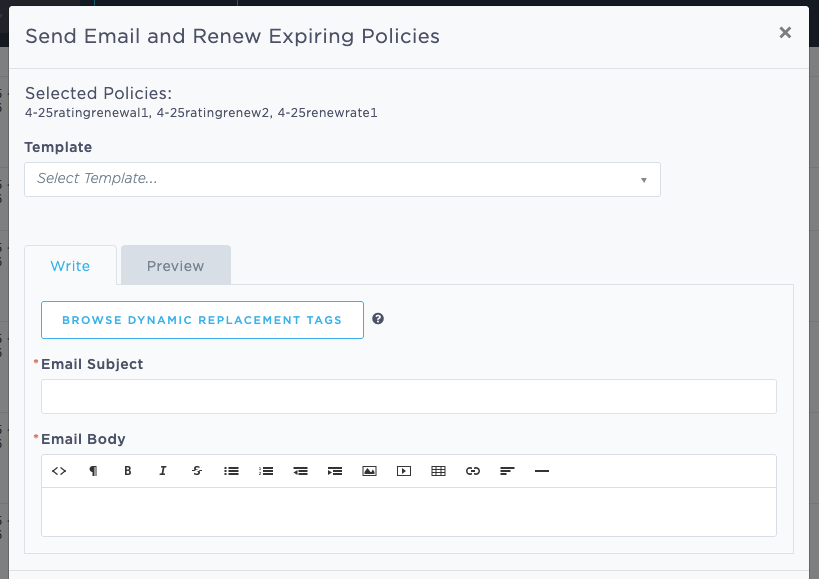
The email modal includes:
Selected Policies: This will display a comma separated list of all policies selected for email.
Template: Chose a template to apply to your emails. (To create new email templates, please refer to Managing Email Templates.)
Email Subject: Enter the subject of the email
Email Body: Create your email content, or edit the content of a template if chosen. Please note: If you're emailing regarding multiple policies, be careful not to manually enter specific policy details in the email. Instead, use the "Browse Dynamic Replacement Tags" button if needed to include new replacement tags, which will pull the required data point from the applicable policy.
The Attachments section
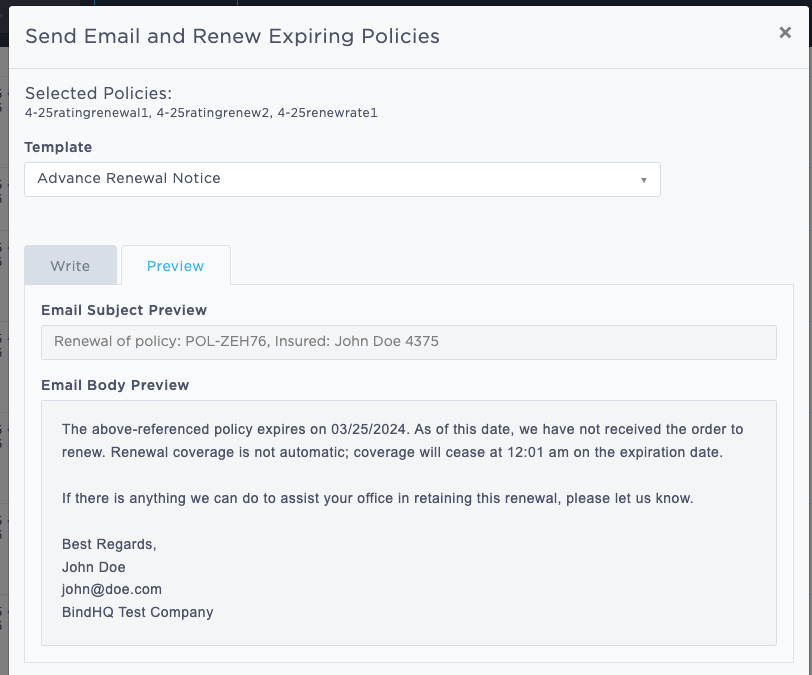
You can toggle between the Write/Preview tabs to see how your email would look when sent to users.
At the bottom of the email modal, you can add attachments.
You can either use documents from the Document Library as attachments, upload them from your computer, or a combination of both.
Documents from the Document Library will be listed first in the attachments section. You can filter these documents using their name, description, or line(s) of business.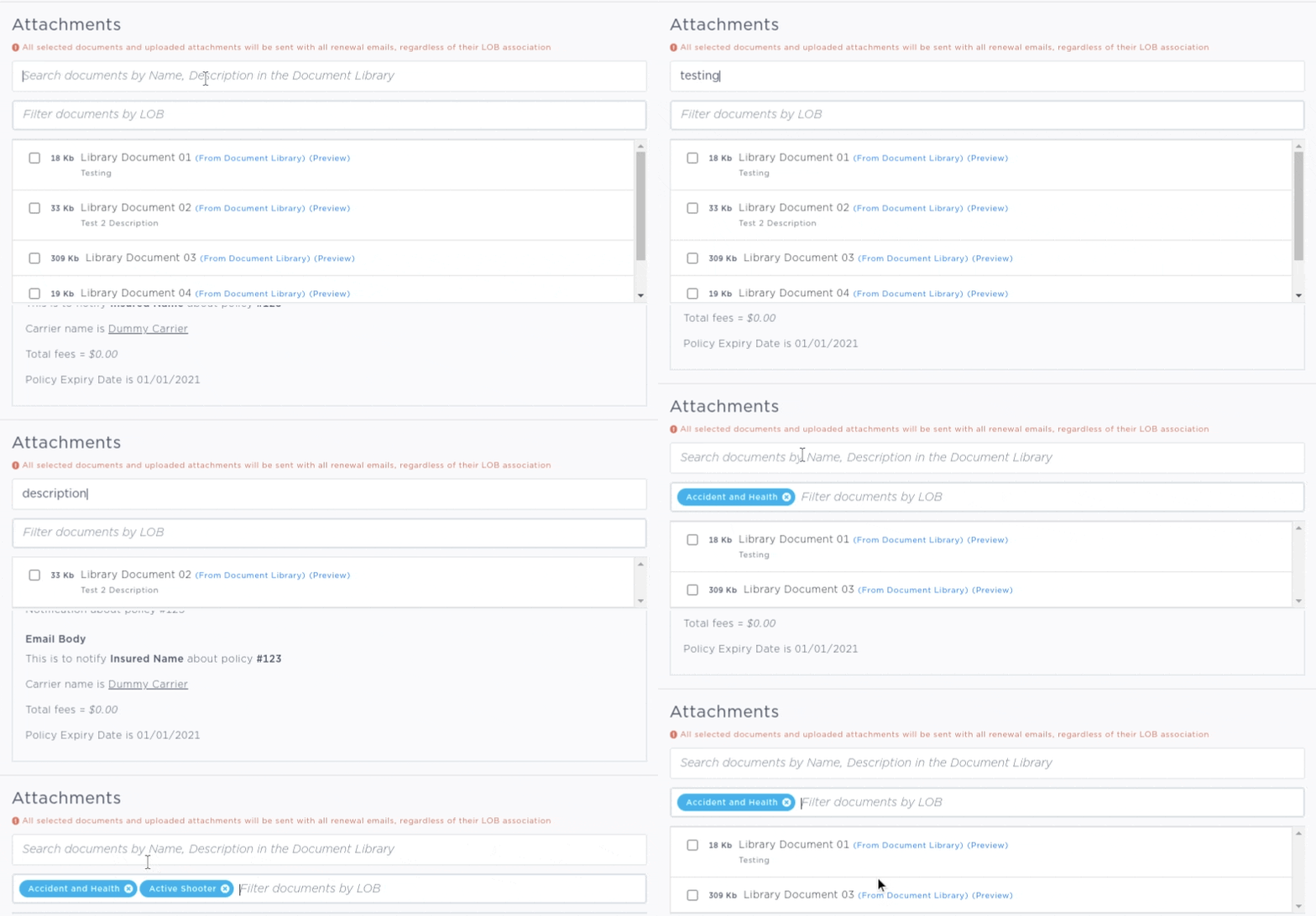
Once you are done writing the email and adding the attachments, click the "Send Email" button at the bottom of the modal, which will send the emails WITHOUT renewing the policies.
Renewing & Sending renewal emails about a collection of policies in one step
To combine both steps into one process, you can send emails and renew the policies at the same time. Click the "Renew Policies and Send Emails" button after selecting the policies, which opens the email modal. From there, the email process is the same. Once you've finished composing your email, click "Renew Policies and Send Emails" button at the bottom of the modal to send the emails and generate renewal applications with one click.
NOTES:
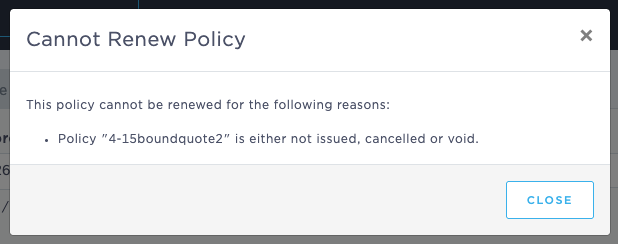
Policies with a status of not issued, cancelled or void will not be available for renewal. This status is indicated with a blue information dot next to the policy:

Clicking this dot will reveal additional information about why the policy is not eligible to have a renewal application created:
Policies with a renewal application are also not eligible to have a renewal application auto created. You can access the existing renewal app by clicking the provided link:

Finally, for policies with a renewal application, you can click the plus sign on the left see the application status:

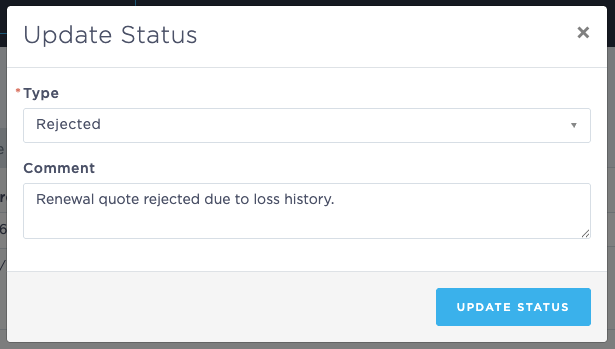
Clicking the "Change" button allows you to update the application status as needed and add comments: