Adding & Removing Policy Number Blocks
Last updated: August 28, 2026
Configure policy number blocks to auto-generate policy numbers.
This article explains how Administrators can configure policy number blocks in the Programs tab
Add Policy Number Blocks to a Carrier
Navigate to a carrier and select the Policy Blocks tab.
Click Add to start a new policy number block.
Name - The internal name of the program. This is typically the LOB users are creating policy number blocks for (for example, General Liability), but can be any unique name that is identifiable to users.
Prefix - Determines the start of the policy number block (for example, GL).
Numerals - Determines the quantity of numbers that follow the prefix in a policy number block. For example, the policy number GL10000 has 5 numerals.
Click Save Policy Blocks to save the new policy number block details.
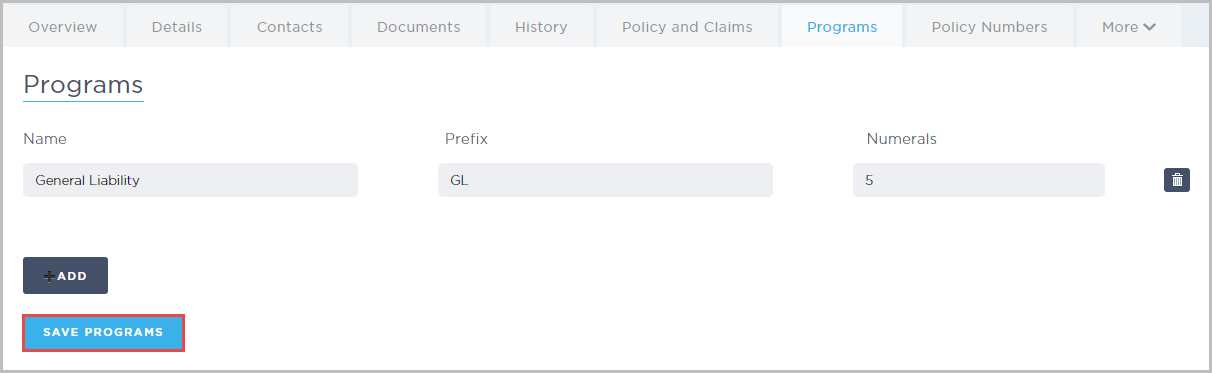
Repeat steps 2-4 for any remaining programs. Programs can be edited or updated as needed.
Configure a Policy Block
After adding programs for the carrier, select the Policy Numbers tab.
Use the Program drop-down to select a program.
Use the Status drop-down to select Unused.
Click Refresh Policy Numbers.
Since there are no policy numbers configured yet, the Add Policy Numbers for (Program) section displays.
In the From field, enter the starting number for the policy block. This should correspond with the numerals associated with the program. For example, if the program uses 5 numerals, the starting number might be 00001.
In the To field, enter the ending number for the policy block. This should correspond with the numerals associated with the program. For example, if the program uses 5 numerals, the starting number might be 01000.
Note: Policy numbers can be configured in blocks of up to 1000
Click Create Policy Numbers.
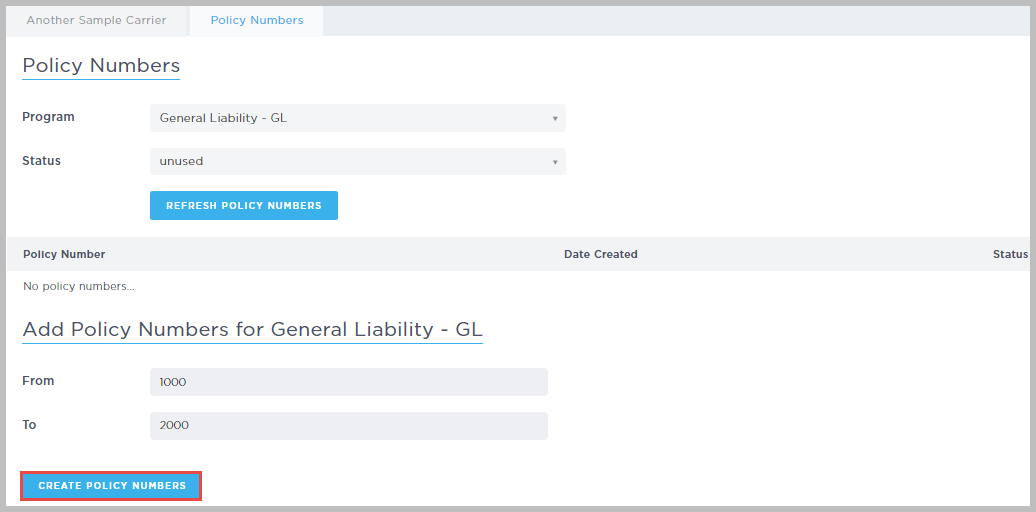
The policy numbers are automatically generated, and include the prefix and the numerals.
Delete an Unused Policy Number
Only unused policy numbers can be deleted.
Navigate to a carrier and select the Policy Numbers tab.
In the Program field, use the drop-down to select a program.
In the Status field, use the drop-down to select Unused.
Click Refresh Policy Numbers.
The unused policy numbers display in chronological order.
Click Delete to the far right of the number you want to delete.
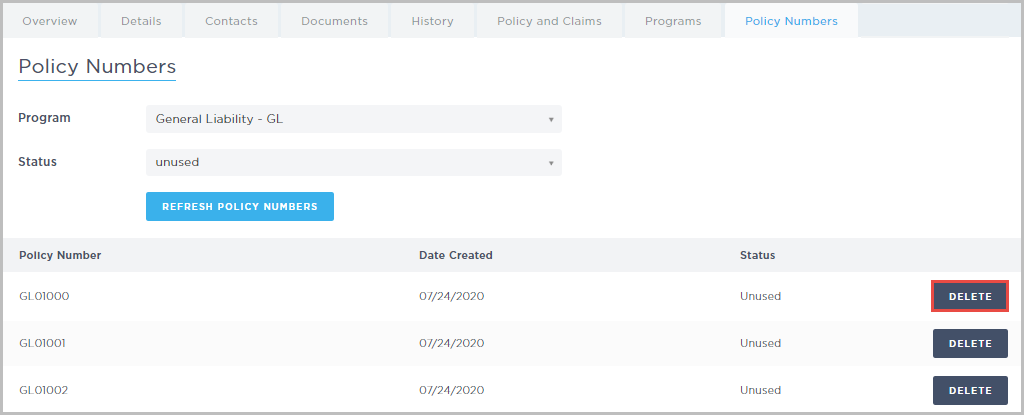
An Are you sure you want to delete this number? pop-up displays. Click OK.
The number is removed from the policy block.
Once you've created your policy number blocks, you can add them to a program [see Article].
Last Updated August 2026