Navigating the Home Dashboard
Last updated: July 28, 2026
Introduction
The Home Dashboard is the first page users see after logging in to BindHQ. This article explains how to navigate the dashboard and use its key features effectively.
The dashboard consists of:
Static features (available from anywhere in the system)
Dynamic dashboard components (which update automatically based on real-time data and user permissions)
Static Features
Static features are always accessible, regardless of the page you are viewing. These include the sidebar navigation, search bar, quick add menu, and user options.
Sidebar Navigation
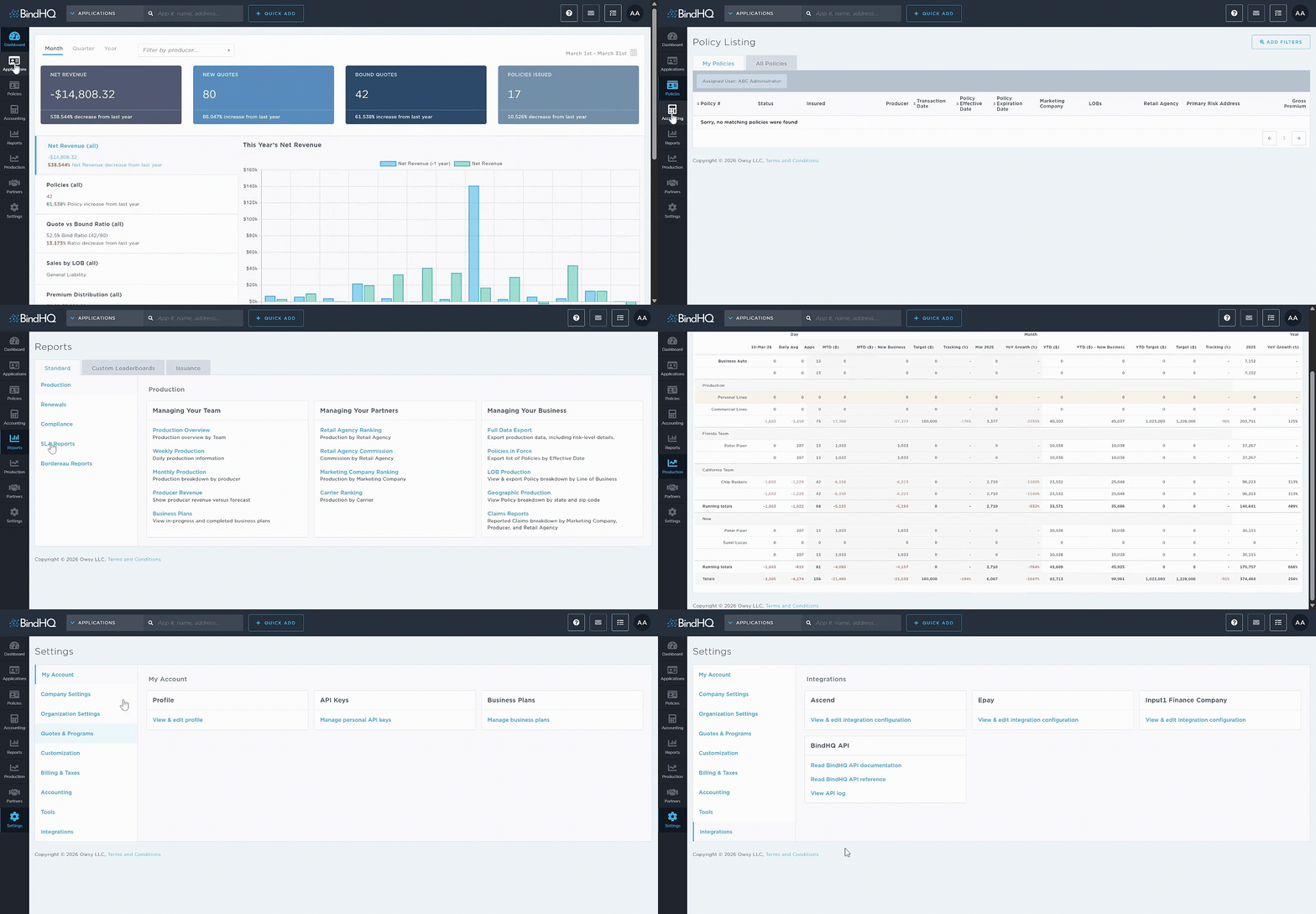
The sidebar provides access to the major areas of the system, including:
Dashboard
Applications
Policies
Accounting
Reports
Production
Partners
Settings
Access to these areas depends on user roles and permissions. However, most users have access to Applications and Policies.
Search Bar
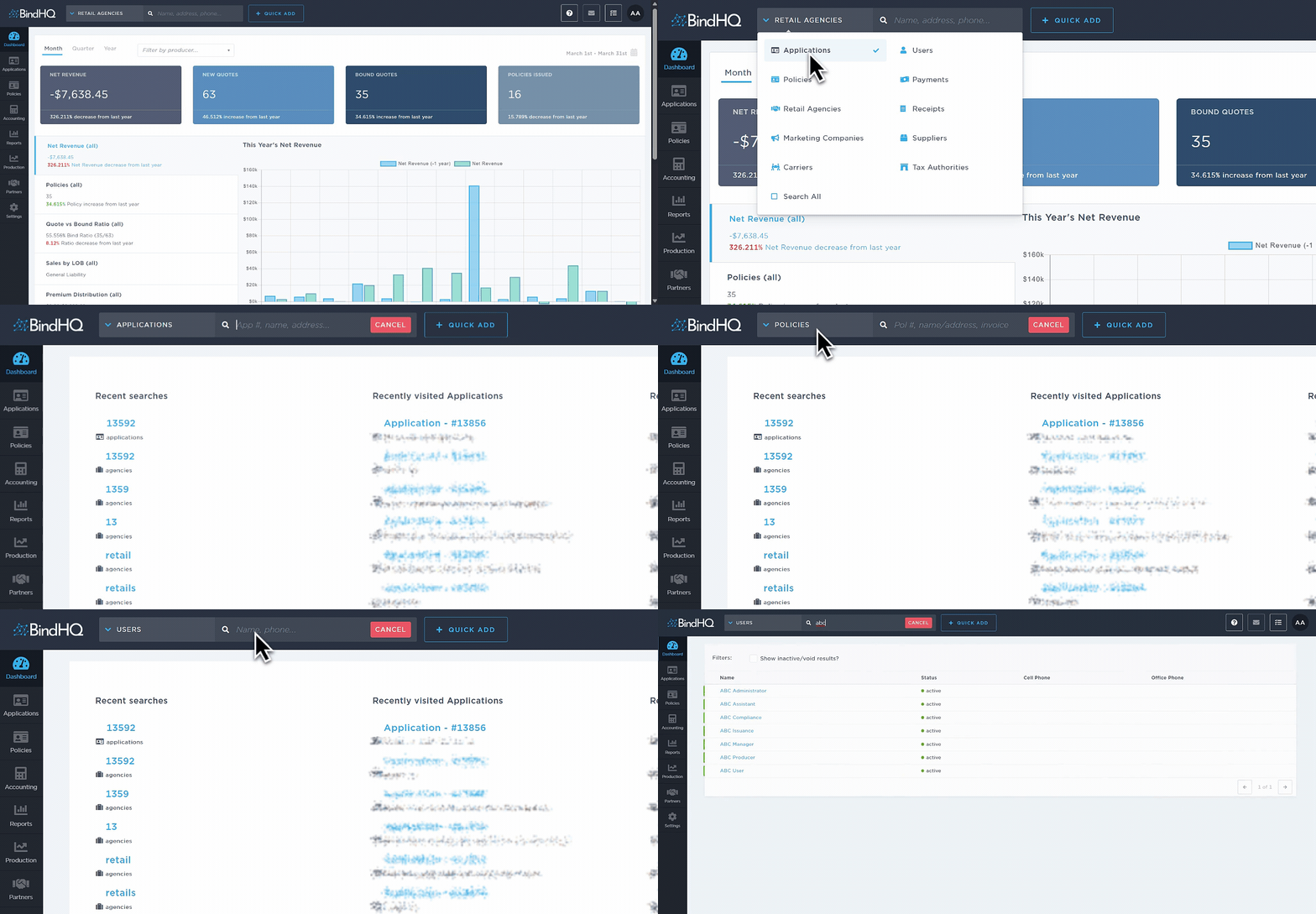
The search bar is located at the top of the interface.
When you click into the search bar, you can view:
Recent searches
Recently visited Applications
Recently visited Policies
You can use the dropdown menu on the left side of the search bar to limit your search to a specific section (for example, Policies).
Additional search tips:
Search is not case-sensitive.
To search across all entities, leave the default selection as All Entities and enter a keyword.
Results are grouped by entity and displayed in expandable sections.
You may also select a specific entity before entering your search term to narrow results.
For more information on the search function, see our help article on Using the Quick Search.
Quick Add Menu
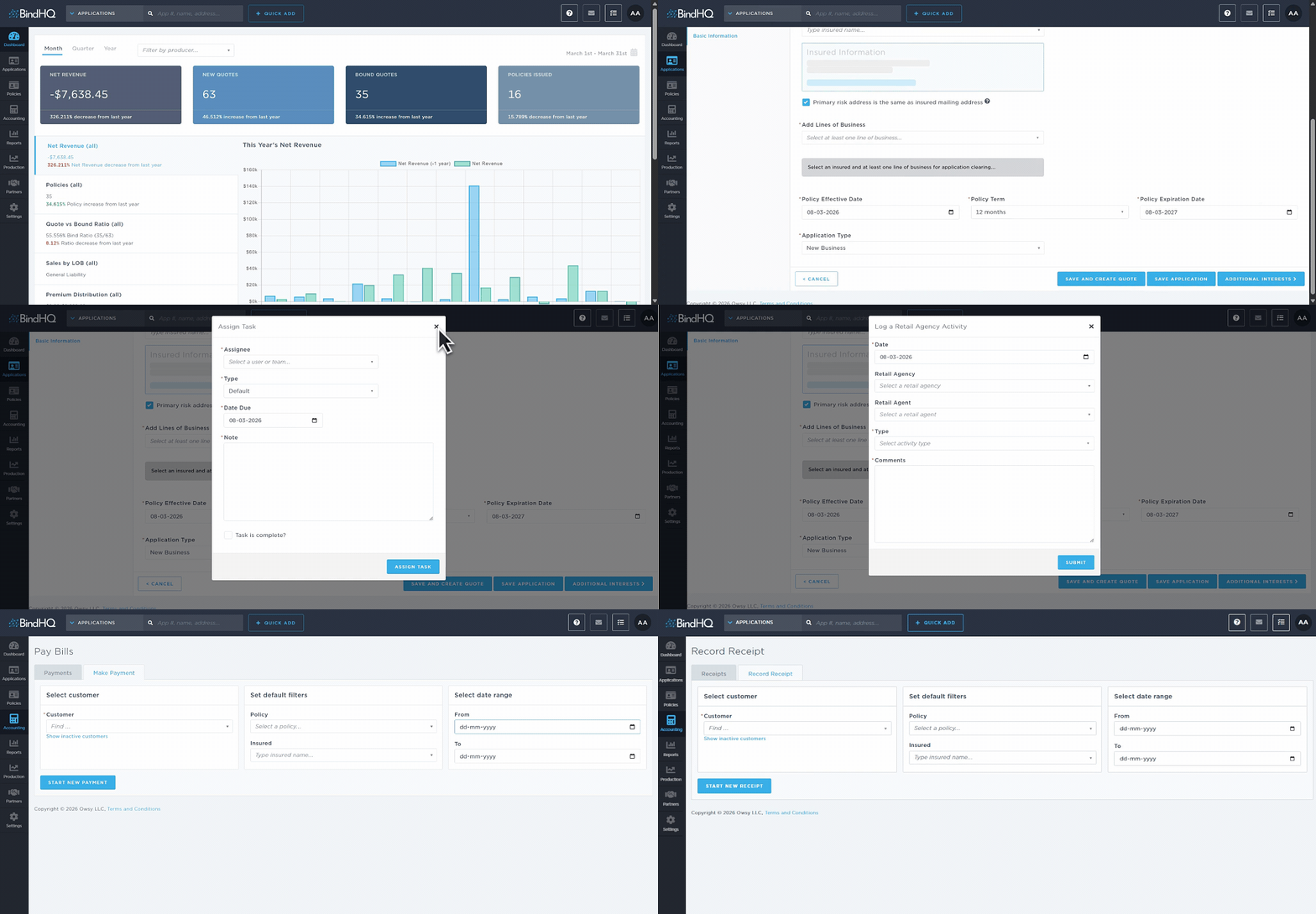
The Quick Add menu, located at the top of the interface, allows users to quickly create or log new items.
Depending on your permissions, you may be able to:
Create a new Application
Add a Task
Log an agency visit or call
Record a payment
Record a receipt
Available options vary based on user role.
User Options
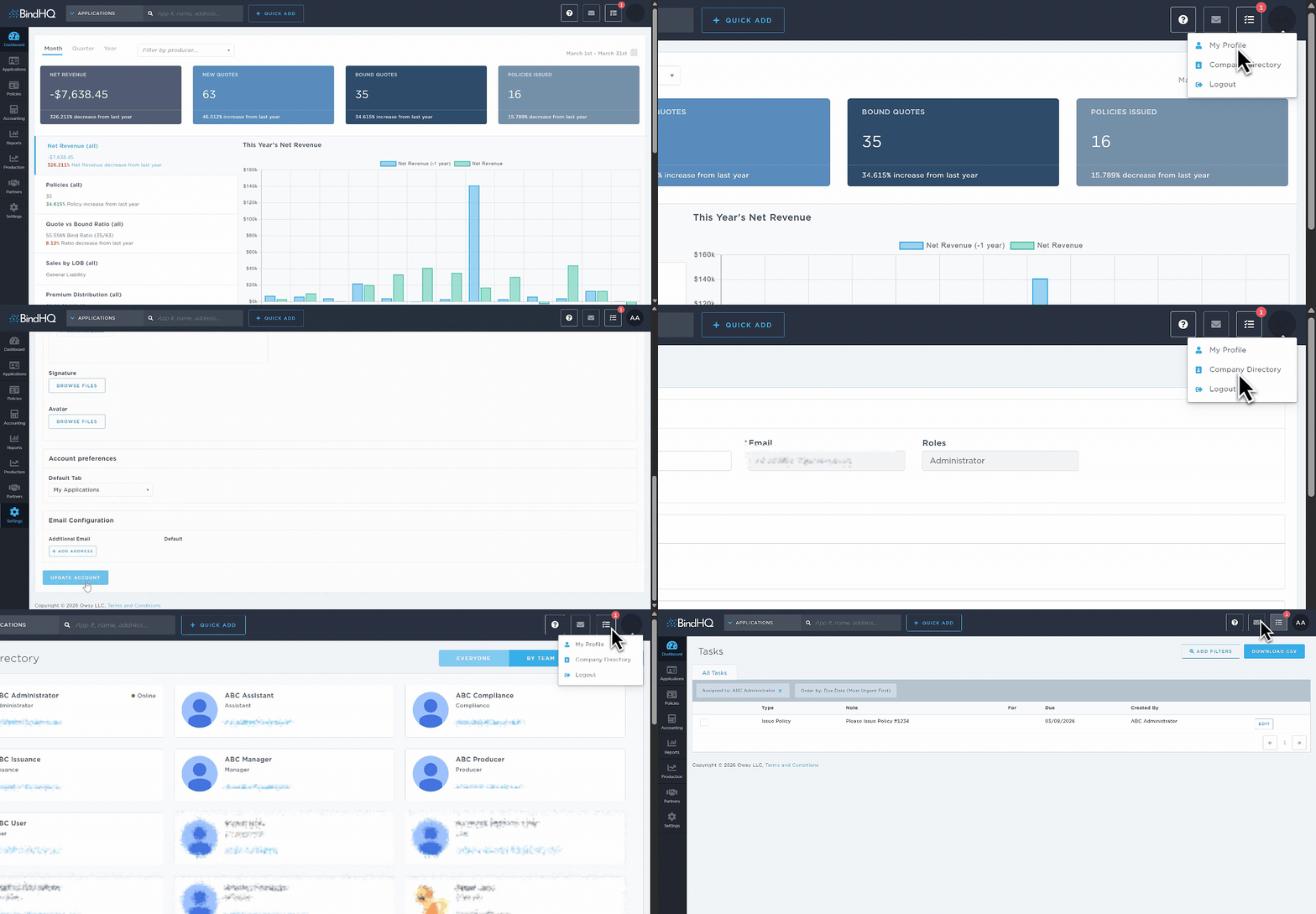
The User Options menu is located in the top-right corner of the interface and displays your name and profile image (or avatar).
From the dropdown menu, you can access:
My Profile
Company Directory
Logout
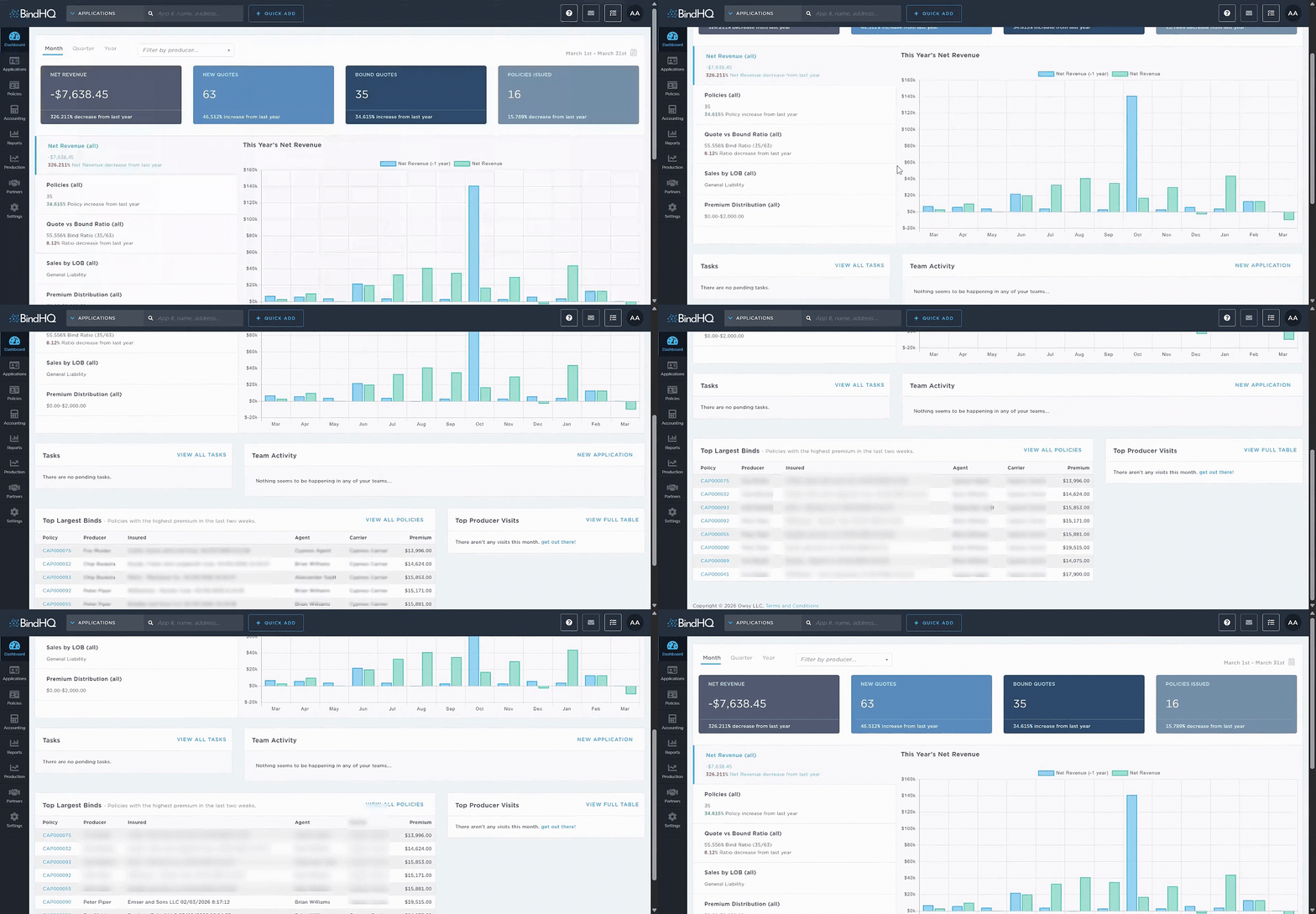
Dashboard Components
The modules displayed on the Home Dashboard depend on your user role and system privileges.
Common dashboard components include:
Real-time net revenue
Task list
Team activity
Largest binds
Top producer visits
These components update automatically to reflect current system data.
Navigating Major Areas of the System
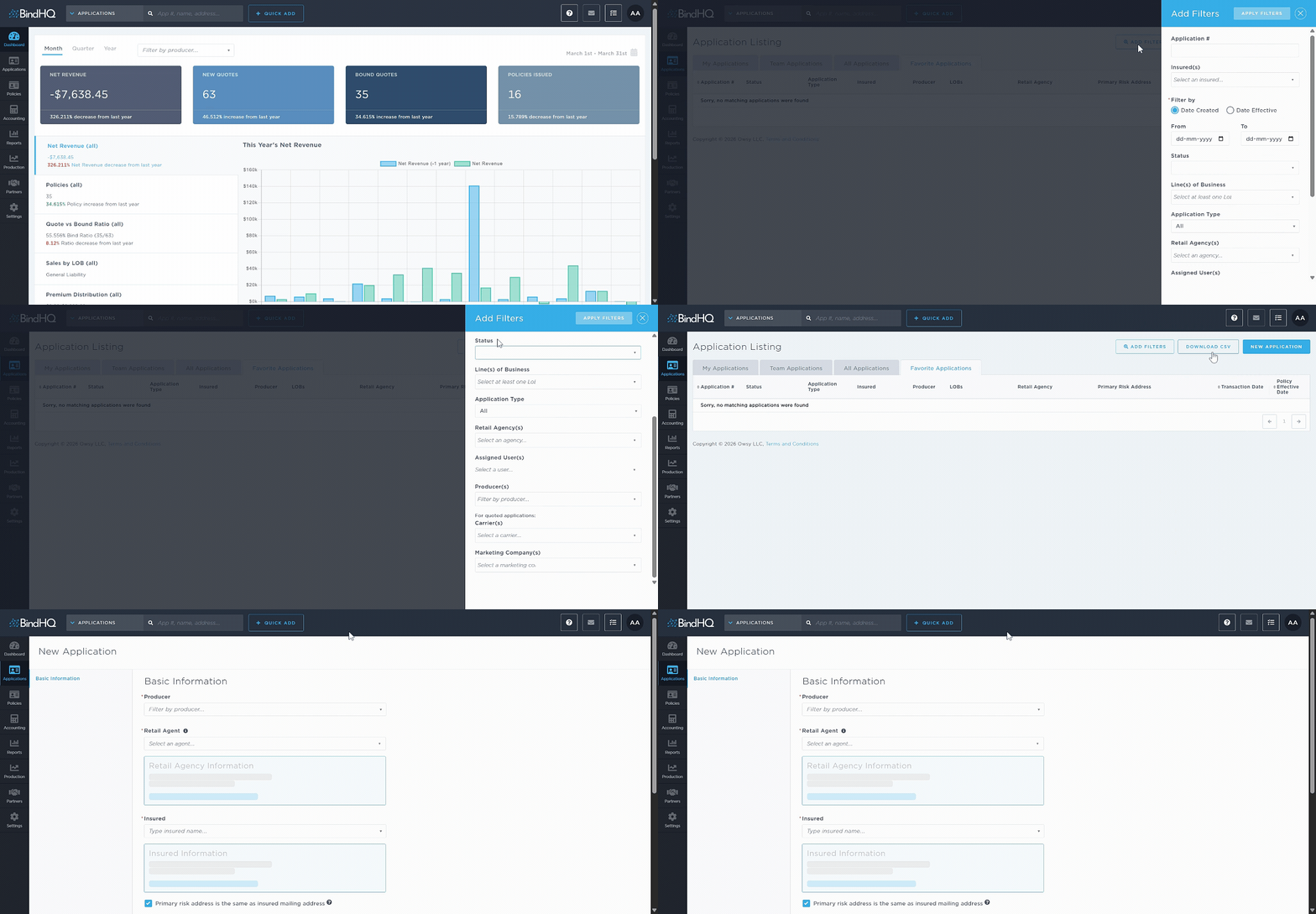
When navigating to major sections such as Applications, you can expect to see the following interface elements:
Tabs
Filters
Export Option
New Application
Status Indicators
Note: The availability of these features depends on your user role and the section you are viewing. For example, the tabs available in Applications may differ from those in Policies.
Last Update: July 2026