Getting Started with BindHQ: Configuring Your Company Profile
Last updated: April 1, 2026
Introduction
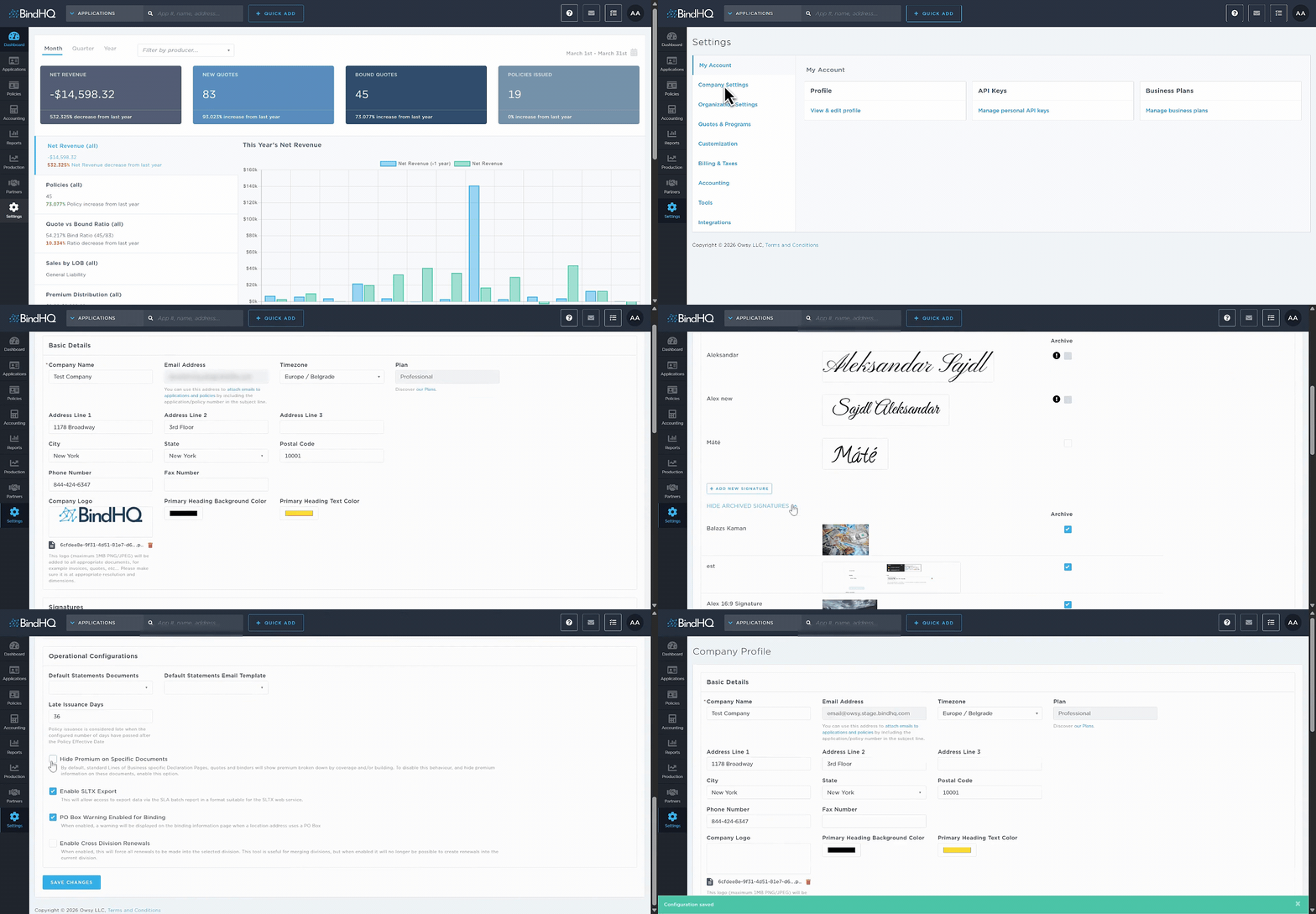
Start by updating your company details under Settings > Company Settings > View & Edit Company Profile. This section allows you to configure key elements of your business profile, including branding, contact information, and operational settings. Updating these details ensures that documents, communications, and system configurations accurately reflect your organization.
Basic Details
Configure the core information associated with your company.
Company Name & Email Address
Enter the official company name and primary email address associated with your organization.Timezone & Plan
Select the appropriate timezone to ensure accurate scheduling across the platform. You can also view your current plan and manage your subscription under Discover our Plans.Address, Phone Number, and Fax Number
Provide your company’s primary contact information.Company Logo
Upload a high-quality PNG or JPEG logo (maximum 1MB). The logo will appear on invoices, quotes, and other documents generated from the platform. Ensure the logo is properly sized for a professional appearance.Primary Heading Colors
Customize the background and text colors used in document headings to align with your company’s branding.
Signatures
Signature
Add a signature that will appear on documents such as endorsements.
Select Show Archived Signatures to view and restore previously archived signatures.
Operational Configurations
These settings control how certain operational processes behave within the system.
Default Statements Documents
Configure default documents used for statements, including:Agency Bill
Carrier Direct Bill
Insured Direct Bill
Default Statements Email Template
Select the default email template used when sending statements.Late Issuance Days
Define the number of days after the Policy Effective Date, after which a policy issuance will be considered late.Hide Premium on Specific Documents
By default, standard Lines of Business declaration pages, quotes, and binders display premium breakdowns by coverage and/or building. Enable this setting to hide premium information on these documents.Enable SLTX Export
Allows you to export data via the SLA batch report in a format compatible with the SLTX web service.PO Box Warning Enabled for Binding
When enabled, a warning will appear on the binding information page if a location address contains a PO Box.Enable Cross Division Renewals
When enabled, all renewals must be created in the selected division. This setting is commonly used when merging divisions. Once enabled, renewals can no longer be created in the current division.
After making the necessary updates, click Save Changes at the bottom of the page to apply your changes.
Last Update: March 2026