Issuing, Editing, Deleting & Invalidating an Endorsement
Last updated: August 3, 2026
Creating an Endorsement
The first step is creating an endorsement. Once you have created an endorsement, you can make the changes listed below as needed.
Issuing an Endorsement
Navigate to the Endorsement tab of the policy.
Click Issue to the right of the endorsement. This will automatically generate documents for the endorsement, invoice, and taxes.
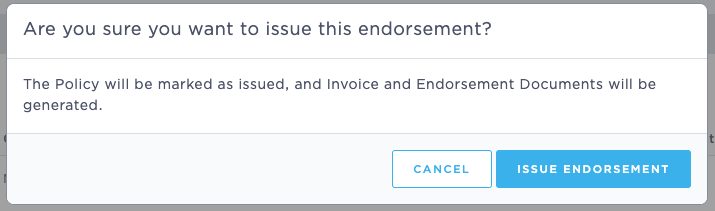
A confirmation box will pop up. Click "Issue Endorsement".
Editing an Endorsement
Endorsements can only be edited if they have not been issued.
If an endorsement has not yet been issued, you can edit it by clicking the link on the far left. ("3 - Audit" in the screenshot below.)

The endorsement will open in edit mode. Make your needed changes, then click "Save and Exit" in the bottom right.
If the endorsement has been issued, fields will be grayed out and you will not be able to edit.
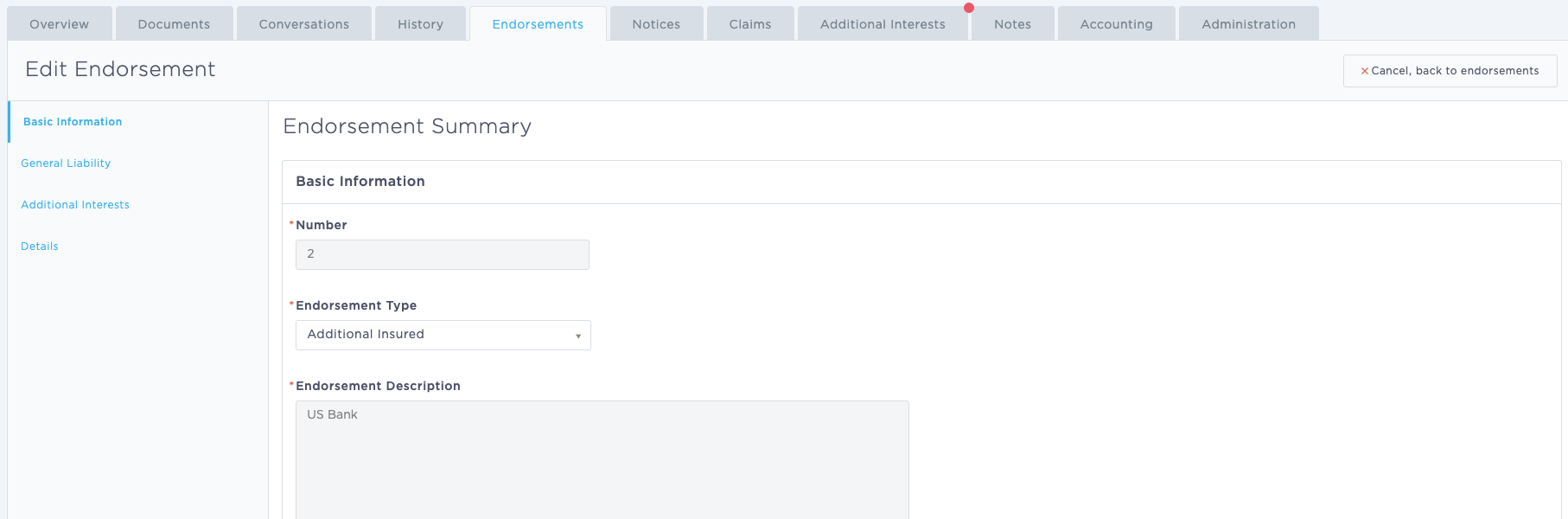
To revise an issued endorsement, you will need to invalidate the endorsement (see below) and re-create it, then issue the revised endorsement.
Deleting an Endorsement
An Endorsement can only be deleted if it has not been issued. Issued endorsements must be invalidated (see below).
Click Delete to the right of the endorsement.

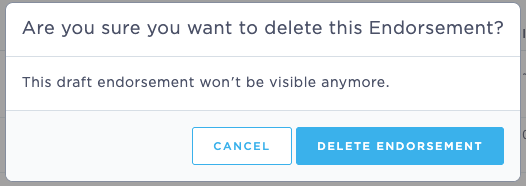
A confirmation pop-up displays. Click "Delete Endorsement".
Invalidating an Endorsement
If an endorsement is issued in error or is no longer valid, you can invalidate it. You may also need to invalidate and re-add an endorsement if there is a conflict with the effective date (when issuing endorsements non-sequentially).
Click Invalidate to the right of the issued endorsement.

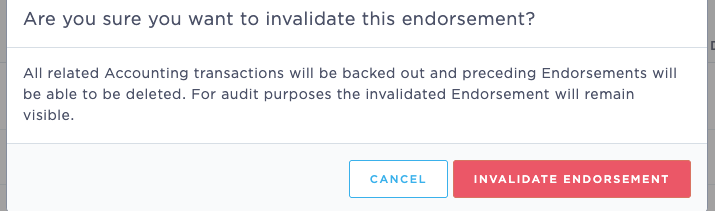
An Invalidate this Endorsement? (cannot be undone) confirmation pop-up displays. Click "Invalidate Endorsement"
Last updated July 2026