Processing Carrier Direct Payments
Last updated: July 5, 2025
Applies to:
- Accounting Users
- Accounting Admins
Last Updated: December 2023
Processing payments sent directly to an insurance carrier by the insured is an essential task for users and administrators on insurance SaaS platforms. This guide provides detailed instructions on how to handle such transactions, specifically when dealing with Carrier Direct Payments.
-
Select the Relevant Transaction:
- Identify the specific transaction that corresponds to the payment made directly to the carrier by the insured. This may involve searching by policy number, insured's name, or transaction date.
- Proceed to open the policies Accounting tab to review the open accounting transactions.
-
Activate Both Receivable and Payable Checkboxes:
- Within the transaction details, you will find two key checkboxes: Receivable and Payable.
- Carefully select both checkboxes. The 'Receivable' checkbox represents the amount owed to your business, while the 'Payable' checkbox indicates the amount owed to the Market Company or Carrier.
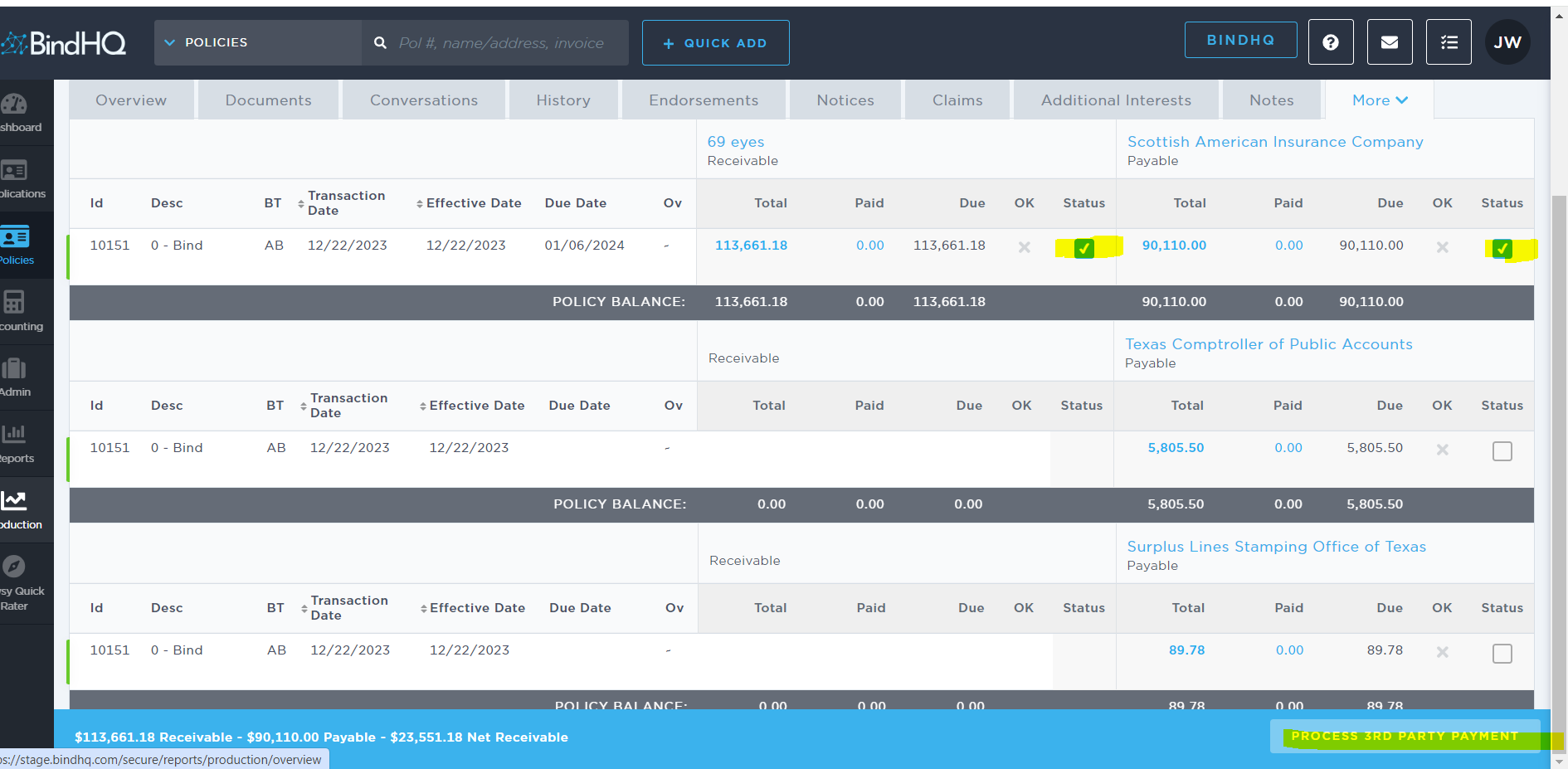
Process as a Third-Party Payment:
-
- Look for the option to process the payment as a 'Third Party Payment' which should appear at the bottom of your screen. This option is crucial as it accurately reflects the nature of the transaction – a payment made directly to the carrier by the insured, bypassing the usual intermediary process.
- Select this option to proceed.
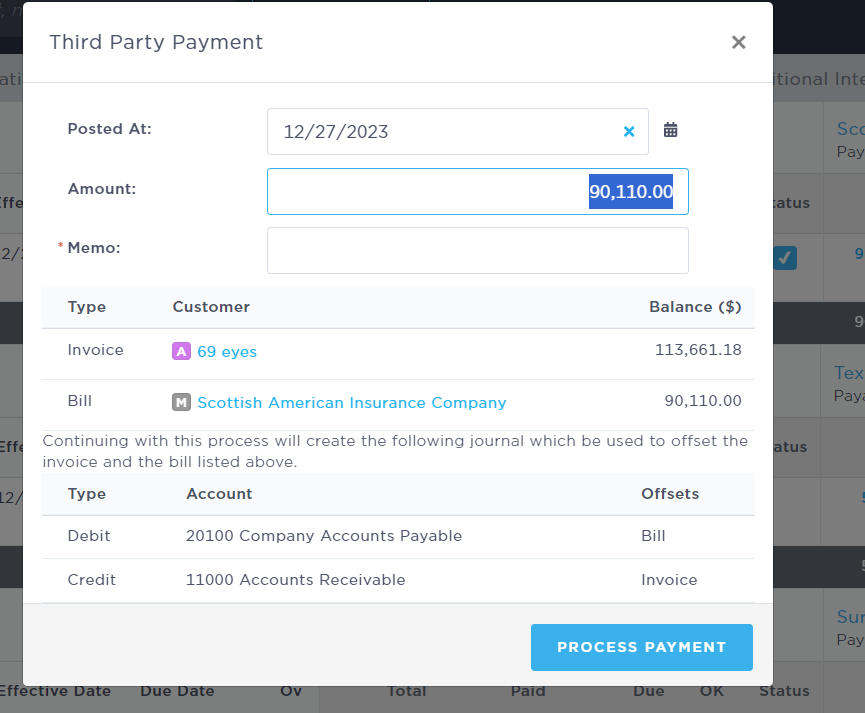
Enter the Payment Amount:
- Enter the exact amount that was sent to the insurance carrier by the insured. It's important to ensure this amount is accurate to maintain financial integrity and avoid discrepancies.
- Include a memo for yourself and other staff members
- Confirm that the amount entered matches the transaction record.
Finalize and Review:
- After entering all necessary details, review the transaction to ensure all information is correct and complete.
- Once satisfied, finalize the processing by clicking the [Process Payment] button.