Getting Started with BindHQ: Configuring Your Company Accounting
Last updated: April 1, 2026
Introduction
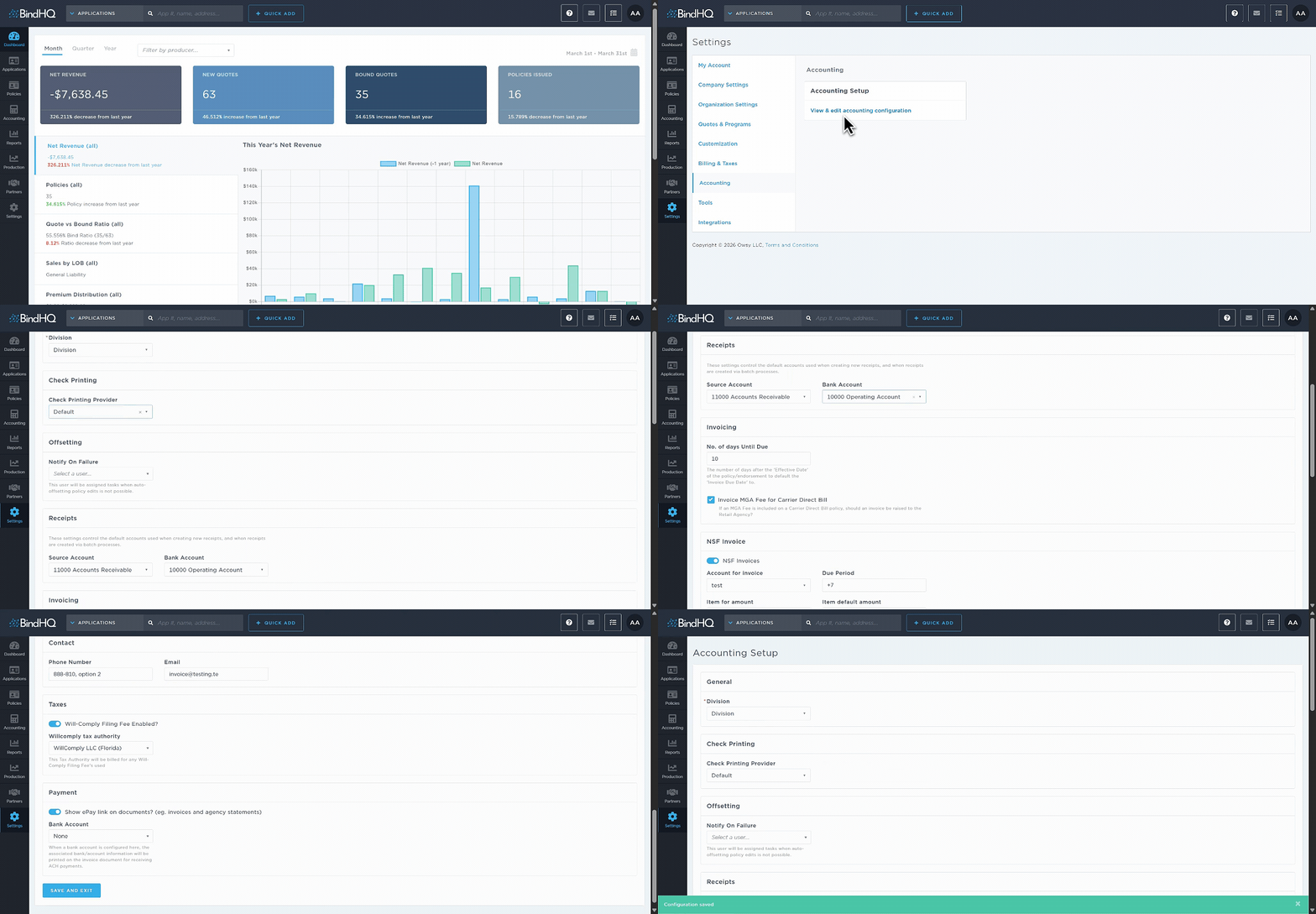
To configure your company’s accounting settings, navigate to Settings > Accounting > View & edit accounting configuration. This section allows you to customize key elements of your company’s accounting profile, contact information, payment settings, and compliance options. These configurations help ensure your invoices, payments, and accounting workflows reflect your organization accurately.
General
Divisions: Configure the division settings.
For more information, see: https://support.bindhq.com/articles/5443456397-understanding-divisions-in-bindhq
Check Printing
Set up the Check Printing Provider and Check Document.
Offsetting
Enable Notify On Failure, where a user is assigned tasks if auto-offsetting policy edits are not possible.
Receipts
Manage default accounts for new and batch-created receipts, and edit the Source Account and Bank Account.
Invoicing
Set the number of days after the policy/endorsement effective date for the invoice due date. Decide if an MGA Fee triggers an invoice to the Retail Agency for Carrier Direct Bill policies.
NSF Invoice
Handle NSF (Non-Sufficient Funds) invoices, including the account for the invoice, the due period, the item for the amount, and the item's default amount.
Accounting Address
Configure the accounting office address.
Contact
Provide phone number and email for accounting inquiries.
Taxes
Define whether the Will-Comply Filing Fee is enabled.
Payment
Enter your payment portal URL and configure the Bank Account for ACH payments; this will appear on invoices. It is also possible to choose whether to show the ePay link on documents.
After making the necessary updates, click Save & Exit to apply the changes.
Last Update: March 2026