Emailing into BindHQ
Last updated: August 6, 2026
Introduction
This article explains how to store emails and email correspondence in BindHQ using your company's BindHQ email address.
This feature automatically associates emails sent from external email clients (such as Outlook or Gmail) with existing Policies or Applications, ensuring that important communications are stored and accessible within the system.
How Emailing into BindHQ Works
To store an email in BindHQ, two requirements must be met:
Your company's BindHQ email address must be included in the BCC field.
Your company email can be found by going to the settings-company settings- company profile.
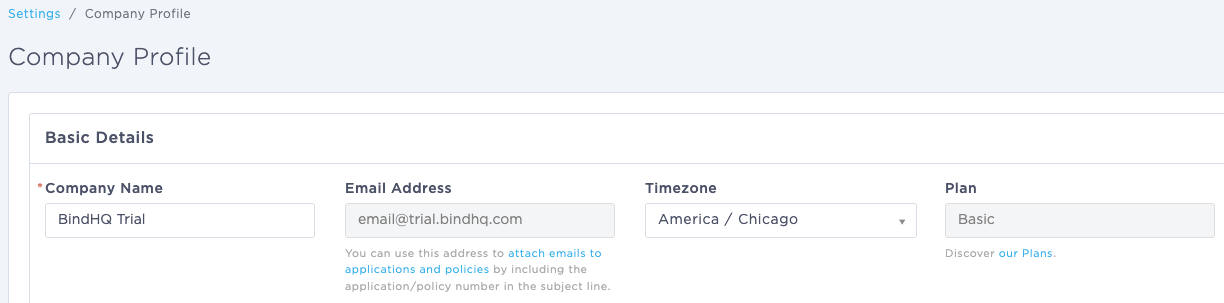
The email subject line must contain a valid Policy Number or Application Number. NOTE: Application numbers must be preceded by a #.
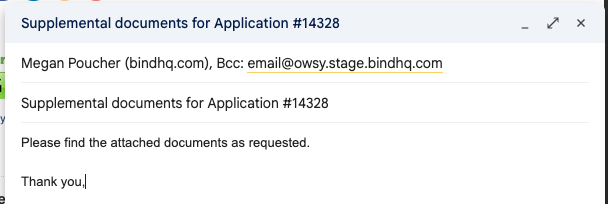
When the above conditions are met, BindHQ automatically associates the email with the corresponding policy or application and stores it within the account history.
Finding Your Stored Emails
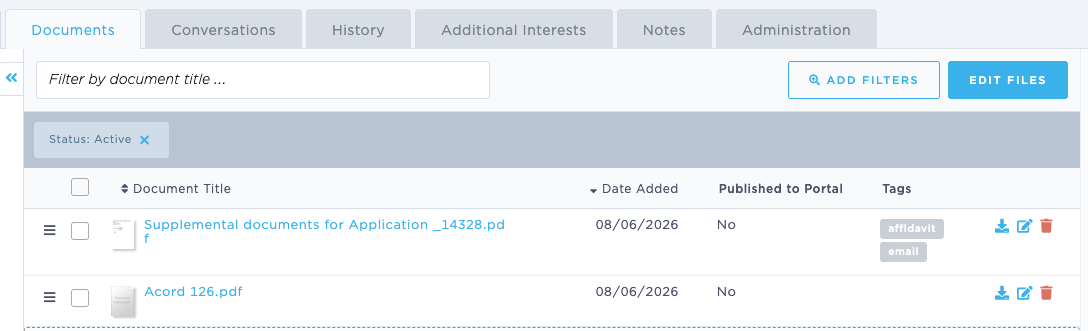
Once processed, the email and any attachments will be available under the Documents tab of the policy or application, along with any documents that were attached to the email.
Tips
Use the clipboard icon displayed next to the Policy Number or Application Number in BindHQ to copy the reference number with the correct formatting.
Always verify that the BindHQ email address is included in the BCC field before sending. Emails sent without the BindHQ address will not be stored automatically.
Last Update: August 2026