Managing Email Templates
Last updated: July 29, 2026
Introduction
Email Templates allow you to create reusable email content that can be used throughout BindHQ. Templates support Dynamic Replacement Tags, enabling BindHQ to automatically populate emails with information already stored in the system, such as insured details, policy information, and other related records. Using templates helps ensure consistent communication while reducing manual data entry.
Only users with Administrator permissions can create, edit, and manage Email Templates. All users can select and use existing templates when composing emails.
Creating an Email Template
Navigate to Settings → Customization → Email Templates.
Click Create New Email Template.
Configuring an Email Template
Template Name
Enter a clear and descriptive name that will help users easily identify the template when composing emails.
Template Type
Select the type of record the template will be used for.
The available template types are:
Application
Brokerage Submission
Claim
Endorsement
Invoice
Policy
Policy Notice
Quote Document
Creating the Email Content
Enter the following information:
Email Subject
Email Body
The editor supports rich text formatting, including:
Tables
Images
Videos
Hyperlinks
Using Dynamic Replacement Tags
Dynamic Replacement Tags automatically insert information from the associated BindHQ record when an email is generated.
To add a replacement tag:
Click Browse Dynamic Replacement Tags.
The replacement tag library will open in a new browser tab.
Use the available filters to locate the required tag.
Click Copy.
Paste the tag into the email subject or body where you want the information to appear.
When the email is generated, BindHQ automatically replaces each tag with the corresponding data from the selected record.
Previewing the Template
Before saving the template, select the Preview tab to review how the email will appear using sample data.
Once you are satisfied with the content, click Save.
About Dynamic Replacement Tags
Dynamic Replacement Tags are placeholders that BindHQ replaces with actual record information when an email is generated.
For example:
[insured_name]
When the email is created, this tag is automatically replaced with the insured's name from the associated record.
Common Tags
Some replacement tags are available across all template types and can be used throughout the system.
Template-Specific Tags
Other replacement tags are only available for specific template types because they rely on information that exists only in that context.
For example:
Policy Number is available for Policy templates.
The same tag is not available for Application templates because an application does not yet have a policy number.
Tip: Using Dynamic Replacement Tags helps personalise communications, improve consistency, and reduce manual data entry.
Sending an Email Using an Email Template
Open the relevant record (such as a policy or application).
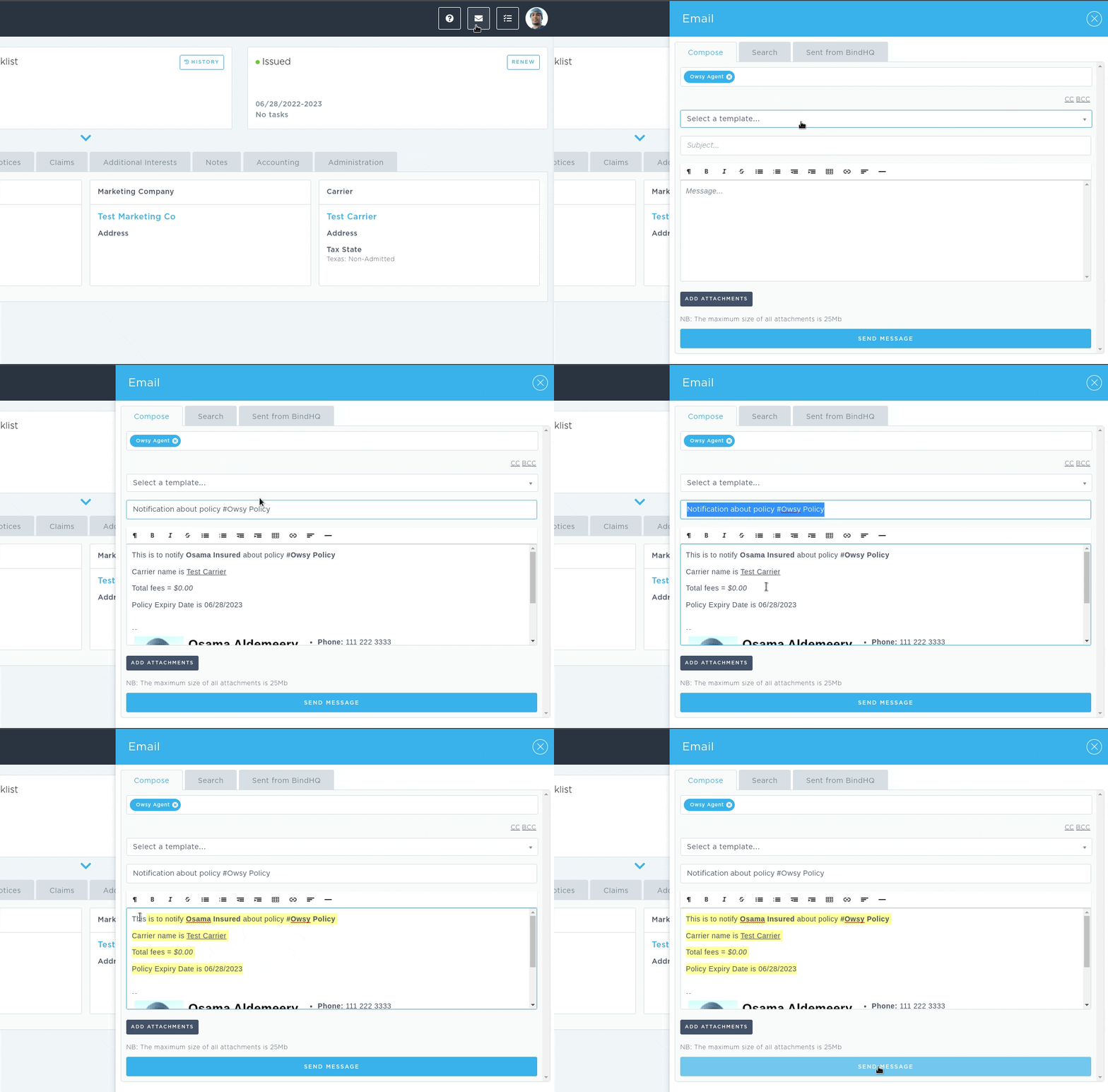
Click the Envelope icon in the upper-right corner to open the email composer.
Select the desired Email Template.
When a template is selected:
The Subject is automatically populated.
The Email Body is automatically populated.
Any Dynamic Replacement Tags are automatically replaced with information from the associated record.
Review the email, make any necessary changes, and click Send.
Last Update: July 2026