Managing Email Attachments in BindHQ
Last updated: May 29, 2026
This article explains how to create, manage, and use Email Attachments in BindHQ, including attaching documents to emails sent from a policy.
Overview
BindHQ allows administrators to upload and manage Email Attachments that can be used when sending emails from BindHQ. These attachments can be added to one-off emails, renewal emails, and automations.
Who Can Access Email Attachments?
Admins can create, edit, and manage Email Attachments.
All users can use approved Email Attachments when sending emails from policies.
Creating an Email Attachment
Navigate to Settings > Customization > Email Attachments.
Click + Create New Email Attachment.
Complete the following fields as applicable:
Name – Enter a descriptive name for the attachment.
Description – Provide a brief explanation of the document's purpose.
Lines of Business – Select one or more lines of business where the attachment should be available.
Upload the file you would like to make available as an email attachment and click Save.
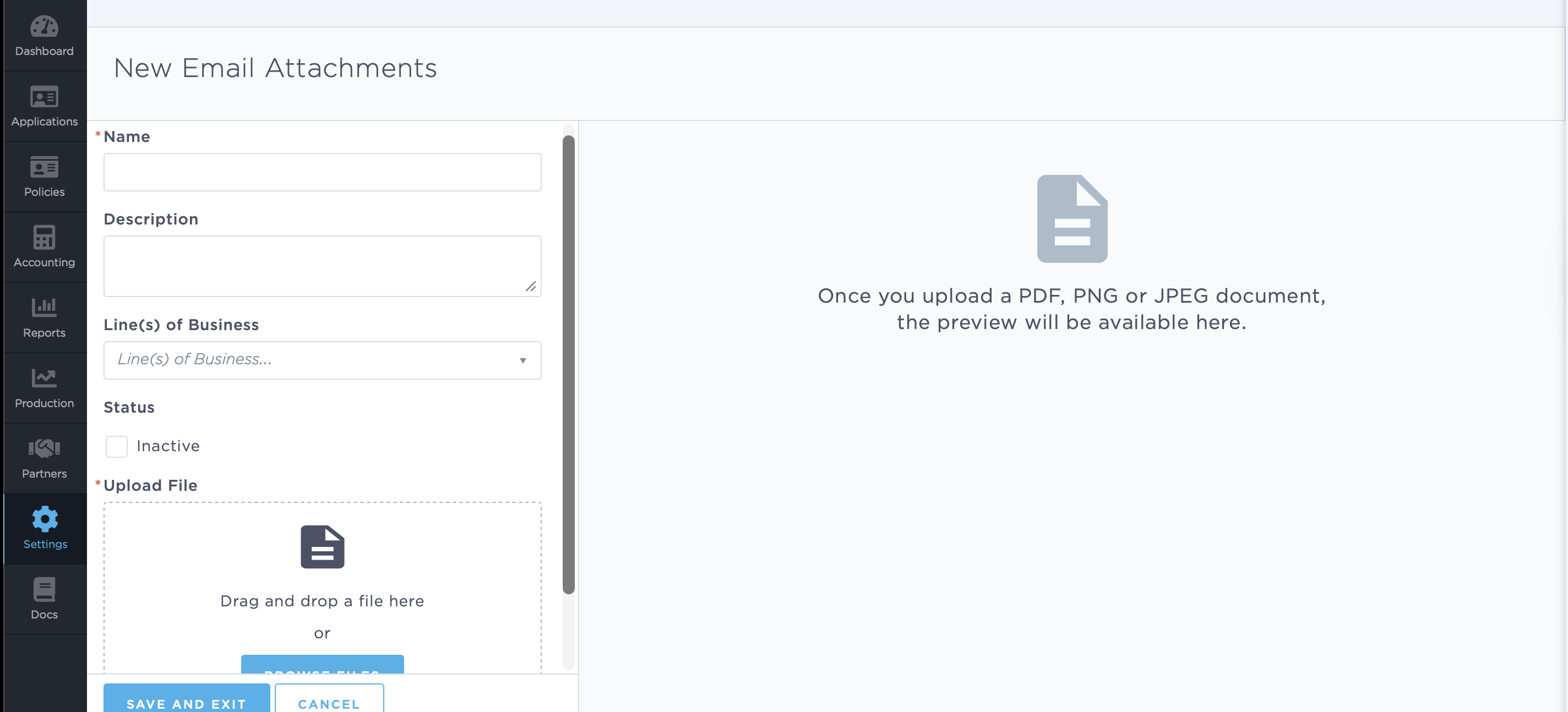
Once saved, the Email Attachment will be available for users to select and include in emails sent through BindHQ.
Attaching a File to an Email
Send files as attachments from an application or a policy:
Open the desired Application/Policy.
Click the Envelope icon in the upper-right corner to create a new email.
Select an email template if desired.
Example: Additional Information Needed
Scroll to the bottom of the email and click Add Attachments.
Select the desired document(s) by checking the box next to each file and clicking Done.
The selected attachment(s) will be added to the email and are ready to send.
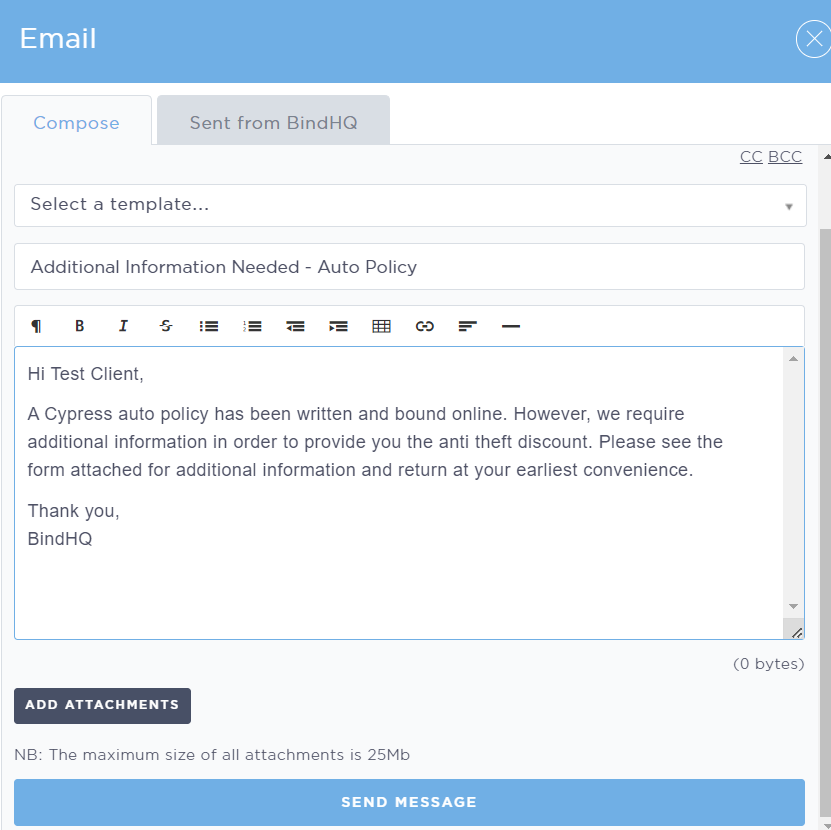
Upload a new file directly from your computer:
Click Add Attachments.
Select Upload.
Browse for and select the file you want to attach.
Once uploaded, the file will be automatically added and selected.
Click Done to attach the file to the email.
The uploaded file will now appear in the email's attachments and will be included when the email is sent.
Last Update: May 2026