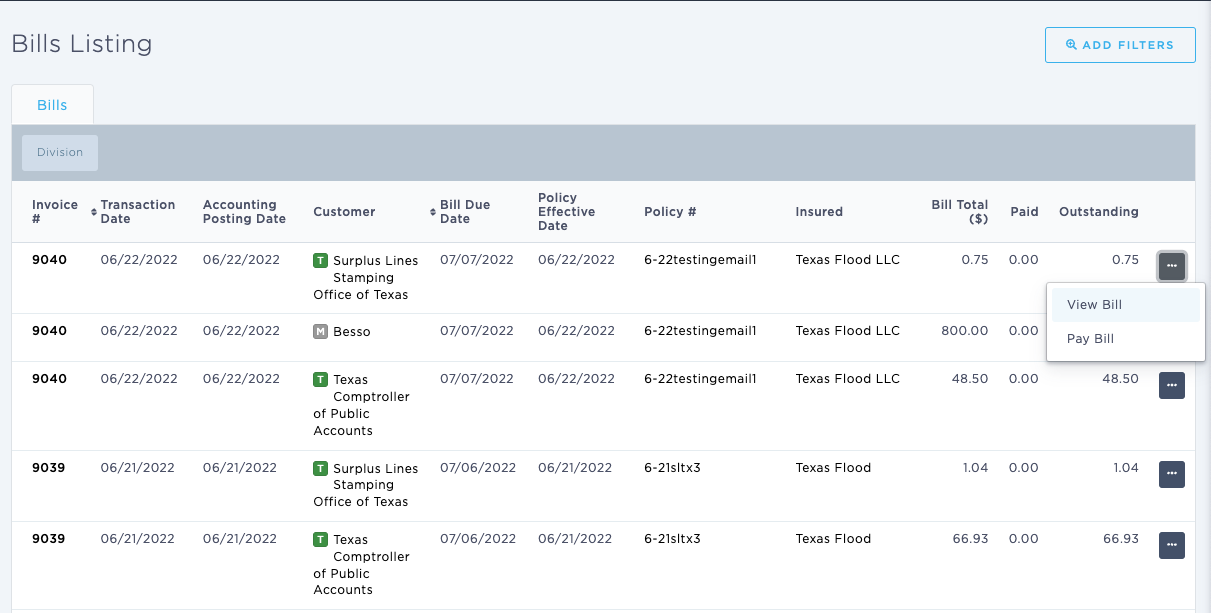
Using the Browse & View Bills page
Last updated: July 5, 2025
You can use the Browse & View Bills page to generate a list of paid and unpaid bills.
Applies to: Accountants, Accounting Assistants
This article explains how you can look at a list of paid and unpaid bills for your MGA. You can filter by reference, transaction date, customer, due date, effective date, policy number, insured, total amount, paid amount, and outstanding amount.
You can find this page by going to the “Accounting” tab in the side navbar, then going to “General”, and then selecting “Create a New Bill” from the Accounts Payable tab
You can use this page to answer the following questions:
- How can I look at outstanding amounts on unpaid bills?
The On-Screen Bill Listing page displays the following columns: reference, transaction date, customer, due date, effective date, policy number, insured, total amounts, used and remaining.
- The Reference column hyperlinks to the Bill Detail [Insert Link] page which provides detailed information
- The Customer column hyperlinks to the Tax Authority or Marketing Company or Retail Agency page in the CRM
- The Policy column hyperlinks to the Policy page to which the Bill relates
- The Insured column hyperlinks to the Insured Detail page in the CRM