Using the Browse & View Payments page
Last updated: June 15, 2026
Introduction
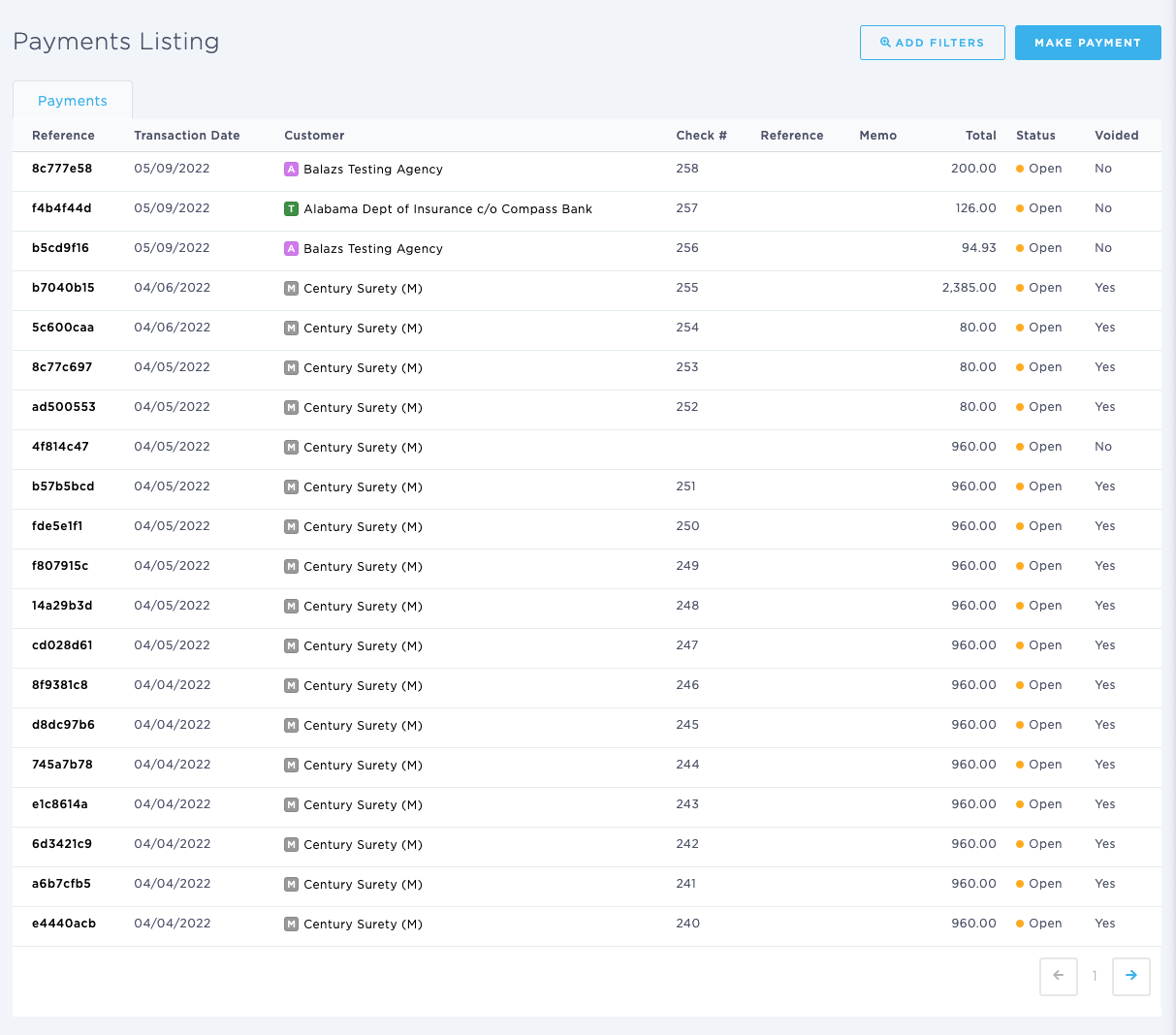
The Browse & View Payments page allows you to review payments that have been created within BindHQ. You can search, filter, and view payment details, making it easier to track payment activity and reconcile Accounts Payable transactions.
Accessing the Browse & View Payments Page
To access the Browse & View Payments page:
Navigate to Accounting from the left navigation menu.
Select Accounts Payable.
Click Browse & View Payments.
Viewing Payments
The Browse & View Payments page displays a list of payments recorded in BindHQ and provides tools to search and filter results.
You can use this page to answer questions such as:
What payments have been issued?
Has a payment been processed or voided?
What check number was assigned to a payment?
What payments were made to a specific customer or vendor?
Filtering Payments
Use the available filters to locate specific payments.
Payments can be filtered by:
Reference Number
Transaction Date
Customer
Check Number
Reference
Memo
Total Amount
Status
These filters can be used individually or combined to narrow the results.
Viewing Payment Details
To view additional information about a payment:
Click the Reference number to open the Payment Detail page.
The Payment Detail page provides detailed information about the payment, including transaction details, payee information, accounting impact, and audit history.
Last Update: June 2026