Editing Premiums, Taxes & Fees on Quotes, Binders and Endorsements
Invoice line items such as Premiums, Taxes & Fees can be edited when creating Quotes, Binders & Endorsements.
Applies to:
Accounting
Producers [/ Underwriters]
Assistants
Last Updated: September 2020This article explains how to edit invoice line items such as Premiums, Taxes & Fees when creating Quotes, Binders & Endorsements.
When creating a Quote, Binder, or Endorsement, you can add premiums, taxes, and fees.
Tax rates are automatically calculated based on the premium and tax state but can be manually overridden if needed.
Check the checkbox to override automatic tax calculation. The grayed out line items become editable.
On a Quote, navigate to the Quote Summary tab to view the Fees and Taxes section
On an Endorsement, navigate to the Invoice tab
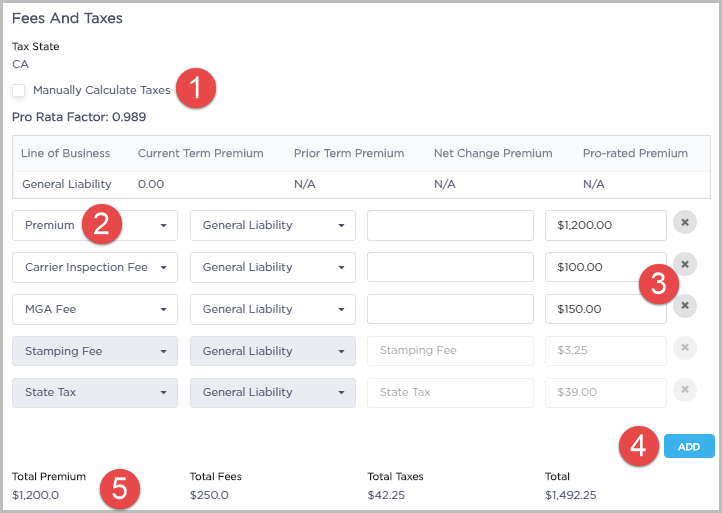
Manually Calculate Taxes - Check the checkbox to override automatic tax calculation. The grayed out line items become editable.
Line Item - Use the drop-downs to select the charge type (premium, tax, or fee) and the line of business. Enter any comments related to the charge and fill in the line item amount.
Note: If these values were previously entered on the Coverage page, they will be grayed out in the Premium section, and can only be edited from the Coverage page.Delete a line item - Click the X icon to delete a line item. To delete an automatically calculated line item, you must first check the Manually Calculate Taxes checkbox.
Add button - Click Add to add another line item to the premium section.
Invoice summary - These details break down your line item totals by premium, fees, taxes, and total.
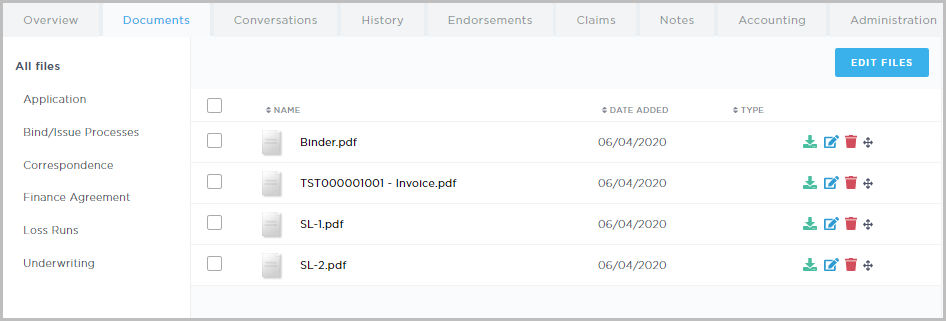
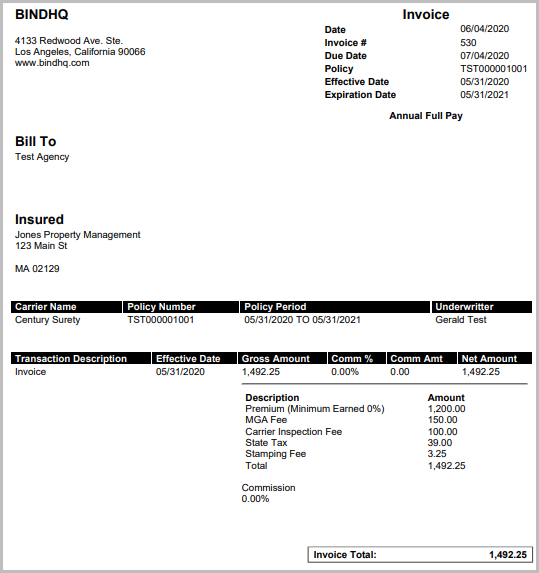
After saving a binder or endorsement, navigate to the Documents tab to view the Invoice.