Managing Underwriting Rules in BindHQ
Last updated: March 2, 2026
Overview:
Underwriting Rules are a key feature associated with Programs and can be accessed through the Settings area. To manage them, navigate to Quotes & Programs, then select the relevant program or quote template. From there, click Underwriting Rules for the template you're interested in editing.
This tool allows you to define conditions based on available fields in BindHQ and set instructions for users quoting whether a risk should be referred to an underwriter or marked as ineligible.
Step-by-Step Guide:
Accessing Underwriting Rules:
Go to Settings from the BindHQ dashboard.
Select Quotes & Programs in the left-hand menu.
Choose the relevant program in Browse, view & edit programs, and click on Underwriting Rules to manage the rules for that particular template.
Creating Underwriting Rules:
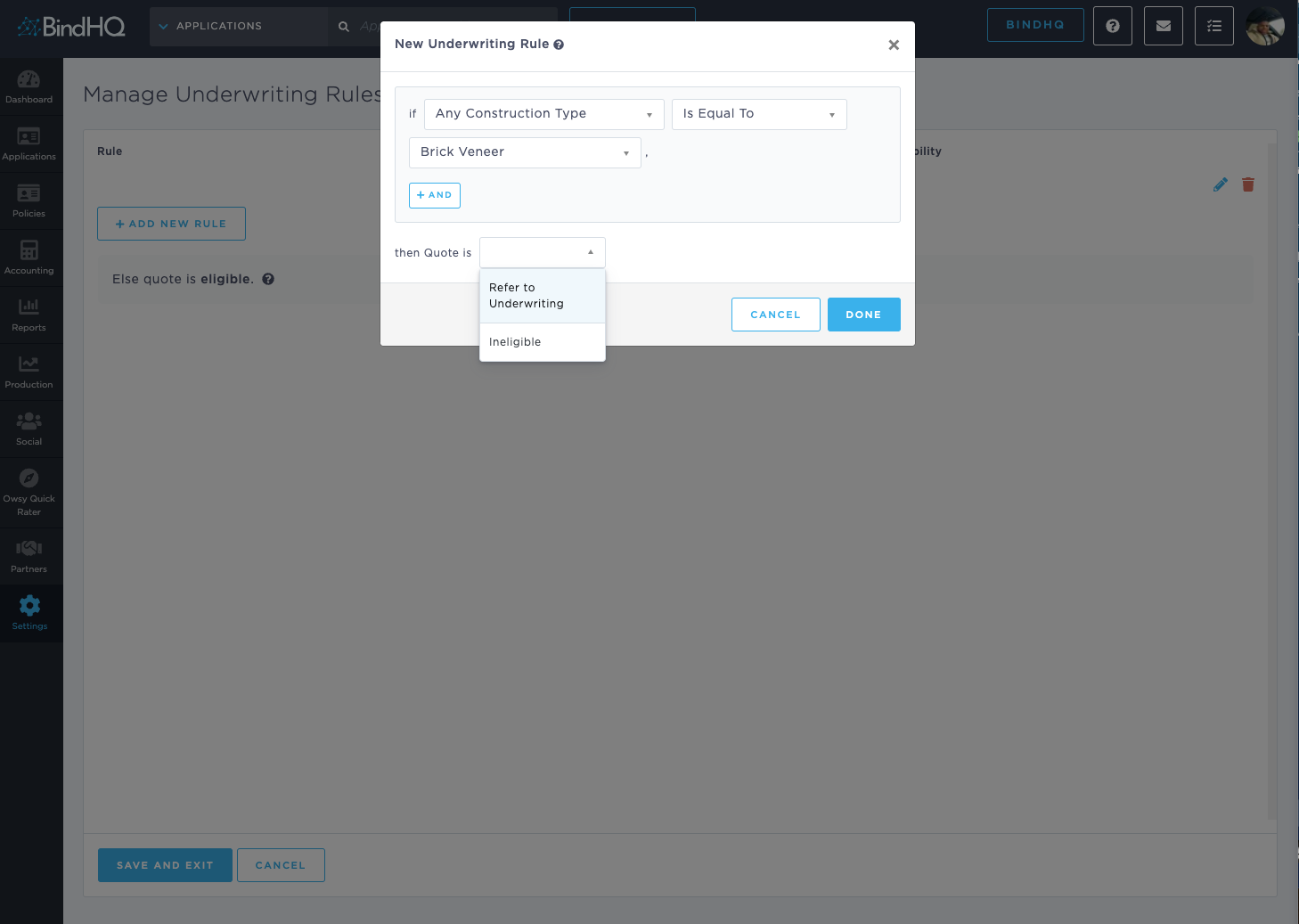
In the Manage Underwriting Rules section, click on Add New Rule.
Use the dropdown menus to set conditions based on the available fields. For example, you can set a rule like "If Construction Type is Equal To Brick Veneer."
Note that you can use any data field available related to your Custom Line of Business or our Primary Line of Businesses.
Decide what should happen if the condition is met. You can select whether to Refer to Underwriting or mark the quote as Ineligible.
Conditions and Custom Fields:
The conditions in underwriting rules integrate with custom fields that can be added to products. This gives you full control over how risks are assessed during the quoting process.
Common criteria include eligibility checks, referral to underwriting, or marking a risk as ineligible.
Quick Example:
Here's a snippet from our training video to explain how conditions work:
Summary:
Using BindHQ's underwriting rules, you can streamline your decision-making process during quoting. By setting clear conditions and actions (refer to underwriting or ineligible), you ensure consistent risk evaluation aligned with your program guidelines.