How to Manage Policy Forms in BindHQ
Last updated: March 2, 2026
You can set up Policy Forms with or without dynamic data pulled from BindHQ and associate them to program templates.
This article explains how upload a new or updated form onto the BindHQ platform and associate/configure policy forms to Quote Templates.
Uploading a Policy Form
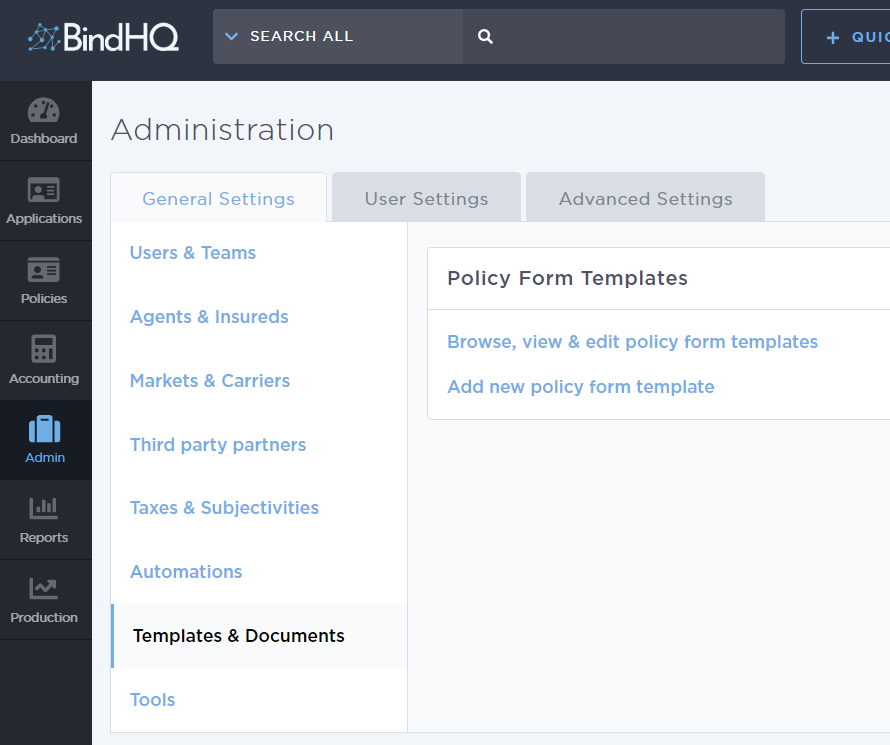
Admins can begin uploading the form by logging into BindHQ and navigating to the "Admin" button on the left side of the platform.
From the "Admin" view, choose "Templates and Documents" and then under "Policy Form Templates", choose "Add new policy form template".
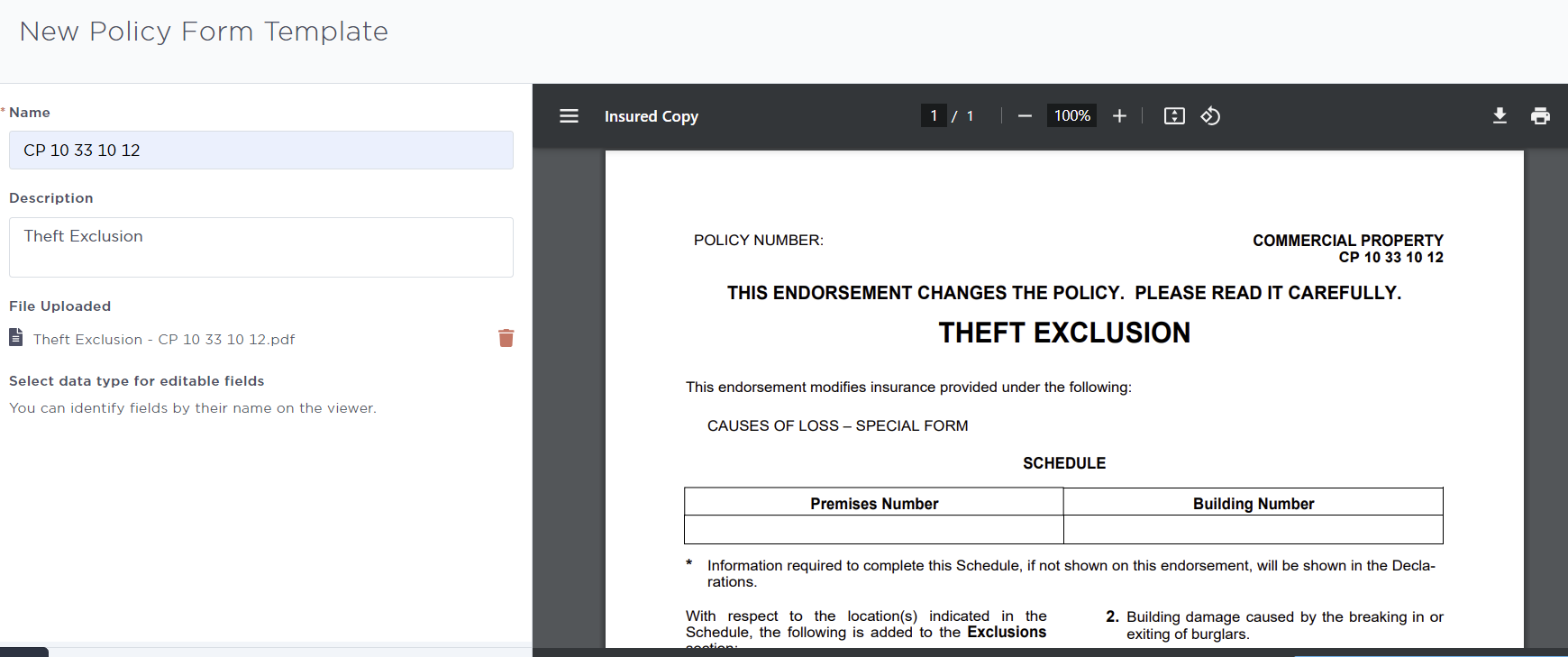
Once on the next screen, you will need to enter the Name of the form and a Description (if applicable), then drag and drop a PDF or upload the document. The preview of the form will generate automatically.
A recommendation is to use the "Form Number" for Name, and the Title of the form for Description, as this will be printed on the quotes, schedule of forms, etc.
For instance:
Name: CP 10 33 10 12
Description: Theft Exclusion
If you choose to upload a fillable PDF, the final step will allow you to map the BindHQ data type to a field, 'Leave Blank', or select 'Free Text Input'.
Leave Blank will leave the fillable field empty.
To learn more about how the 'Free Text Input' works, please read below.
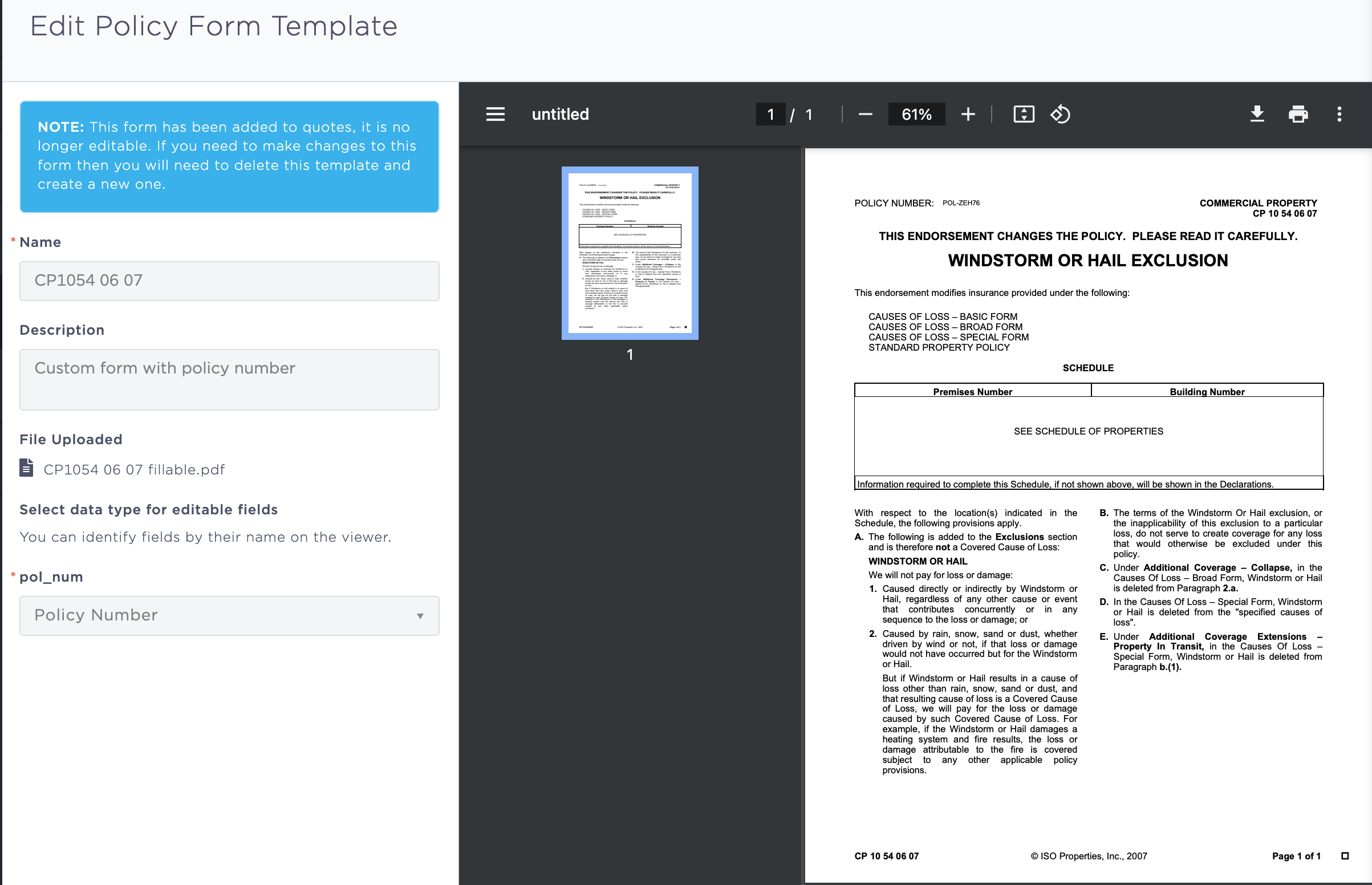
Mapping a fillable field with BindHQ dynamic data means that the value will be pulled automatically during Policy issuance.
Click Save and Exit and the new form will appear under the "Templates and Documents" tab now.


From this page you can download, edit or delete the form as needed. Note, that forms can not be edited once they were added to a quote at least once. To modify a form, you will need to archive the existing one and create a new one.
Adding a Policy Form to a Quote Template
Admins can add Policy Forms to Quote Templates (or Programs). To learn about how to add and configure policy forms on Quote Templates click here.
Free Text Input on Policy Forms
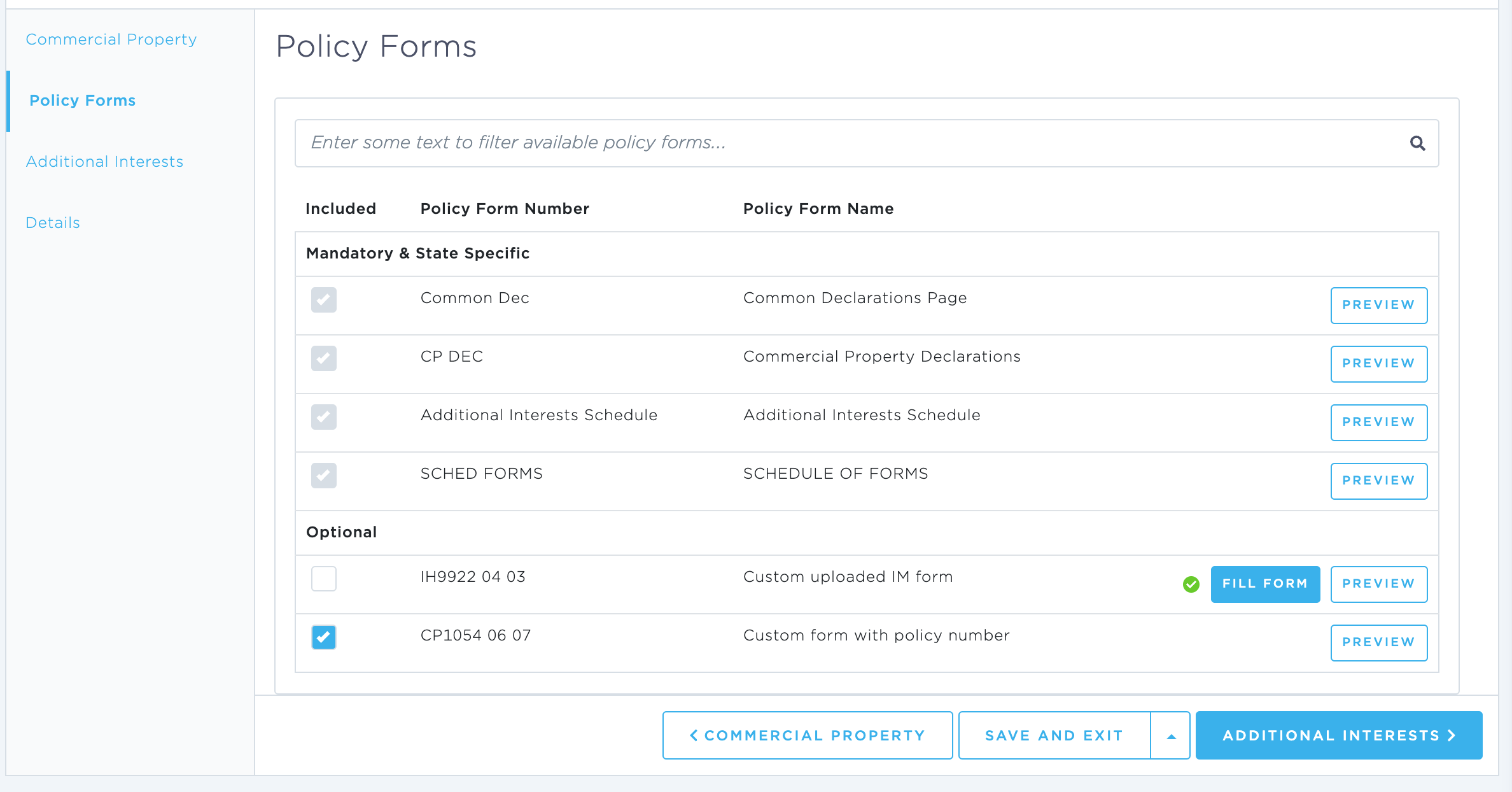
Select 'Free Text Input' if the Policy Form requires verbiage that cannot be pulled from BindHQ. This step will allow you to enter free text on the Quote on the Policy before Policy Issuance. Examples can be for instance: Special Additional Insured forms, where the description of the Additional Insured is not an individual, but a description.

Users creating the quote, or working on policy issuance can click 'Fill Form' on the quote to enter a free text:
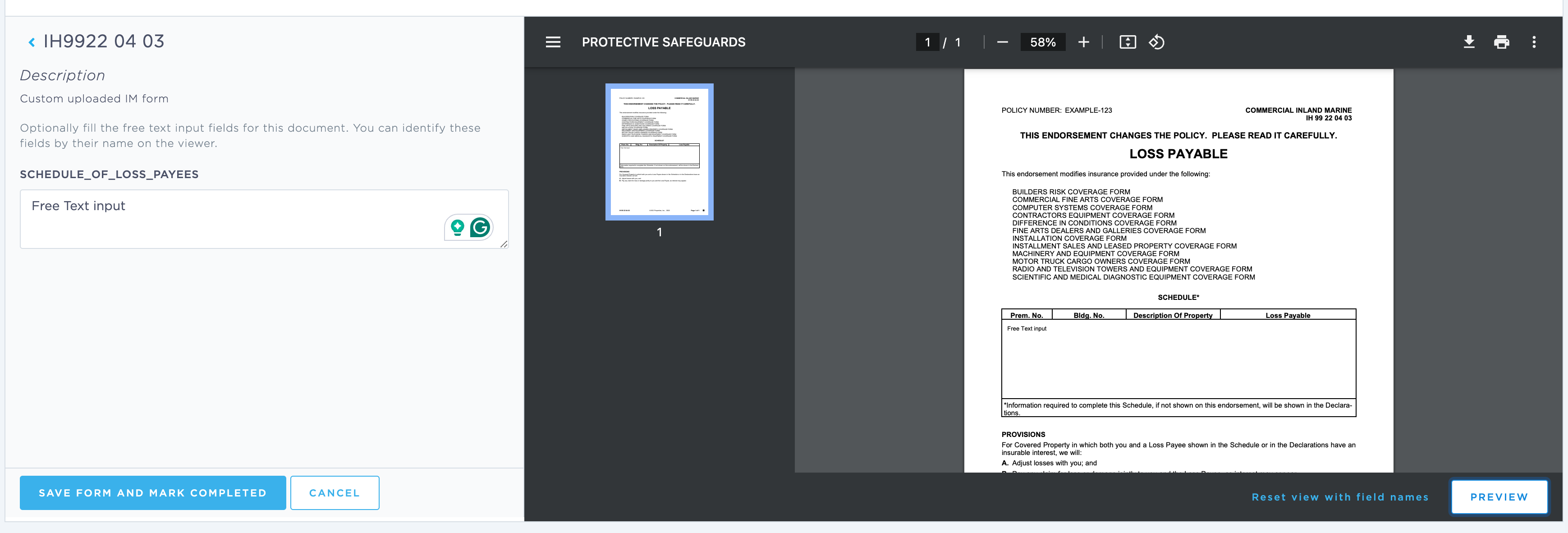
Once the Free Text input is captured, the form will be marked as OK to issue.
Policy Issuance
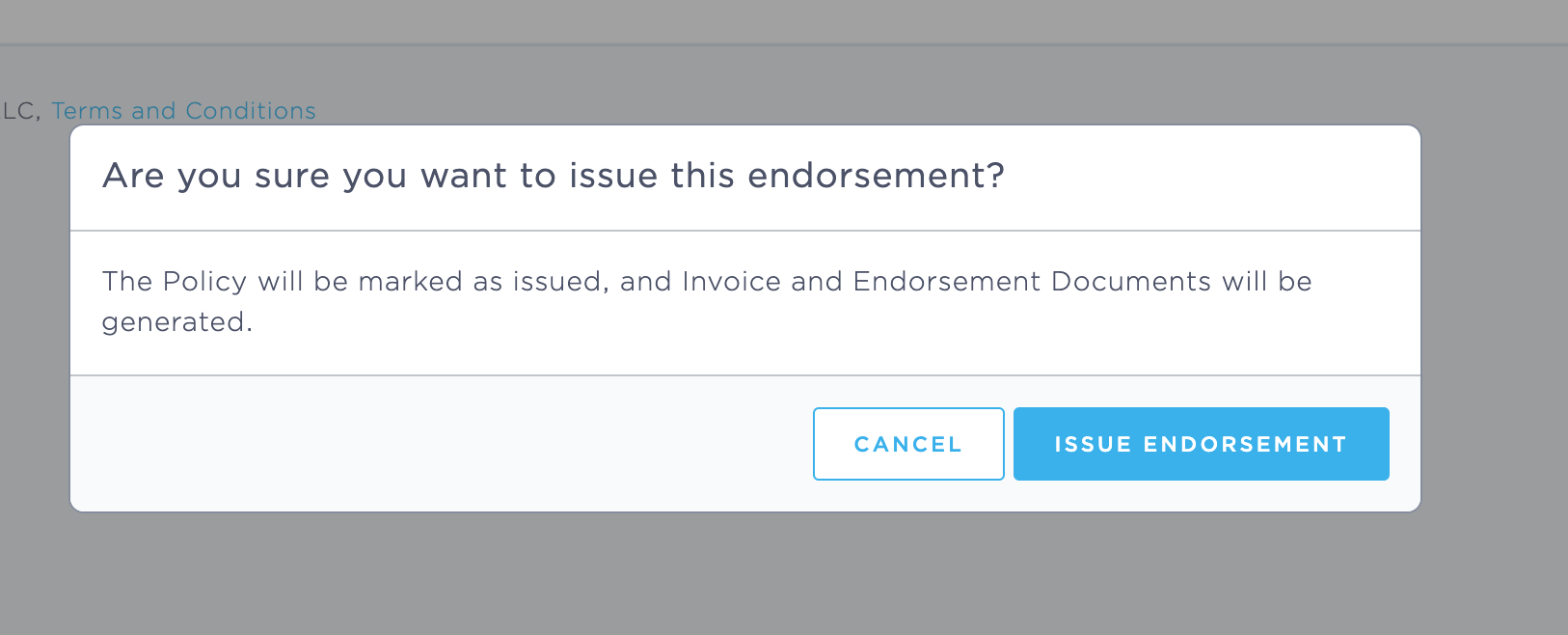
To issue a Policy and generate the Policy Issuance packet, simply click Issue on the Bind Endorsement, under the Endorsements tab of the policy.
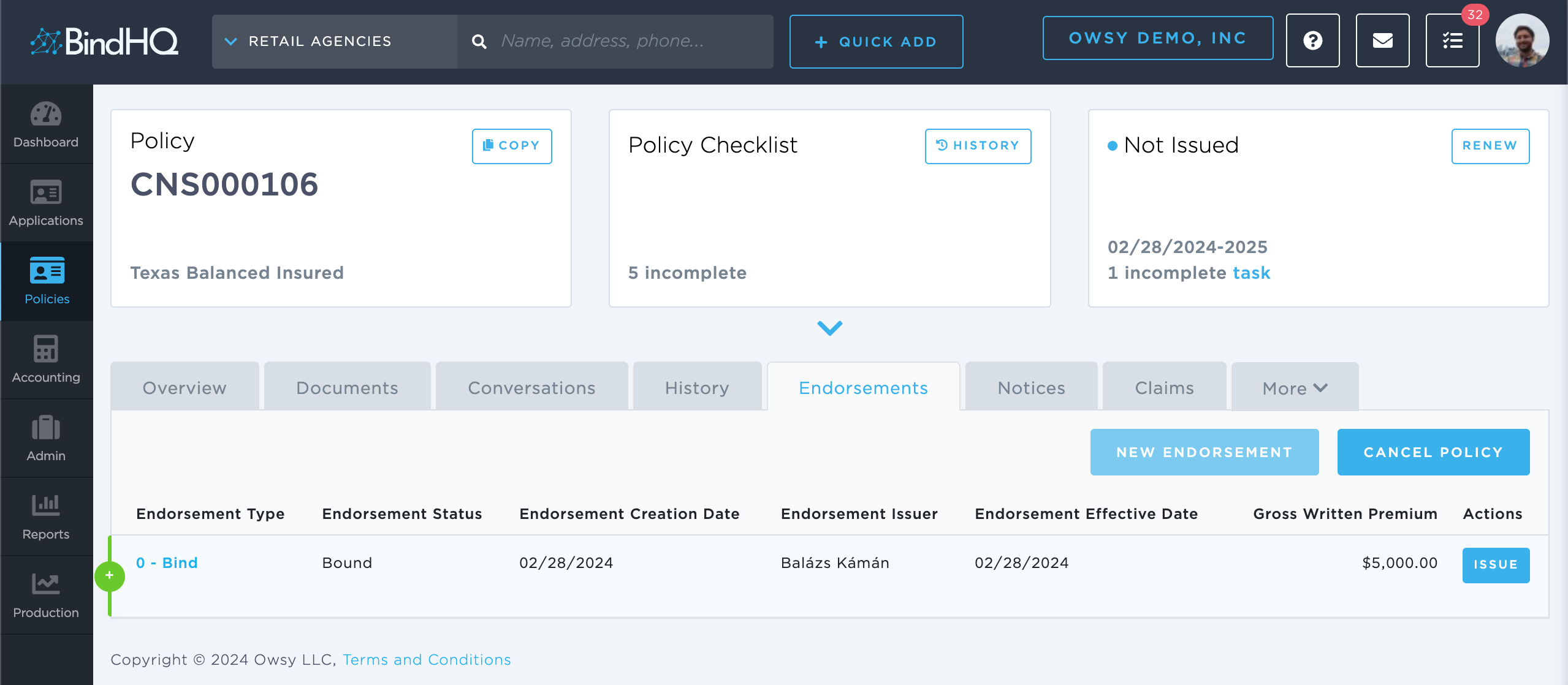
This will generate a Policy Issuance document under the documents tab. Document generation can take up to a few minutes, depending on the number of Policy Forms added to the policy and their size, but usually it generates under 30 seconds. Try refreshing the page, if you can't find the issued policy document.
Keywords for Search:
Policy Issuance
Admin Manage Policy Forms
Policy Documents
Program Administration