Managing Email Signatures
Last updated: February 27, 2026
Introduction
This article explains how to create and manage email signatures in BindHQ. Once your signature is set up, your contact information and branding will automatically appear in all emails sent from within your AMS.
How to Access Your Profile
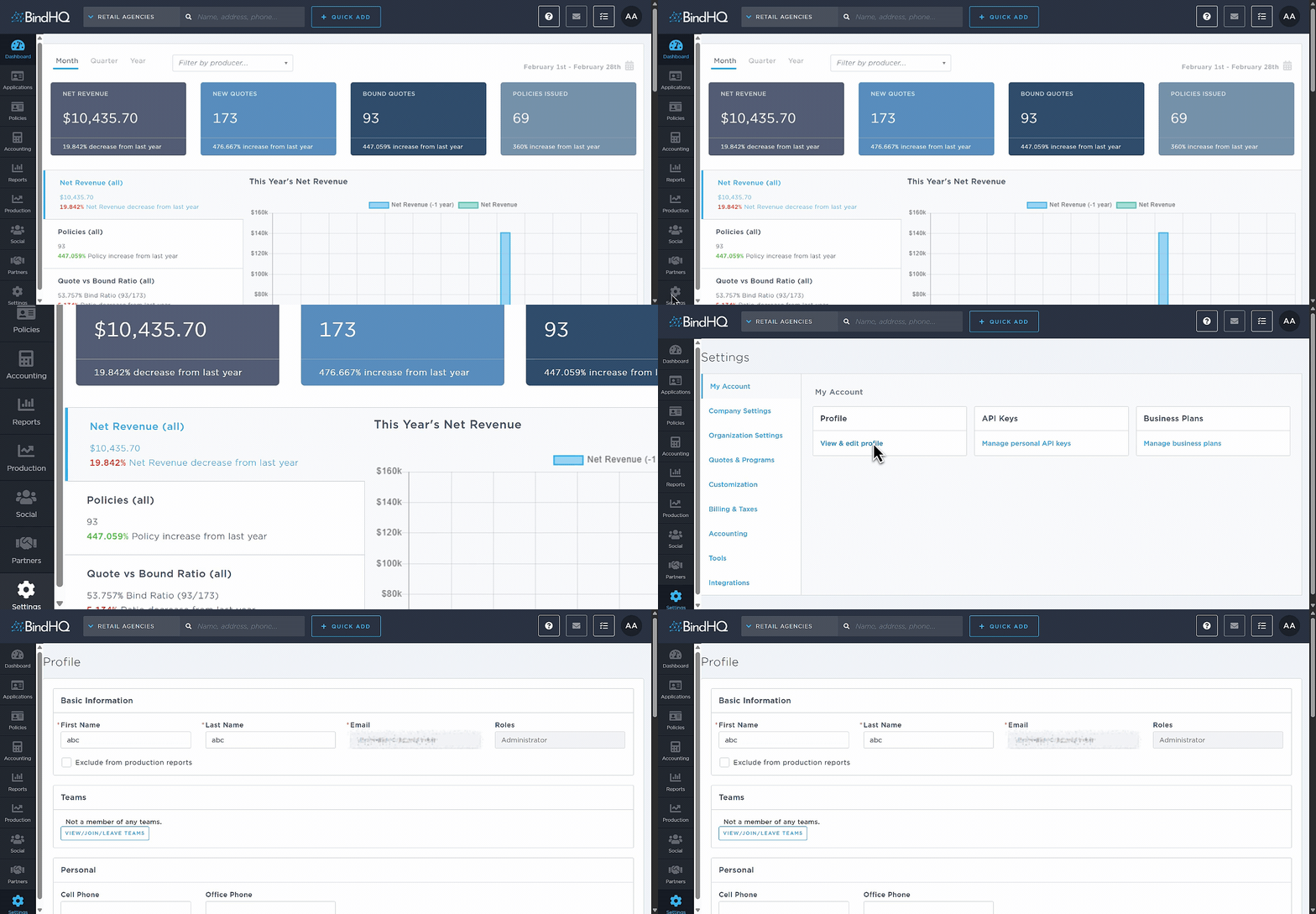
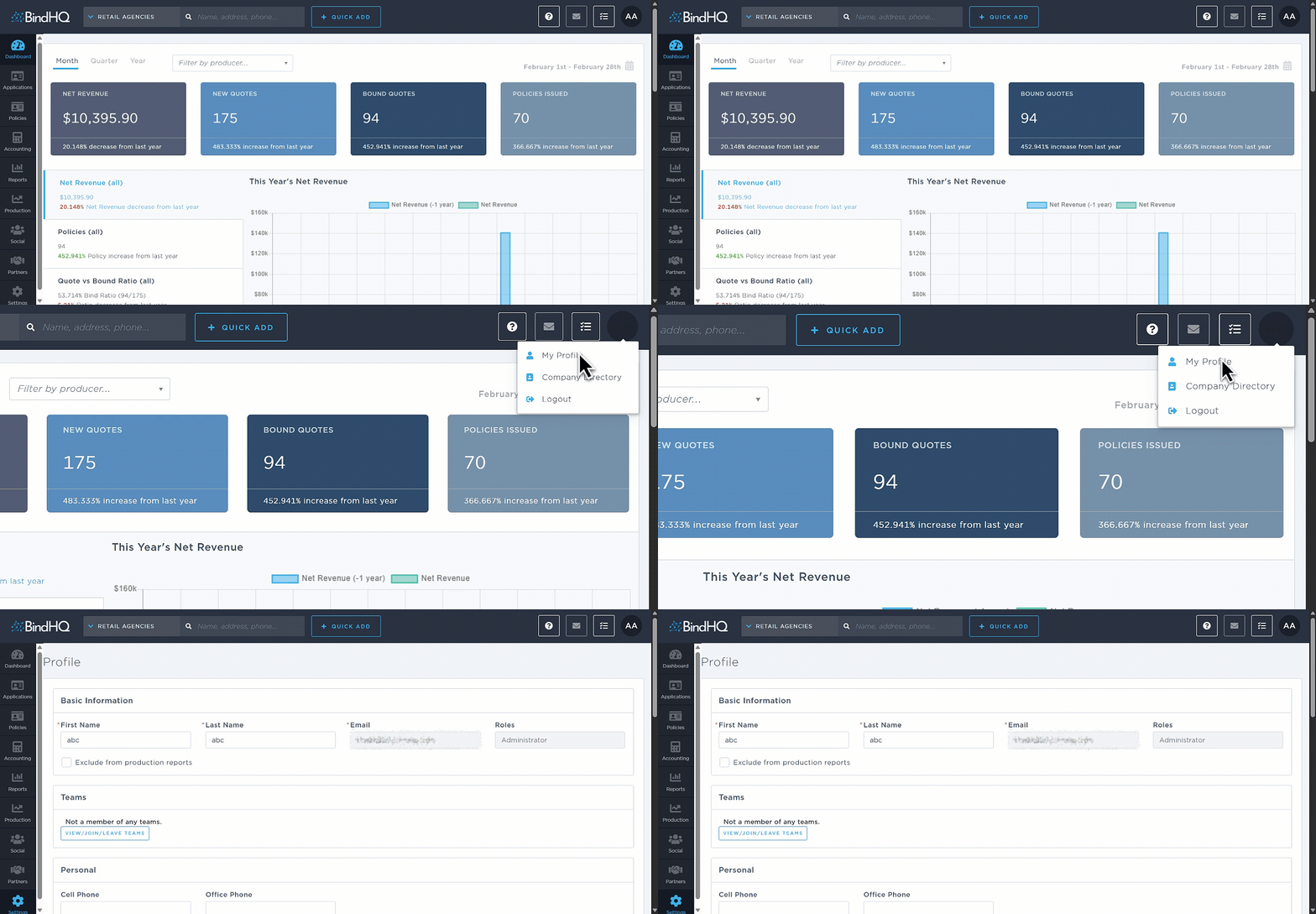
You can access your email signature settings in two ways:
Option 1:
Go to Settings
Select My Account
Under Profile, choose View & Edit Profile
Option 2:
Click your user photo icon in the upper-right corner
Select My Profile
Create or Update an Email Signature
Navigate to the Email Signature section within your profile.
Use the formatting toolbar to design your signature.
You can:
Create a new signature
Paste an existing signature
Upload a file from your computer
Note: Pasted signatures may lose some original formatting.
Scroll to the bottom of the page and click Update Account to save your changes.
💡 Tip: Send yourself a test email to confirm your signature appears correctly.
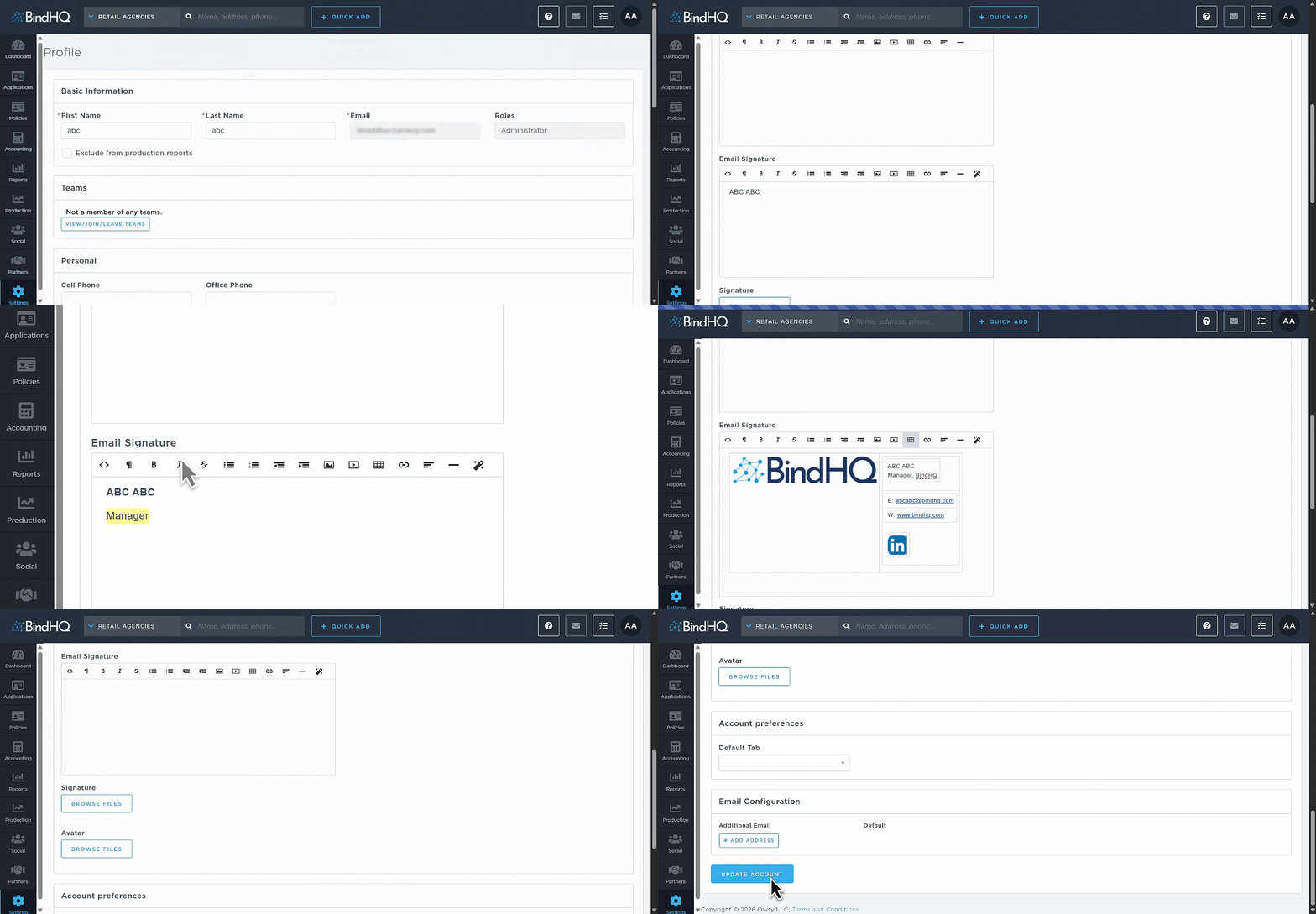
If the formatting toolbar does not provide enough styling options, or if your pasted signature does not retain its original formatting, you can either use one of the BindHQ email signature templates or create a more advanced signature using the code editor.
Use a BindHQ Email Signature Template
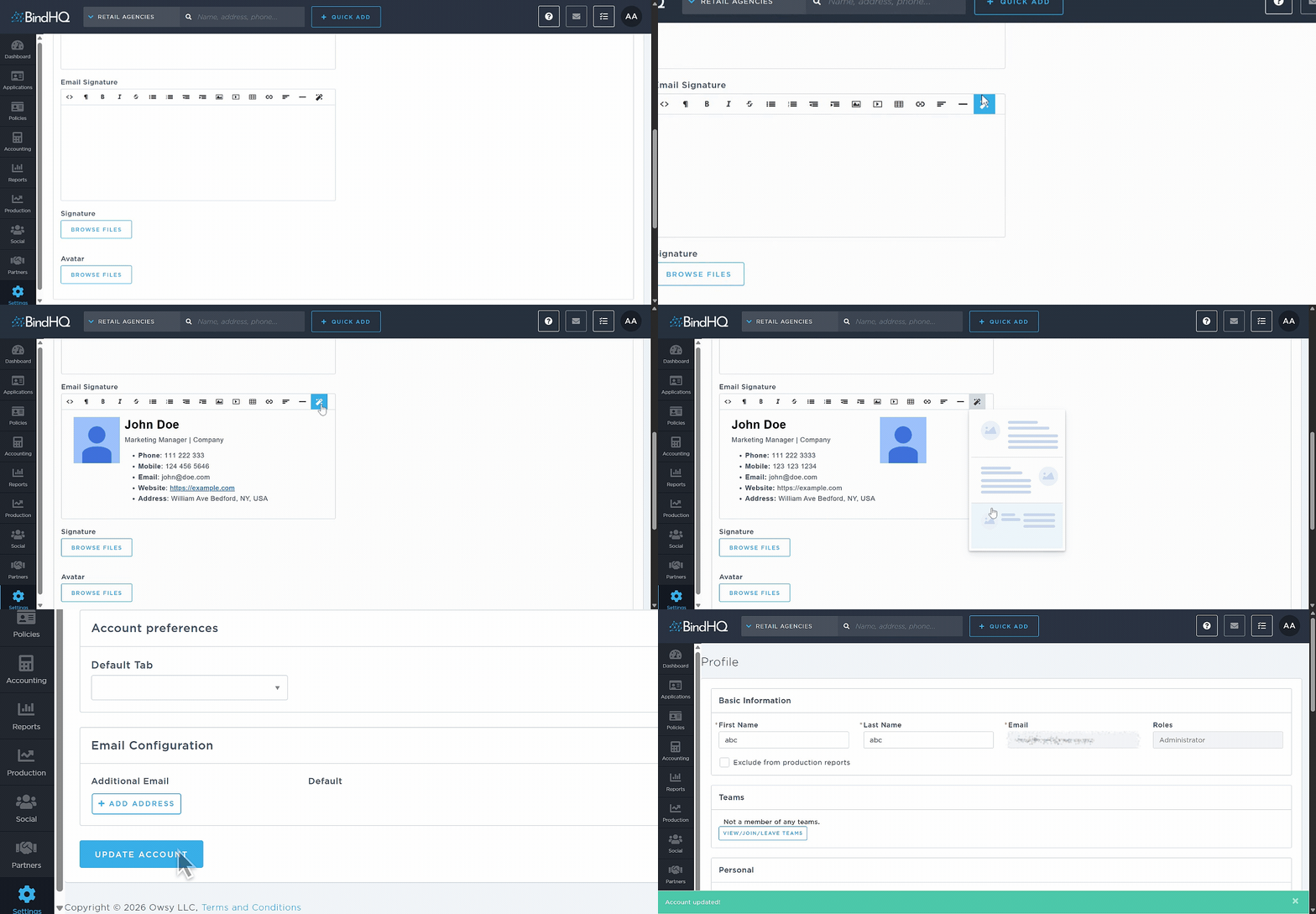
If you do not already have a signature or want a quick setup, you can use one of the built-in templates.
Click the Magic Wand icon in the formatting toolbar.
Select a template style.
A signature with placeholder details will be generated.
Replace the placeholder information with your own contact details.
Save your changes by clicking Update Account.
Adding or Replacing an Image
Delete the default image (if applicable).
Click the Image icon in the toolbar.
Paste the URL of your desired image.
Many users choose to add their company logo or profile photo for a more personalized look.
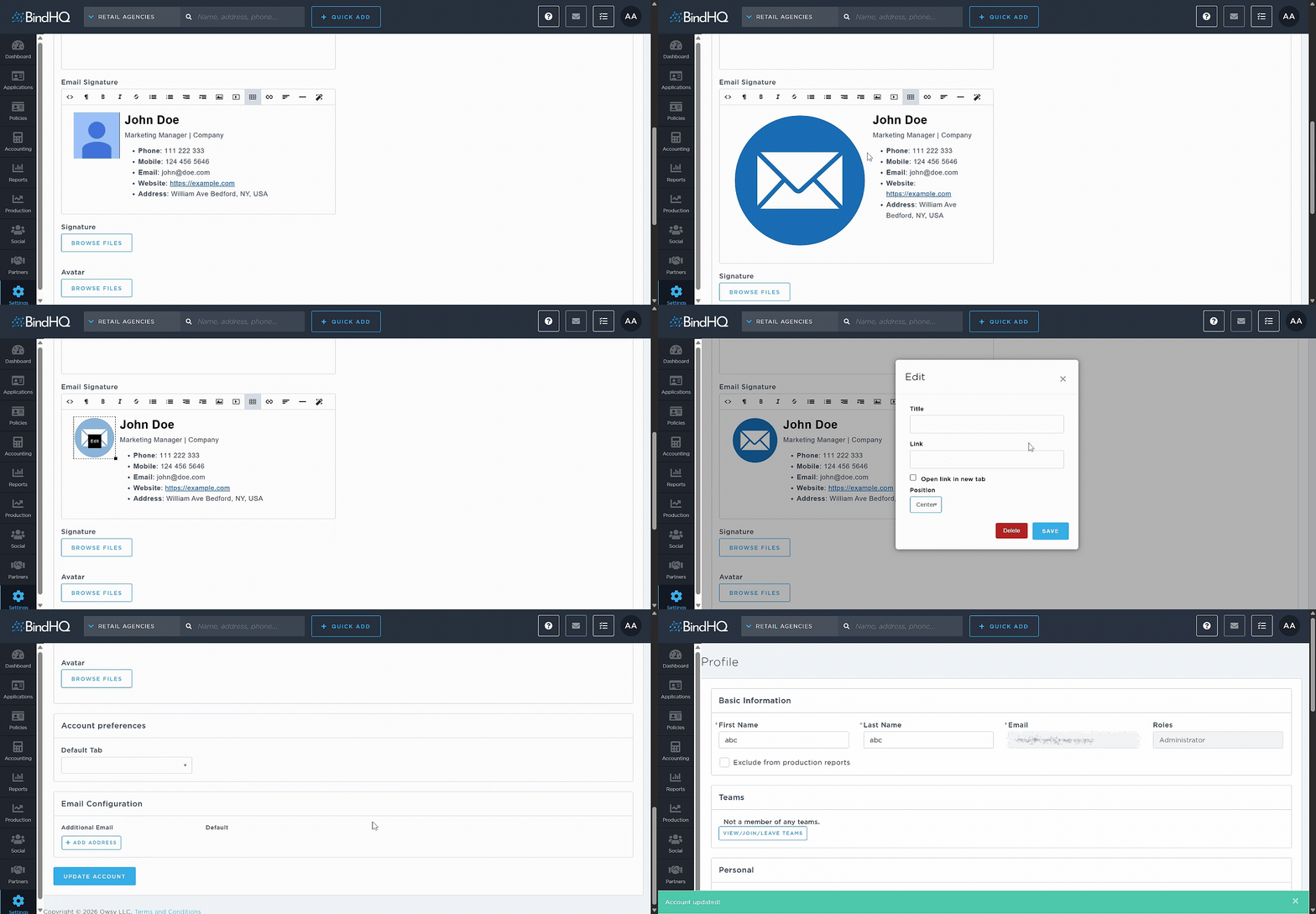
Although you can resize images in the editor, we recommend using a pre-optimized image (for example, 80 × 80 pixels) for best results.
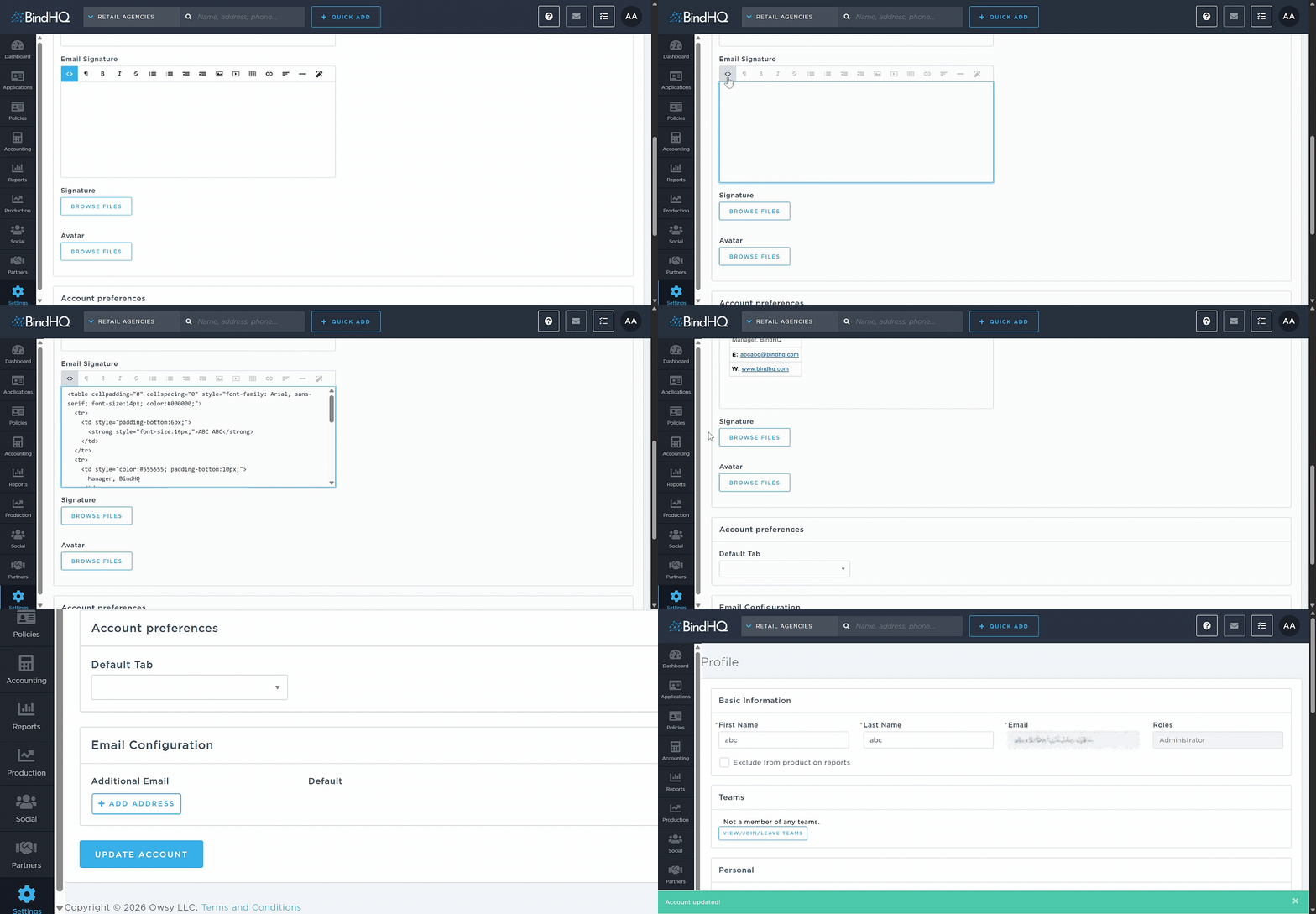
Create an Advanced Email Signature (HTML)
If you need more design flexibility or already have an HTML signature, you can use the code editor.
Click the Code Tags icon in the toolbar.
Add or edit your custom HTML.
Save your changes by clicking Update Account.
The code editor allows full customization of layout, styling, and formatting.
Last Update: February 2026