Managing User Accounts
Last updated: February 19, 2026
Introduction
This article explains how Administrators can manage and edit User Accounts within the system. Administrators can access and modify user settings through the Administrator tab located on the Side Navigation Bar, as well as from the Company Directory.
Note: Individual users can update certain profile settings on their own.
Administrators can perform the following actions:
Edit User Details from the Settings tab
Edit User Details from the Company Directory
Inactivate or Reactivate Users
Editing User Details from the Settings Tab
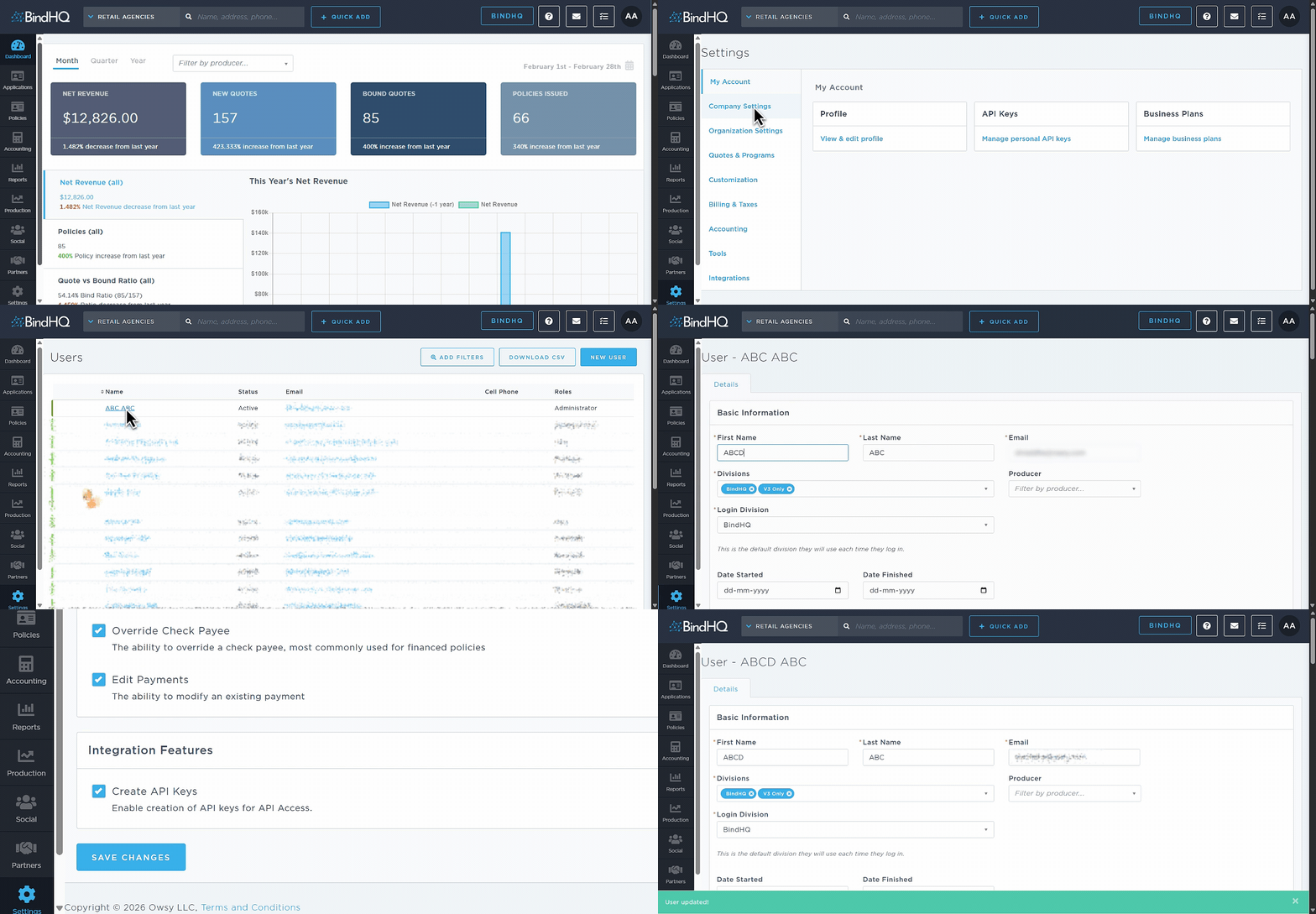
Navigate to the Settings tab.
Under Company Settings, select Users, then click Browse, View & Edit Users.
Note: This option is available only to System Administrators.
The Users page opens, displaying a list of all system users.
From the list, click a user’s name to open their account details.
Make any necessary updates to the user’s general settings, role, or permissions.
Scroll to the bottom of the page and click Save Changes to apply your updates.
Editing User details from the Company Directory
Administrators and users can also manage user accounts directly from the Company Directory.
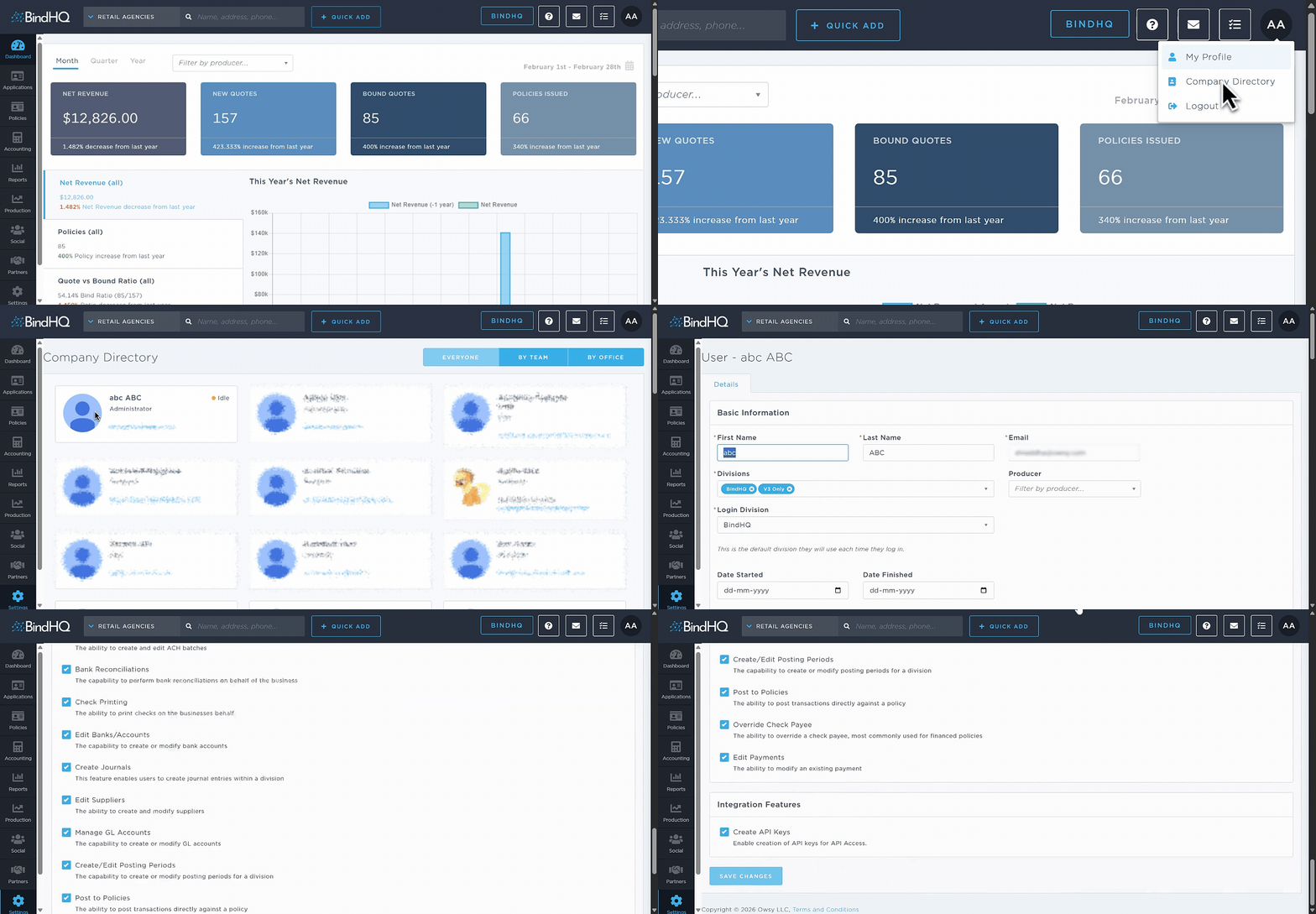
Navigate to the Company Directory.
Select a user’s profile image.
If you are a non-admin user, select your own profile image.
The Details page opens, displaying the user’s Contact, Bio, Roles, and Teams summaries.
Click Edit User to open the User Settings page.
Make any necessary changes to the account details.
Scroll to the bottom of the page and click Save Changes to apply your updates.
Inactivating Users
Administrators can make users inactive in the system to revoke their access to BindHQ.
When a user is set to inactive, they will no longer have access to the system. However, any work completed or data created by the user will remain available within BindHQ.
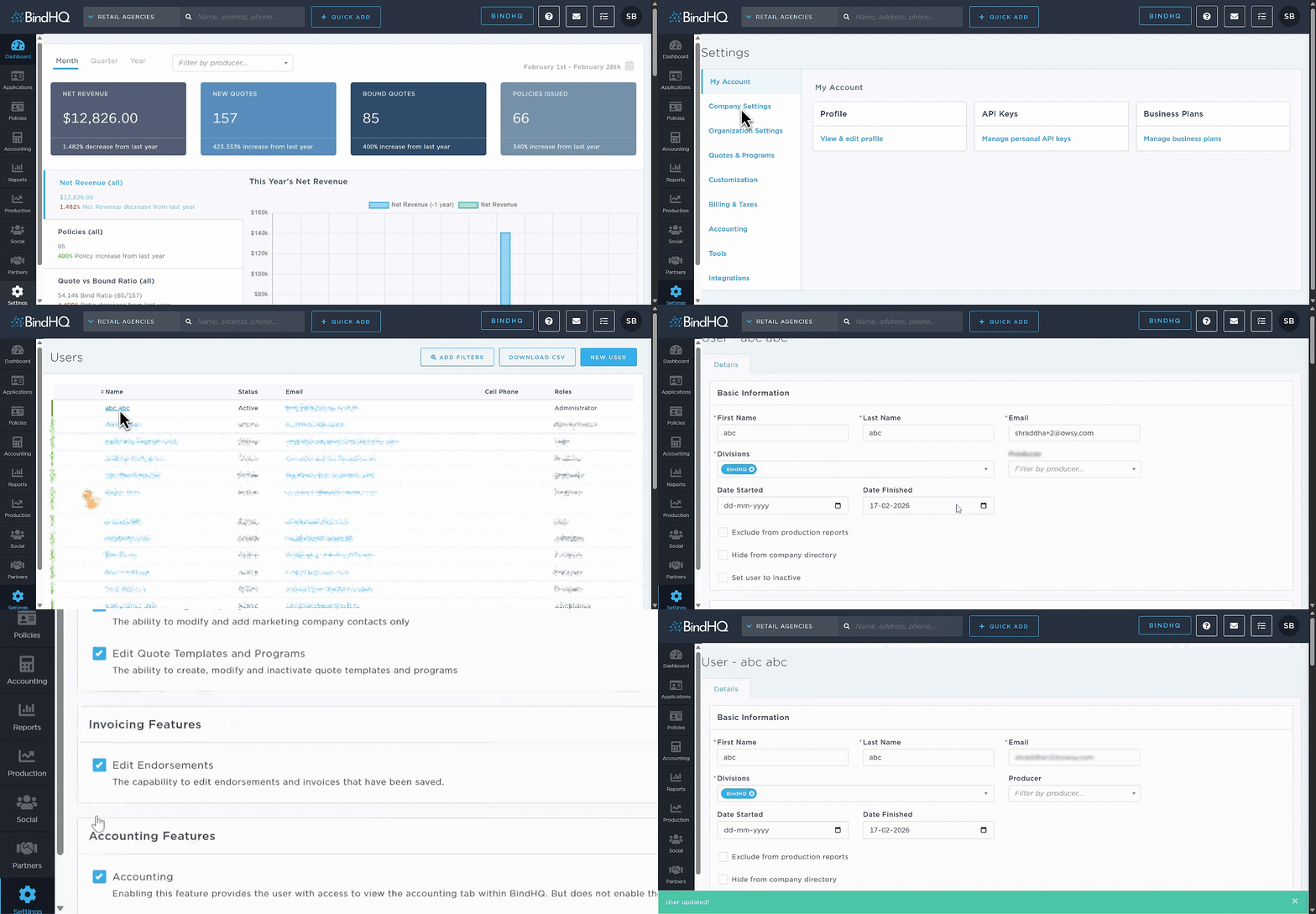
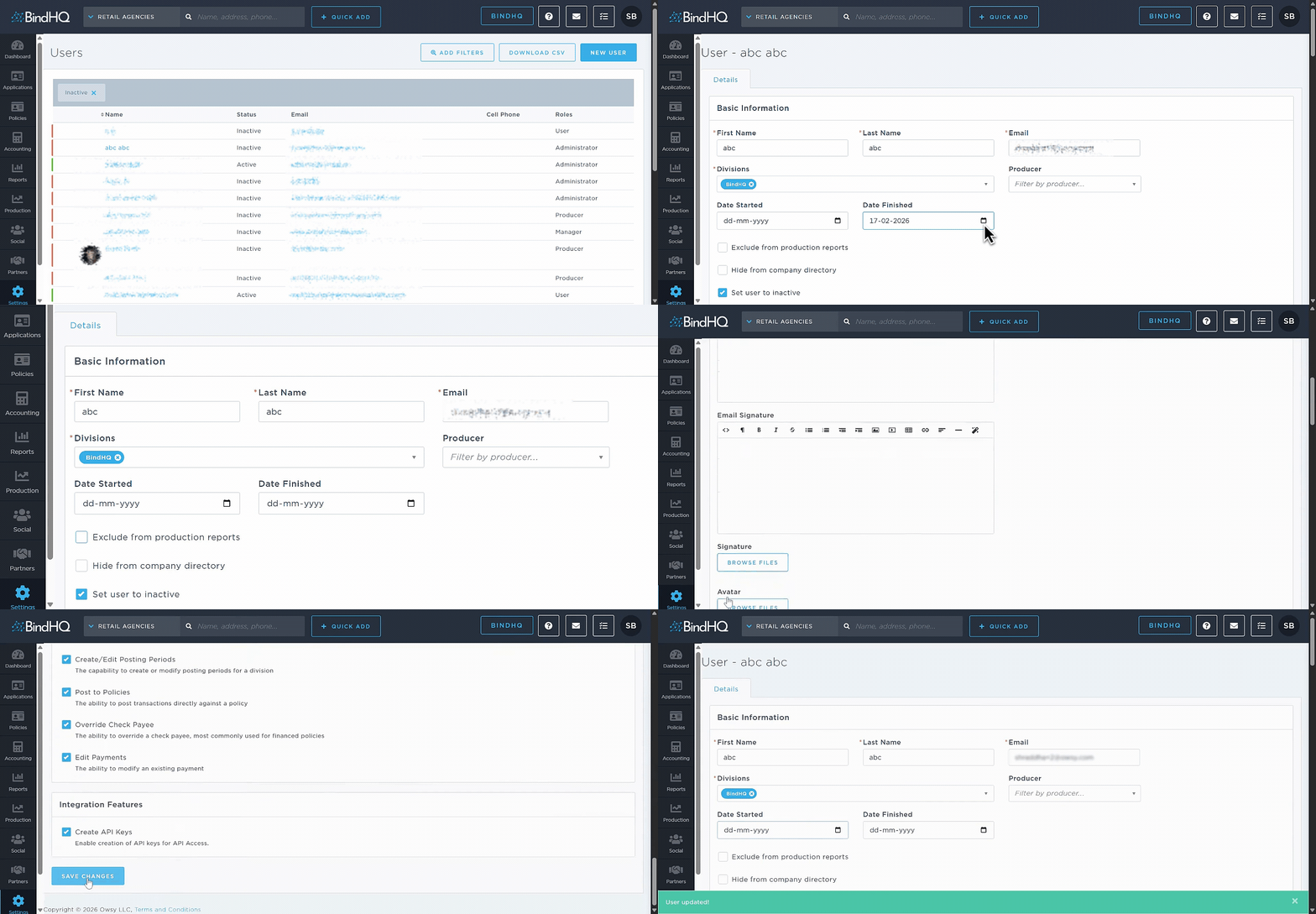
Navigate to the Settings tab.
Under Company Settings, select Users, then click Browse, View & Edit Users.
Note: This option is available only to System Administrators.
The Users page opens, displaying a list of all system users.
Click a user’s name to open their account details.
(Optional) In the Date Finished field, select the user’s end date as a BindHQ user.
Check the Set User to Inactive checkbox.
Scroll to the bottom of the page and click Save Changes.
Once saved, the user’s access to BindHQ is revoked. They will no longer appear in reports or in the Company Directory.
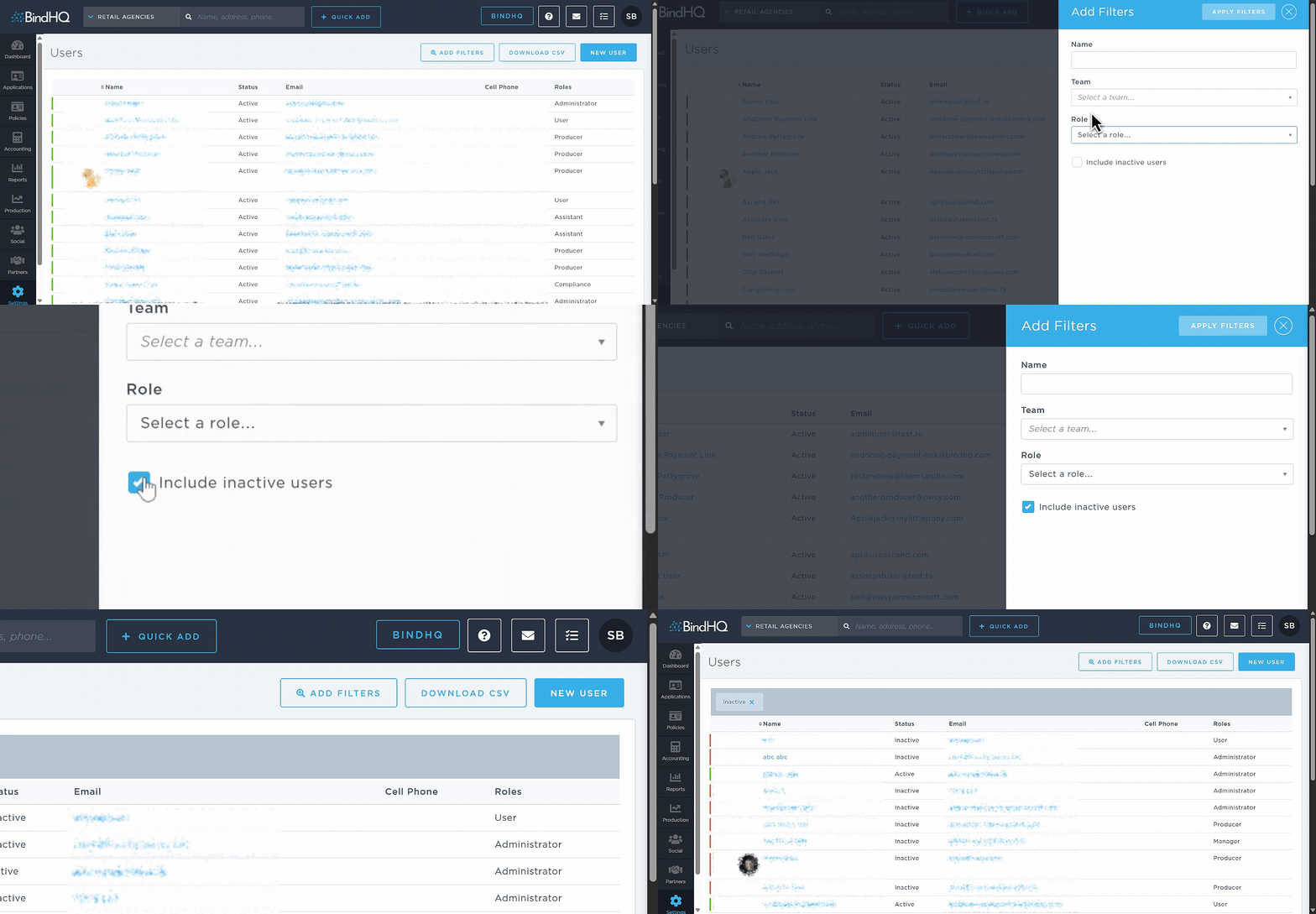
To view inactive users in the Users list, click Add Filters, then check the Include Inactive Users checkbox.
Reactivating a User
To restore access for an inactive user:
Locate the user by filtering to include inactive users.
Open their account details.
Uncheck the Set User to Inactive checkbox.
Click Save Changes to reactivate the user.
Last Update: February 2026