Assigning & Customizing User Permissions
Last updated: February 19, 2026
Introduction
This article explains how Administrators can manage user permissions in BindHQ. You’ll learn how to assign roles and customize feature access for each user.
Accessing User Settings
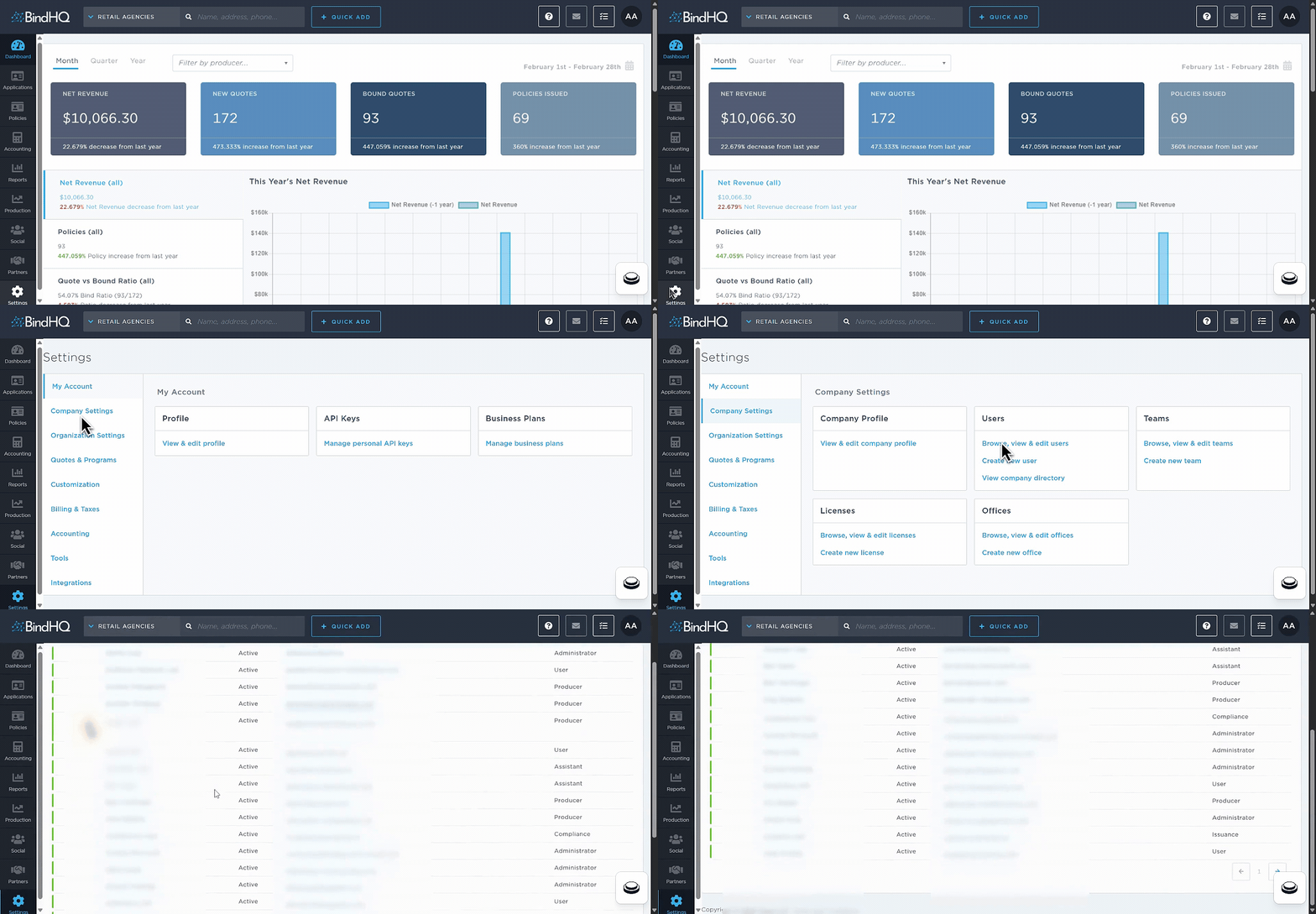
To manage users and permissions:
Go to Settings.
Select Company Settings.
Under Users, click Browse, view & edit users.
This will display the full list of users in your organisation.
Editing User Roles & Permissions
To update a user’s access:
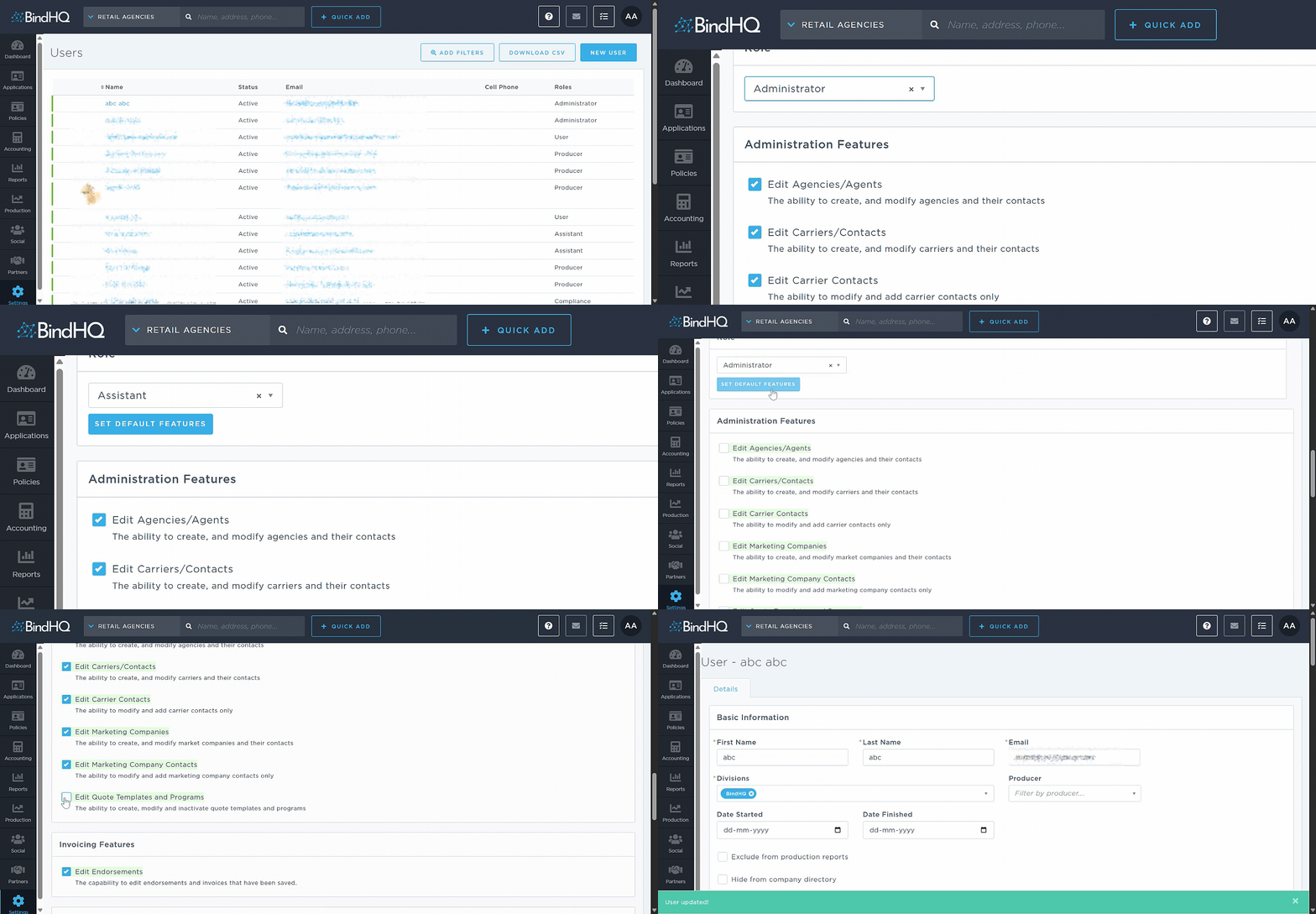
From the Users list, click the user’s name to open their profile.
Use the Role dropdown to select one of the available roles:
Administrator
Assistant
Compliance
Issuance
Manager
Producer
User
Click Set Default Features to apply the standard permissions associated with that role.
Review the available features and check or uncheck the boxes to grant or restrict access as needed.
Scroll to the bottom of the page and click Save Changes to apply updates.
Notes on Permissions
Permissions are organized into the following feature groups:
Administration Features
Invoicing Features
Accounting Features
Integration Features
This structure allows you to configure access at a granular level based on each user’s responsibilities.
You can customize permissions beyond the default role settings.
Last Update: February 2026