Changing the Retail Agency on a Policy
Last updated: June 15, 2026
Introduction
This article details the steps to use the Policy Transfer tool to transfer policies from one Retail Agency to another using the Policy Transfer Tool.
Click here for steps on changing the contact/agent on a policy.
Transferring policies to a new Retail Agency
On the left sidebar, click "Settings", then select "Tools" from the menu.
From the Tools page, under "Policy Transfer" click "Browse & view policy transfers."
On the right hand side of the screen, select your filters and click "Apply Filters". This will bring up a list of policies:
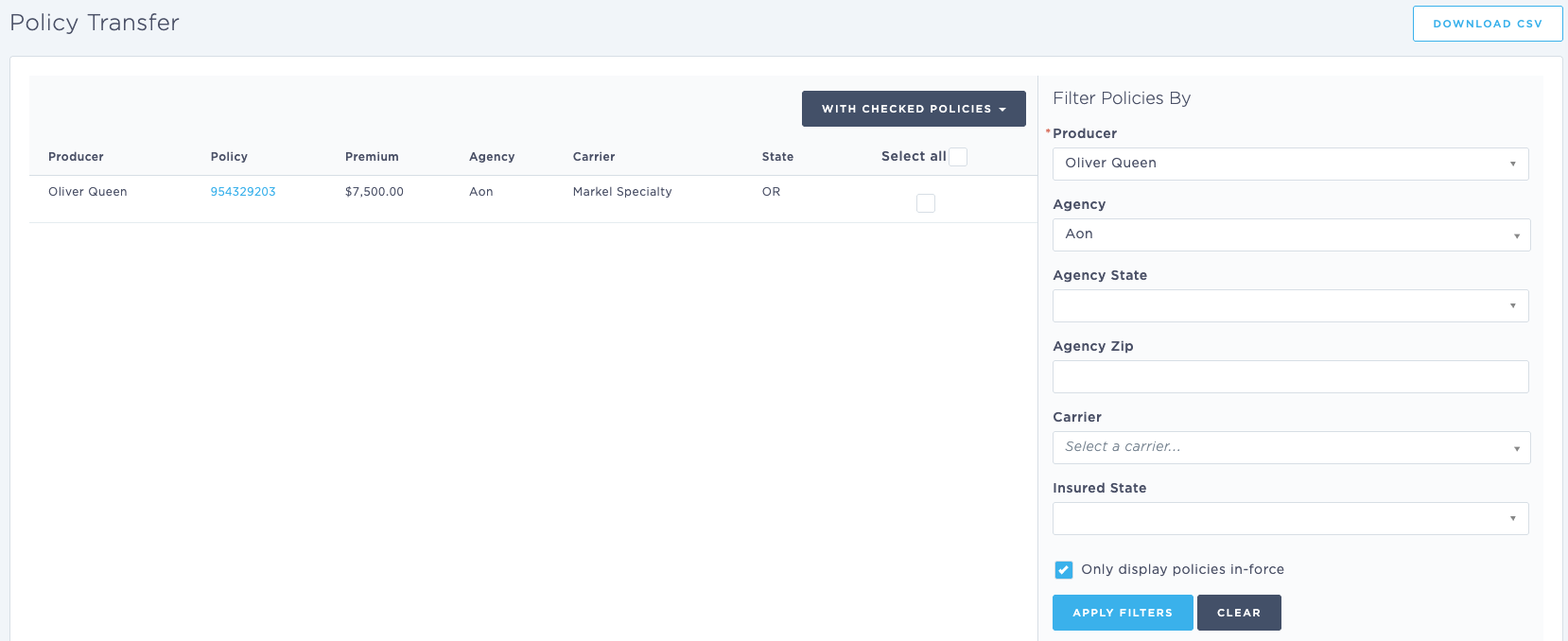
Check the box next to each policy you want to update, or use the option at the top of the list to select all policies.
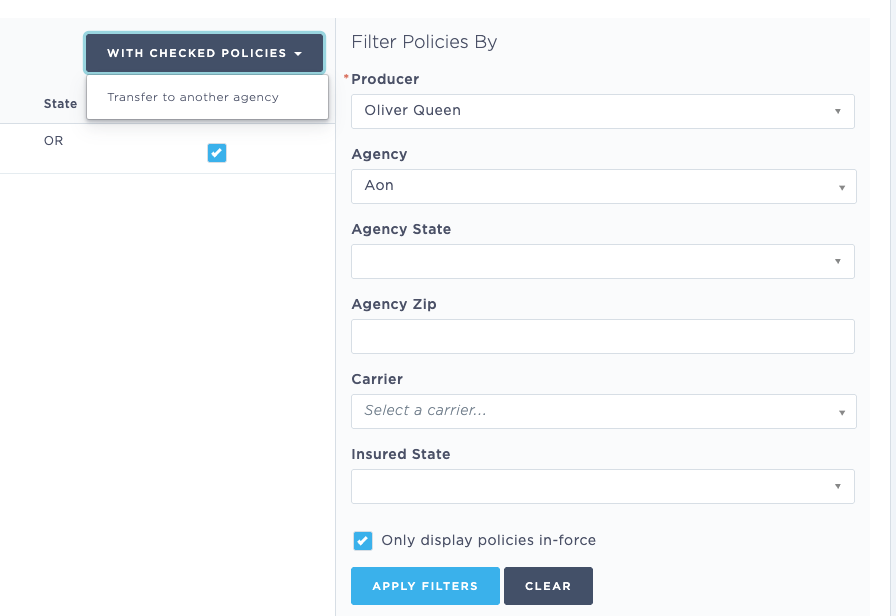
Click the "With checked policies" button to open the drop down, and select "Transfer to another agency"
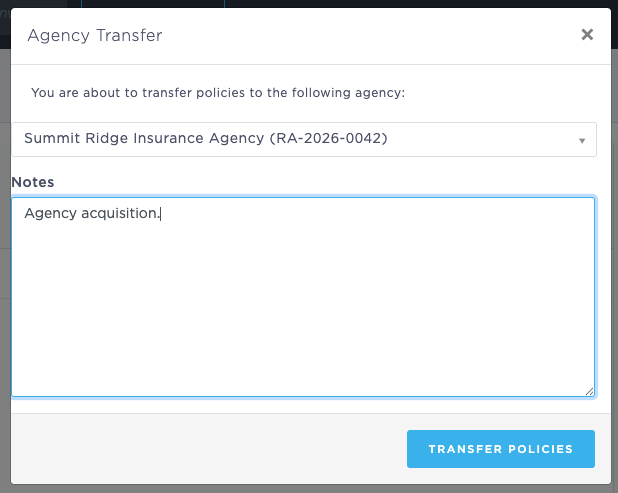
On the pop up window, select the agency you're transferring your policies TO, and add a note (optional), then click "Transfer Policies".
Policies will be updated immediately. Once the transfer is complete, the agency the policies have been transferred to will display on your screen, so you can view and confirm the policy transfer.
Policies can be viewed within either the "to" or "from" agency under the Policy Transfers tab.
Last Update: June 2026