Using the Invoice Detail Page and Applying Funds to an Invoice
Last updated: June 1, 2026
Introduction
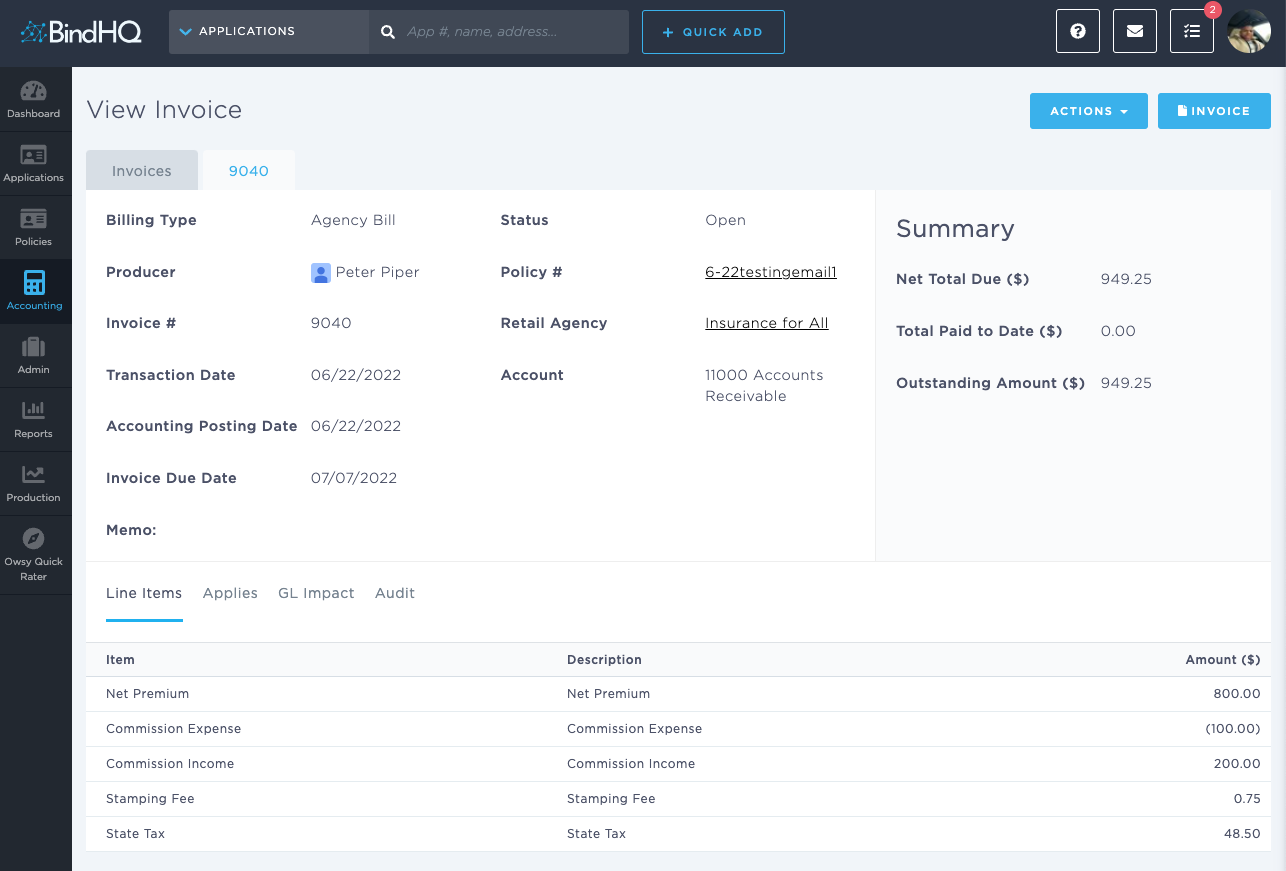
The Invoice Detail page allows you to view detailed information about invoices generated by your agency and apply payments or receipts to outstanding balances.
You can also use the invoice list to search, filter, and export invoice data for reporting and reconciliation purposes.
Accessing the Invoice Detail Page
To view invoices:
Navigate to Accounting from the left navigation menu.
Under Accounts Receivable, select Browse & View Invoices.
Use the available filters to locate the desired invoice.
Invoices can be filtered by:
Division
Customer
Date Range
Open Invoices
Overdue Invoices
You can also export the displayed results to a CSV file.
To open a specific invoice, click the invoice number in the Invoice # column.
Viewing Invoice Details
The Invoice Detail page provides detailed information about the selected invoice, including customer information, billing details, invoice status, balances, payment activity, and accounting transactions.
From this page, you can review the invoice and take actions related to payment collection and account management.
Applying Funds to an Invoice
If a payment or receipt needs to be applied to an outstanding invoice:
Open the desired invoice from the Browse & View Invoices page.
On the Invoice Detail page, click Actions in the upper-right corner.
Select one of the following options:
Record Receipt – Record a payment received from the customer and apply it to the invoice.
Make Payment – Apply an existing payment to the invoice, when applicable.
Complete the required payment information, including:
Payment Amount
Payment Method
Reference Number
Receipt Date
Memo (optional)
Review the information and save the transaction.
Once saved, the payment will be applied to the invoice, and the invoice balance will be updated accordingly.
Last Update: June 2026