Using Tasks in BindHQ
Last updated: September 14, 2026
Tasks help users organize, assign, and track work within BindHQ. They can be created manually by users or generated automatically by the system or through Automations.
Each task can be assigned to a user, given a due date, and associated with an application, quote, or policy, making it easier to manage workloads, monitor progress, and ensure important activities are completed on time.
Related Articles
Customize Task Types and Resolutions
Using Task Resolution to Trigger an Automation
Viewing Your Tasks
There are two ways to access your tasks.
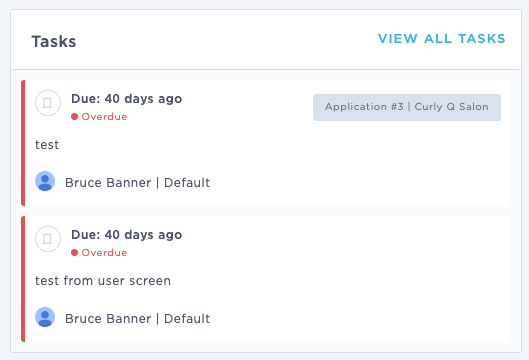
From the Dashboard
Navigate to the Dashboard.
Scroll to the Tasks widget to view your assigned tasks.
Click View All Tasks to open the complete task list.

From the Task List
You can also access your tasks by clicking the Checklist icon in the upper-right corner of the screen.

Note: If you have overdue or upcoming tasks, a red notification badge will appear on the Checklist icon.
Managing the Task List
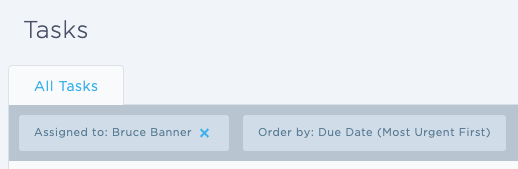
By default, the Tasks page displays:
Tasks assigned to the current user.
Tasks sorted by due date, with the earliest due tasks displayed first.
You can customize the list by:
Removing an existing filter by clicking the X next to it.
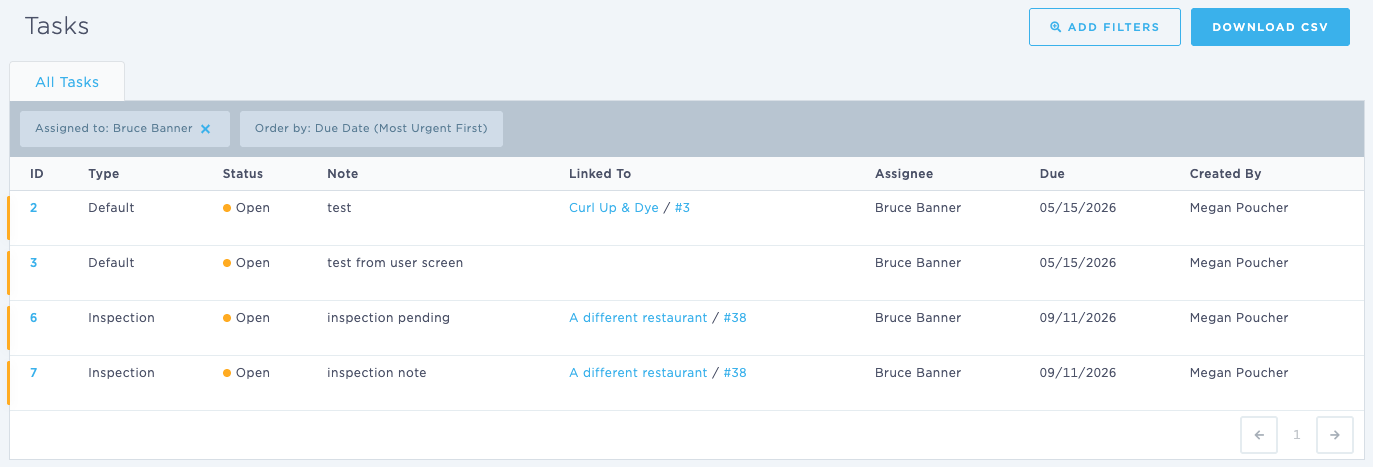
Clicking Add Filters to filter tasks using additional criteria.
Clicking Download CSV to export the current task list.
Navigating Individual Tasks
From the full task list, you can:
Click the policy or application number, or the insured name to navigate to that item in the system.
Click the number in the ID column to open the task and make changes.
Once you've opened the task, you can update the following fields:
Assignee
Type
Due Date
Notes
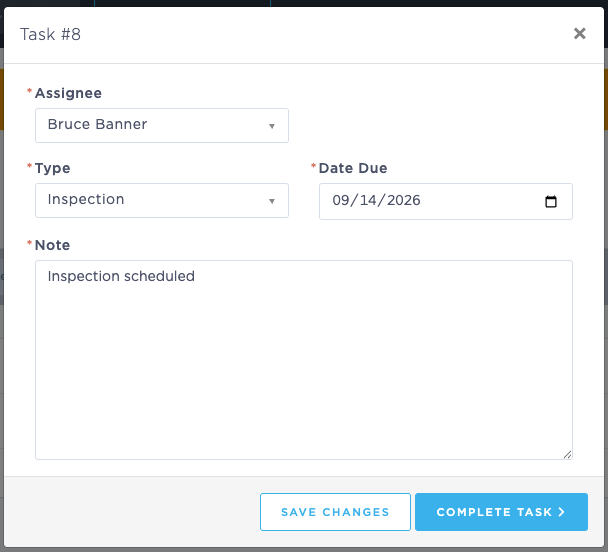
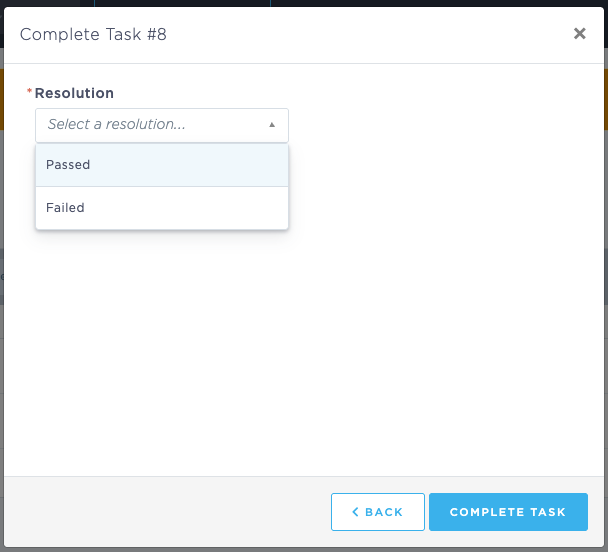
Click the Complete Task button to bring up the task completion screen.
The Resolution drop down will show the configured task resolutions for this specific task. An Admin can configure these under Settings > Customization.
Select the resolution from the drop down, then click Complete Task.
If a task has already been completed, it can be reopened by:
Opening the task.
Clicking Edit.
Selecting Reopen Task.
Saving the task.
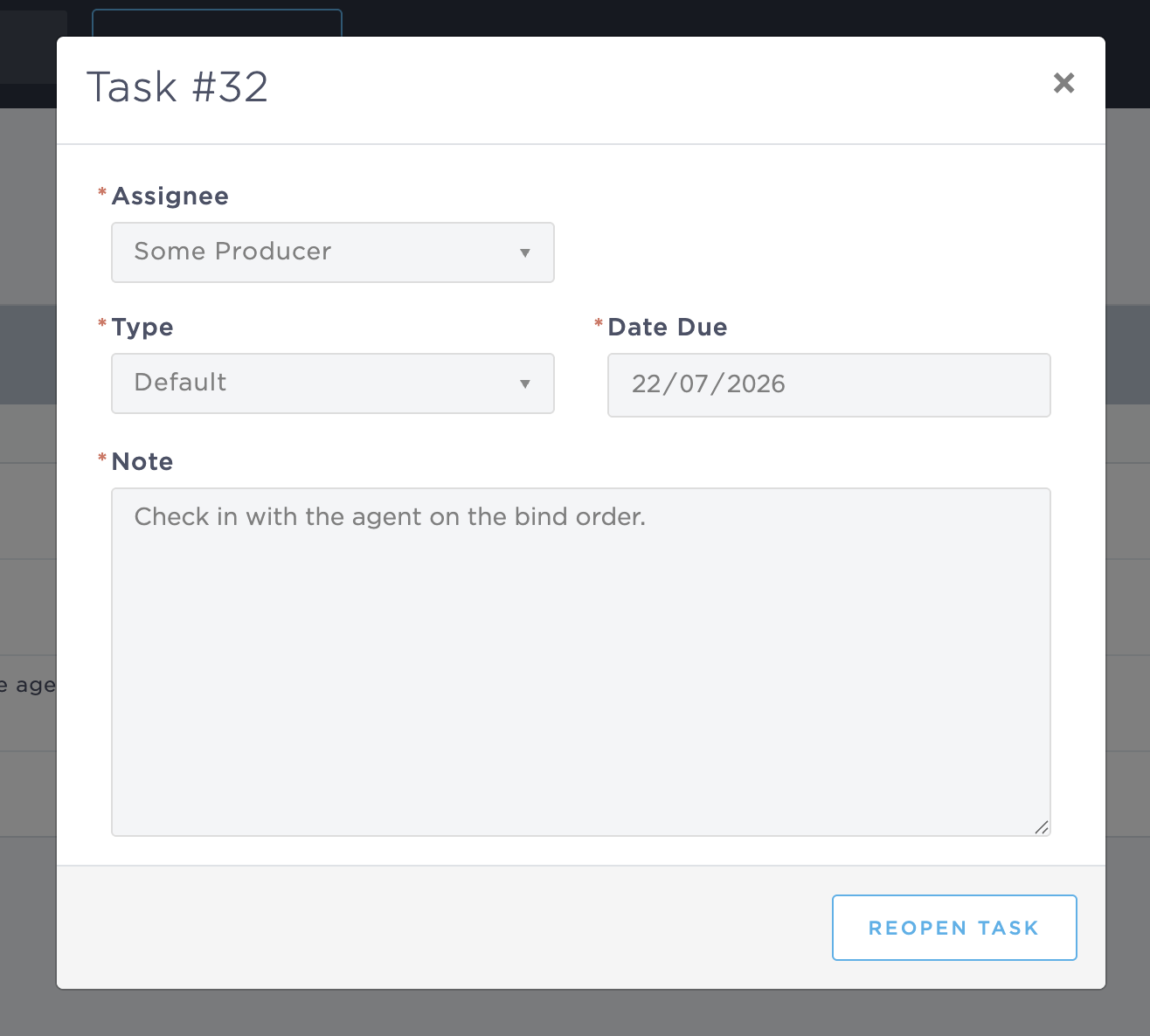
Once reopened, all task details can be modified.
Viewing System-Generated Tasks
Some tasks are created automatically by BindHQ when specific events occur.
By default, the Issue Policy task is automatically generated when a policy is issued. Additional system-generated tasks can be configured by BindHQ.
To view these tasks:
Open the desired policy.
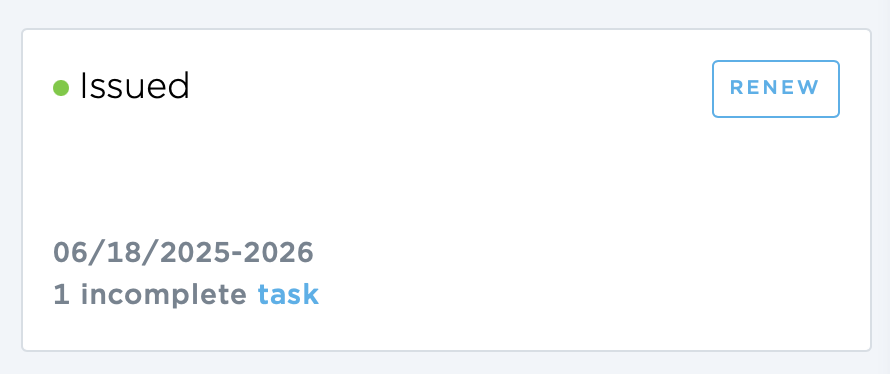
Below the policy status, click Incomplete Tasks if there are outstanding tasks.
If there are no outstanding tasks, the policy displays No Tasks.
To update a system-generated task:
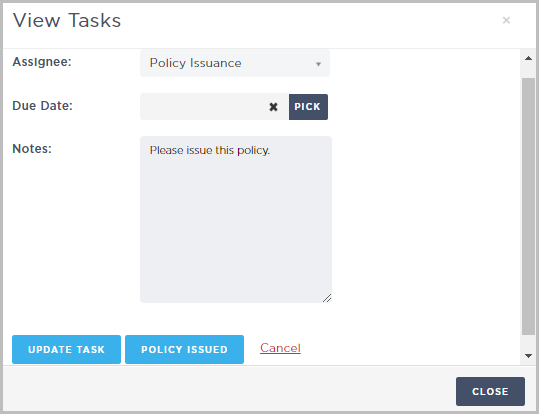
Click Edit.
Update the Assignee, Due Date, or Notes as needed.
Click Update Task.
Click Edit to the right to update the task or mark it complete.
To update a task, change the Assignee, Due Date, or Notes, then click Update Task.
Creating a Task
From the Quick Add Menu
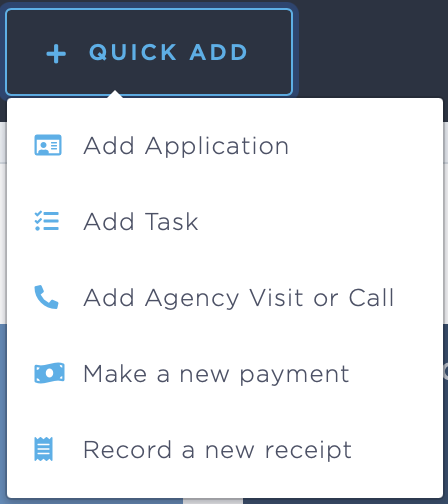
The Quick Add menu allows you to create a task from anywhere in BindHQ.
Click Quick Add at the top of the page.
Select Add Task.
Complete the required task information.
Click Create Task.
Note: If you create a task while viewing an application, quote, or policy, the task is automatically linked to that record. Tasks created outside of these records are not associated with any object, so be sure to include enough information for the assignee to understand the purpose of the task.
From a Policy
To create a task directly from a policy:
Open the desired policy.
Click Incomplete Tasks or All Tasks Complete below the policy status.
Click Add Task.
Complete the task details.
Click Assign Task.
Tasks created using this method are automatically associated with the selected policy.
Last Update: September 2026