Creating an Application
Last updated: May 26, 2026
This article explains how to record the risk details of an Insured by creating an Application
There are five sections to this article
Adding a New Application
Entering Basic Information
Filling in Application Details
Modifying Products
Changing the Agent or Broker
Favoriting an Application
Adding a new Application
You can create an application from the Quick Add menu or from the Applications tab.
From the Quick Add menu
Navigate to the Quick Add drop-down at the top of the screen
and click Add Application.
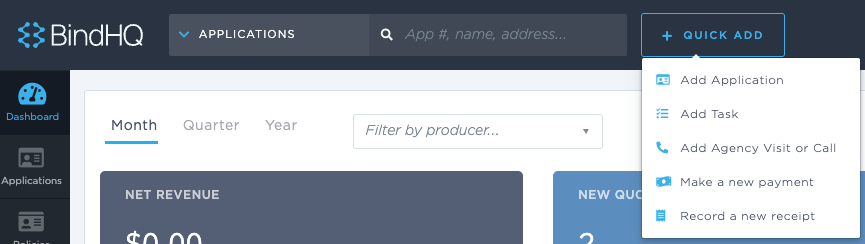
From the Application Listing page
The Application Listing page displays existing Applications recorded in BindHQ, organized on each tab by:
My applications: Any applications you have created.
Team applications: Any applications created by one of your teammates. This feature is used if your organization has created teams in BindHQ.
All applications: Any applications created for your organization.
Favorite applications: Any applications you have favorited.
To start a new application
Navigate to the Applications tab.
In the upper right, click New Application.

Basic Information
In order to create an application, some basic information is required:
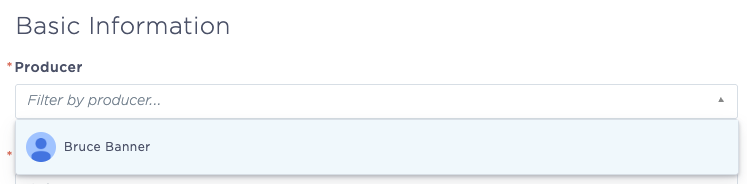
Producer: Click the drop down to select a producer for your application. Producers are listed based on user settings. If you do not see the producer you're looking for, contact your BindHQ admin.
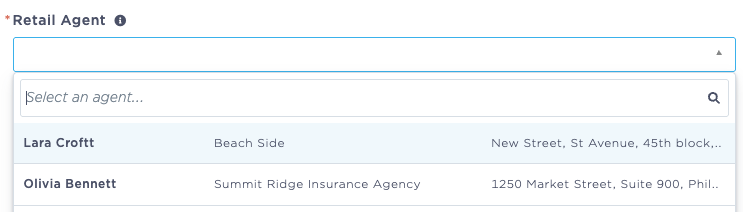
Retail Agent: Choose a Retail Agent from those in your system. Retail Agencies and associated agents are added on the Partners page in BindHQ.
Once selected, the Retail Agency Information will display as follows:
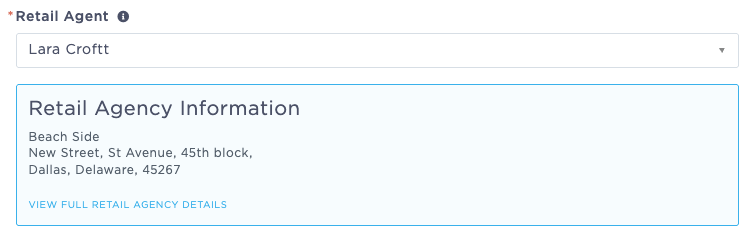
Insured:
To select an existing insured, click the Insured drop down menu and begin typing the insured name to trigger the search, and click the appropriate insured from the list.
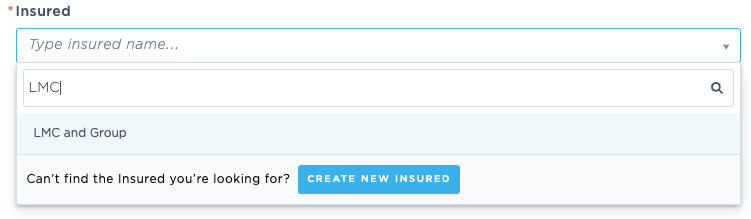
If there is no previous Application under the same name, you can click New Insured to create a new insured.
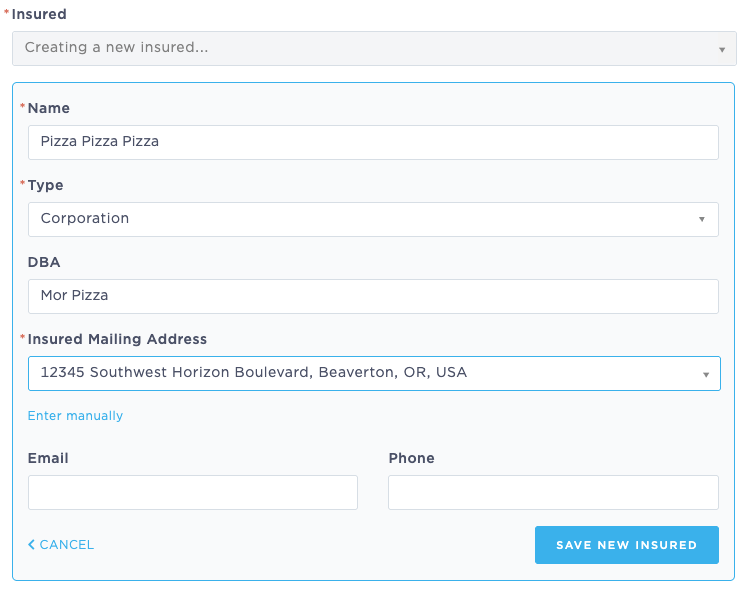
Click "Save New Insured" to add the Insured to the system. Once added, Insured Information will display as follows:

Primary Risk Address:
If the primary risk address is the same as the insured mailing address, leave this box checked:

If the primary risk address is different from the insured mailing address, uncheck the box. From here, you can search the address or click the link to enter the address manually:
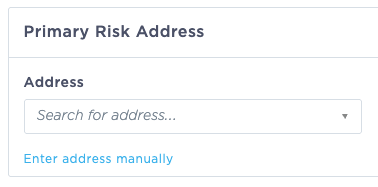
Choosing to enter the address manually also allows you to toggle from the default US Address format to International Address if needed:
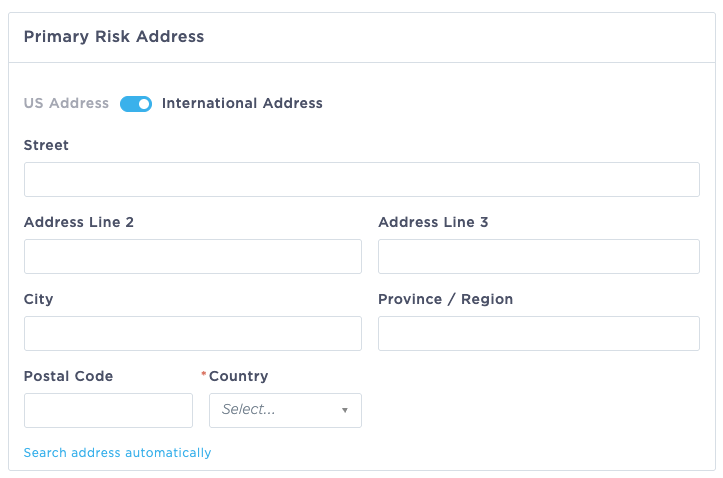
Click "Search address automatically: to go back to the address drop down.
Line(s) of Business:
You must add at least one line of business to save your application. You can select multiple lines of business as needed, or add additional lines of business later int he application process:
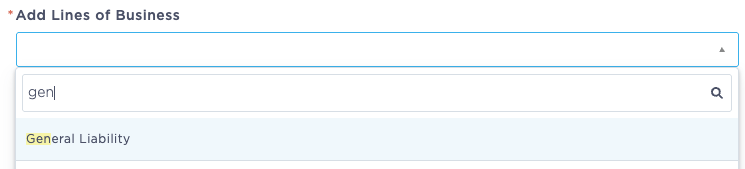
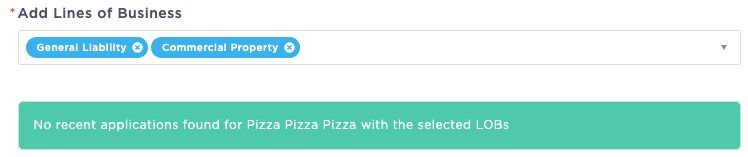
Once selected, the lines of business will show as follows, and can be removed from the application by clicking the x in the blue bubble for each line of business:

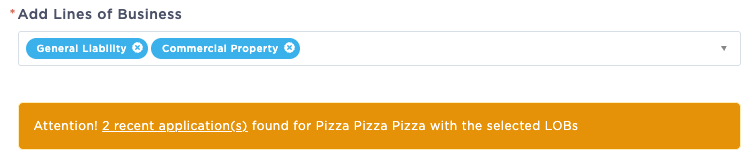
Application Clearing happens automatically. If an insured is already in the system, or a similar name or address is identified as entered within the last 60 days, then a warning will be presented to the user.
Policy Effective and Expiration Dates: You can manually enter effective and expiration dates, or choose a Policy Term and the Policy Expiration Date will be set automatically:

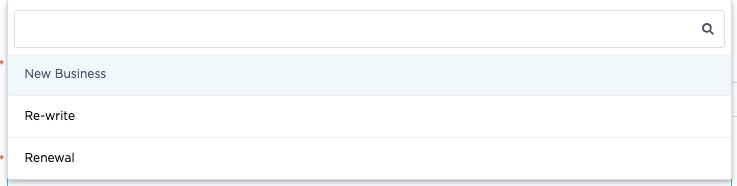
Application Type: Choose New Business, Re-write or Renewal
Save Application or enter Line of Business details using the buttons in the lower right:

Line of Business Details
Once the application has been created, the Lines of Business will show on the left navigation bar:
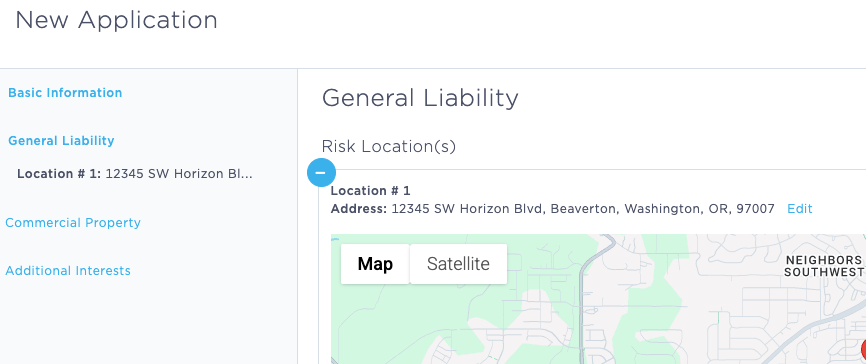
Fill in each page of the Application, including Risk Information, Locations, and Coverages.
Click Save & Exit to complete the application.
After saving the application, you can bind the quote or add any related documents.
Editing an Application
Once your application has been saved, you'll find it on the Application Listing page referenced above. Click the Application # to open the application, then use the blue Edit Application button on the right to edit application details:
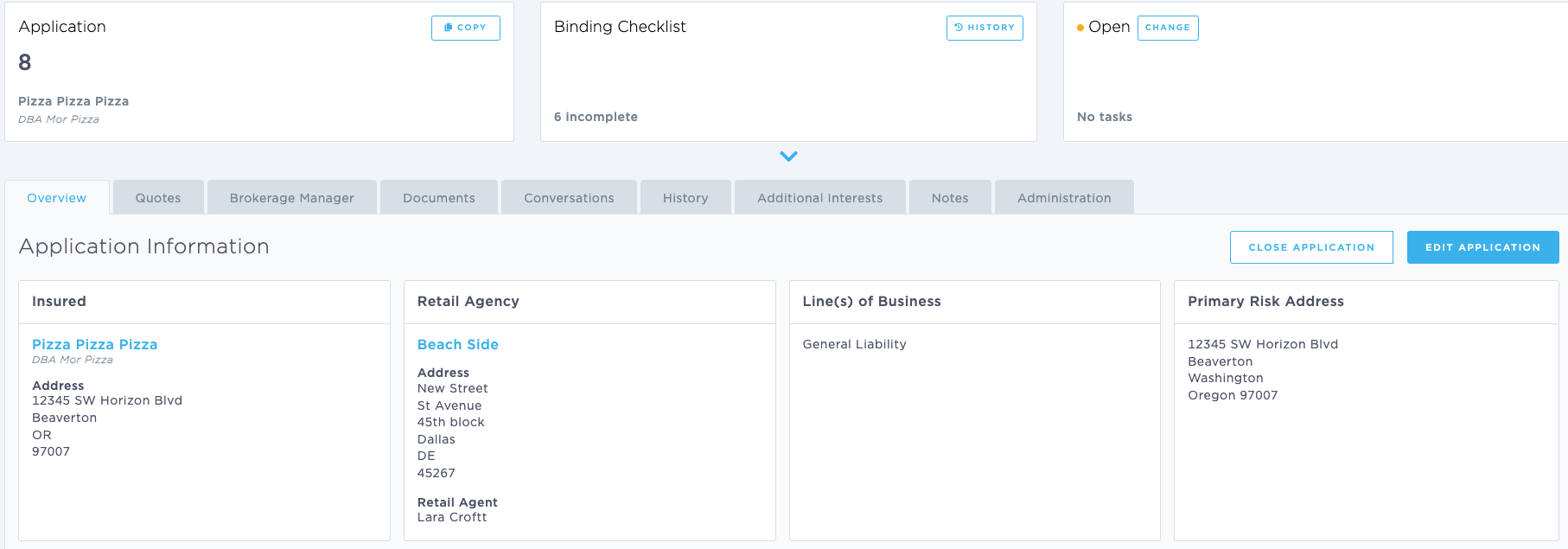
From this Edit view, you can change the following
Edit the internal Producer or Agency associated with an application.
Edit the Insured Name
Edit the Insured Address associated with the application
Edit Policy Effective Date, Term and Expiration date
Change the Application Type New Business, Renewal, or Extension.
Favoriting an Application
Navigate to the Application Listing page.
Preview an existing Application by clicking the plus icon (+) to the left of it.
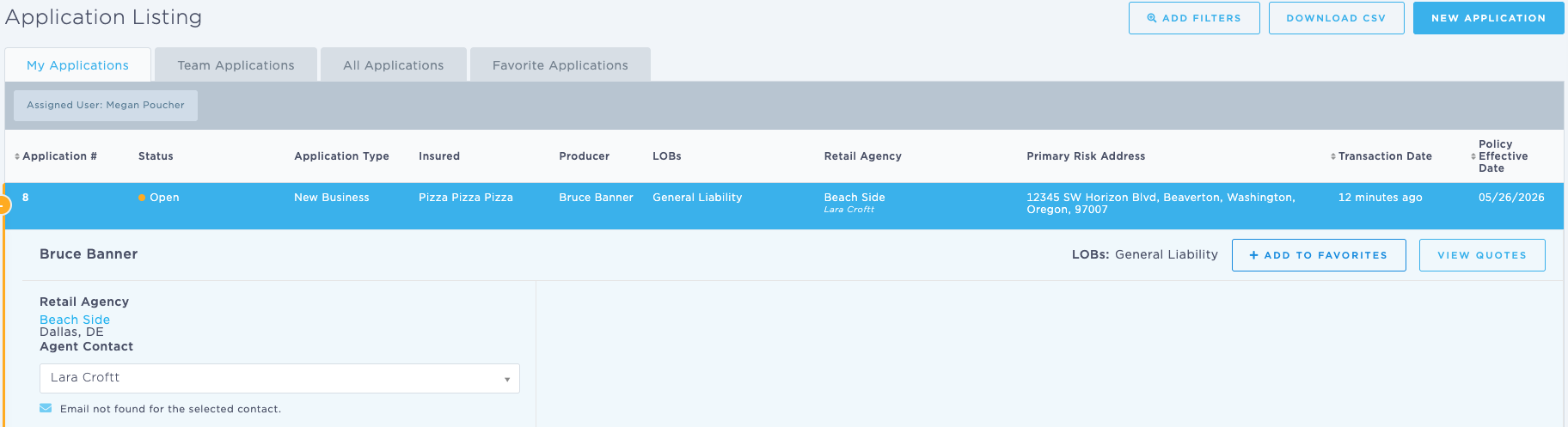
On the right of the preview pane, click Add to Favorites.
The Application is saved to the Favorite Applications tab, and you can use the same application preview to remove it from your Favorite Applications as needed: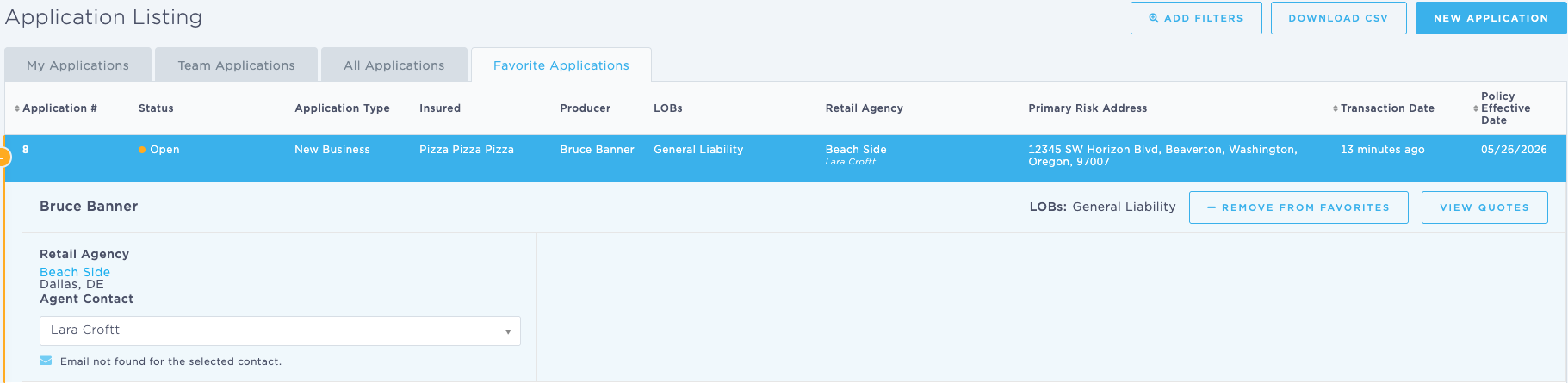
Last Update: June 2026