Binding a Quote
Last updated: May 26, 2026
How to bind a Quote and from the Quotes tab of an Application
In BindHQ, there are two prerequisites for binding a quote:
An Application must exist in the system (see Creating an Application)
A Quote related to the Application must exist (see Creating a Quote)
Binding a quote:
Within an application, click select the Quotes tab.
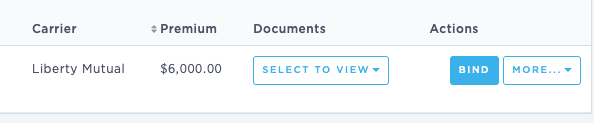
From the Action column on the far right, click Bind.
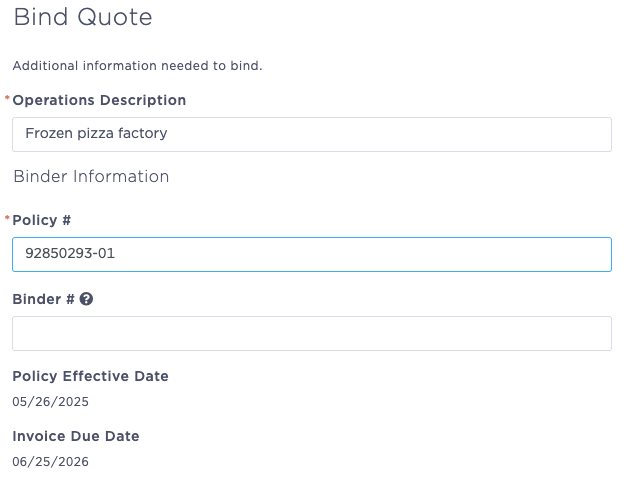
Complete the basic binding information, including
Operations Description
Policy #
Note: Policy numbers may be auto-assigned if policy blocks are configured for the program. If the policy number is auto-assigned, it cannot be edited.
Binder # (if applicable)
Select to Proceed without Diligent Effort or Enter Diligent Effort.
Enter Diligent Effort opens a form that allows you to select reasons from the drop down and/or add information to the provided text box as needed. Admitted Company Contact and Declined Date are required.
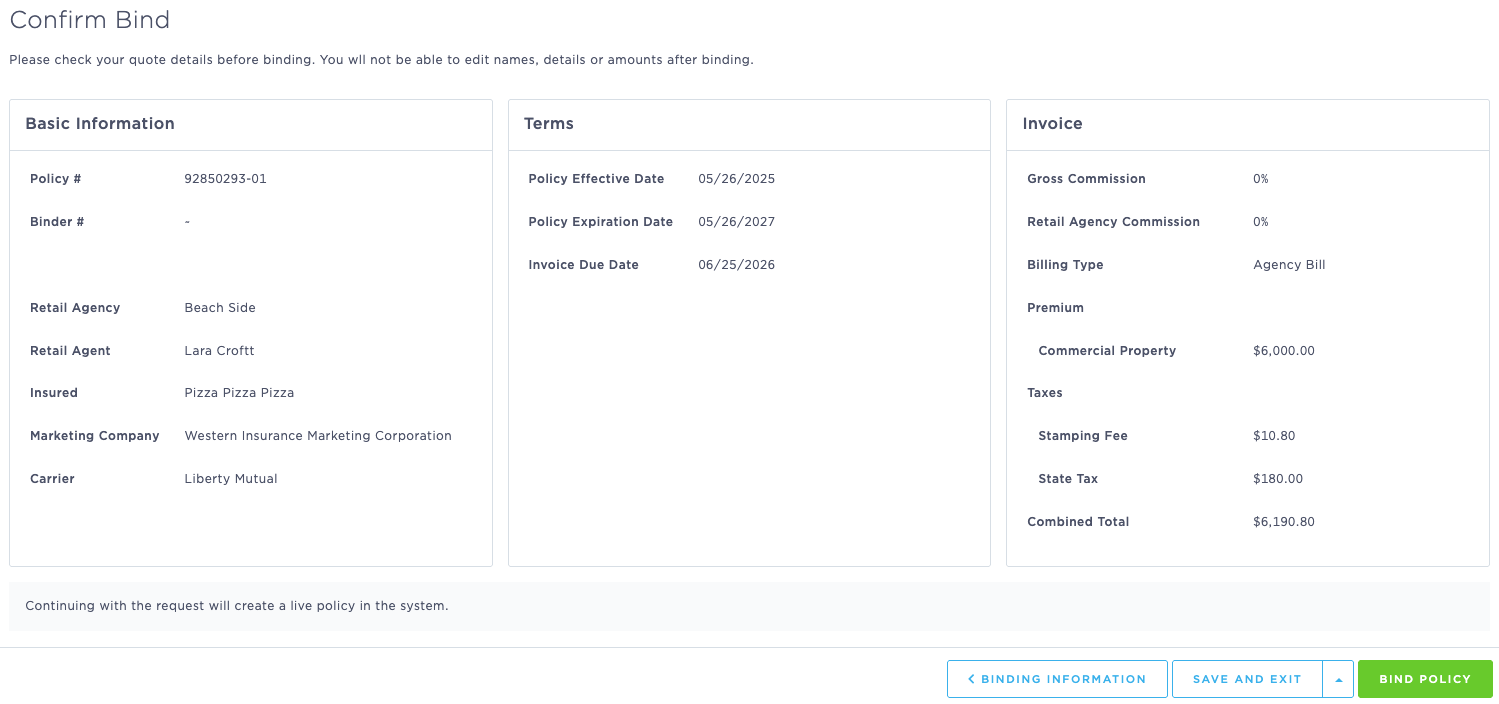
Click "Validation" to proceed, and review all quote details before binding the policy using the green "Bind Policy" button in the lower right corner of the screen.
Last Updated: June 2026