Using Business Plans
Last updated: March 5, 2026
Introduction
Business Plans help track and review the production goals set by producers for the year. These plans allow managers and administrators to compare projected goals with actual performance and understand each producer’s growth targets.
Using the Business Plans report, you can identify the revenue goals producers are setting and evaluate how those goals align with current production.
This report helps answer questions such as:
What revenue goals are producers setting for the upcoming year?
How do business plans compare with currently written revenue for a producer?
Creating a Business Plan
Business Plans can only be created by users with one of the following roles:
Administrator
Producer
Manager
Issuance
Compliance
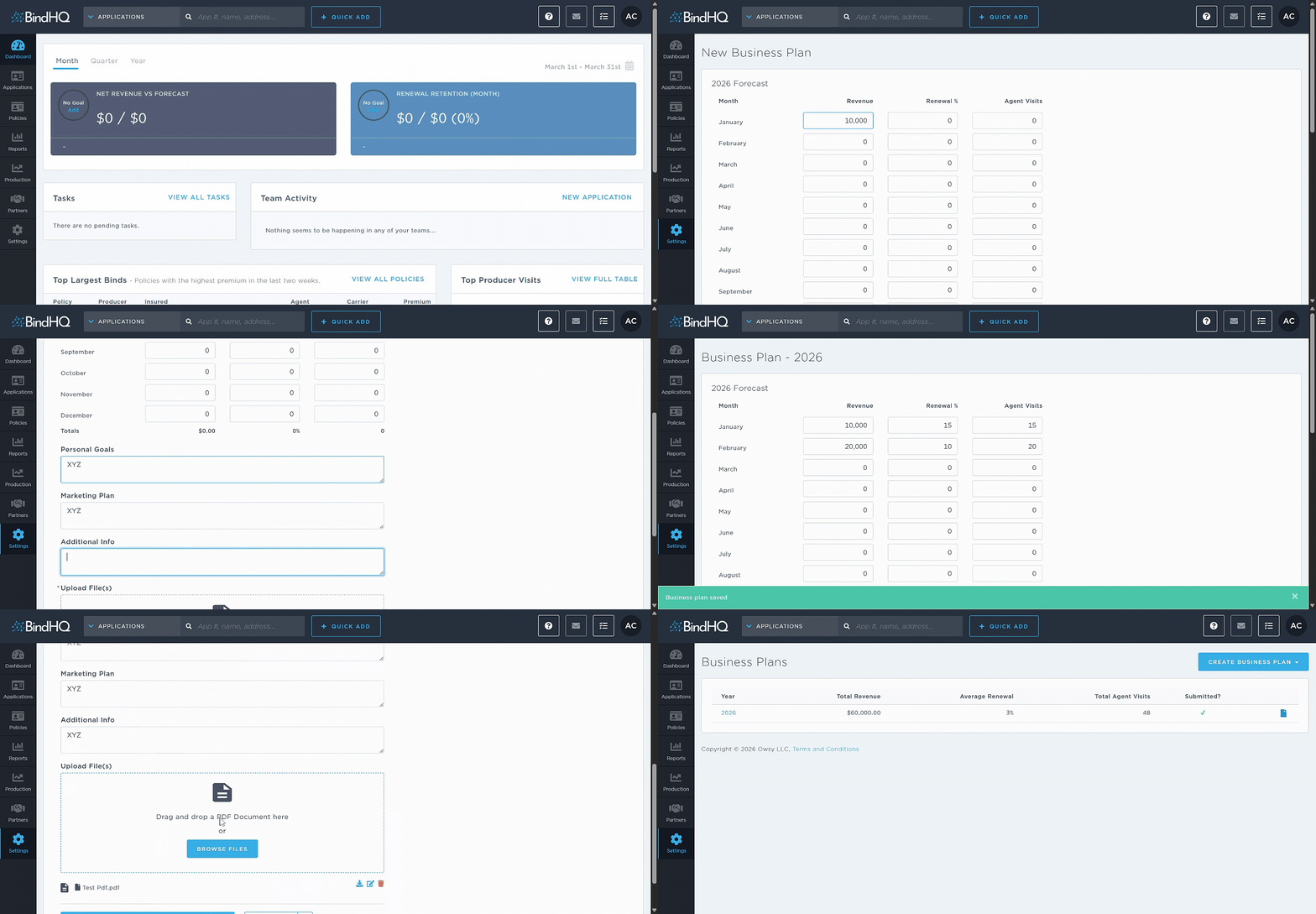
To create a Business Plan:
Go to Settings.
Select My Account.
Under Business Plans, click Manage Business Plans.
Here you can view any business plans you have already created.
Click Create Business Plan in the upper right corner.
Select the year you want to create the plan for.
Enter the following information for each month from January through December:
Revenue
Renewal %
Agent Visits
You can also add:
Personal goals
Marketing plan
Additional information
Next, upload a supporting document using drag and drop or the Browse Files button. Uploading a file is required.
You will then have two options:
Finalize and Submit Business Plan
Submits the plan and locks it from further editing.
Only an administrator can unlock or edit a finalized plan.
Save Plan or Save & Exit
Saves the plan as a draft.
Allows you to return later to edit and finalize the plan before submission.
Viewing Business Plans
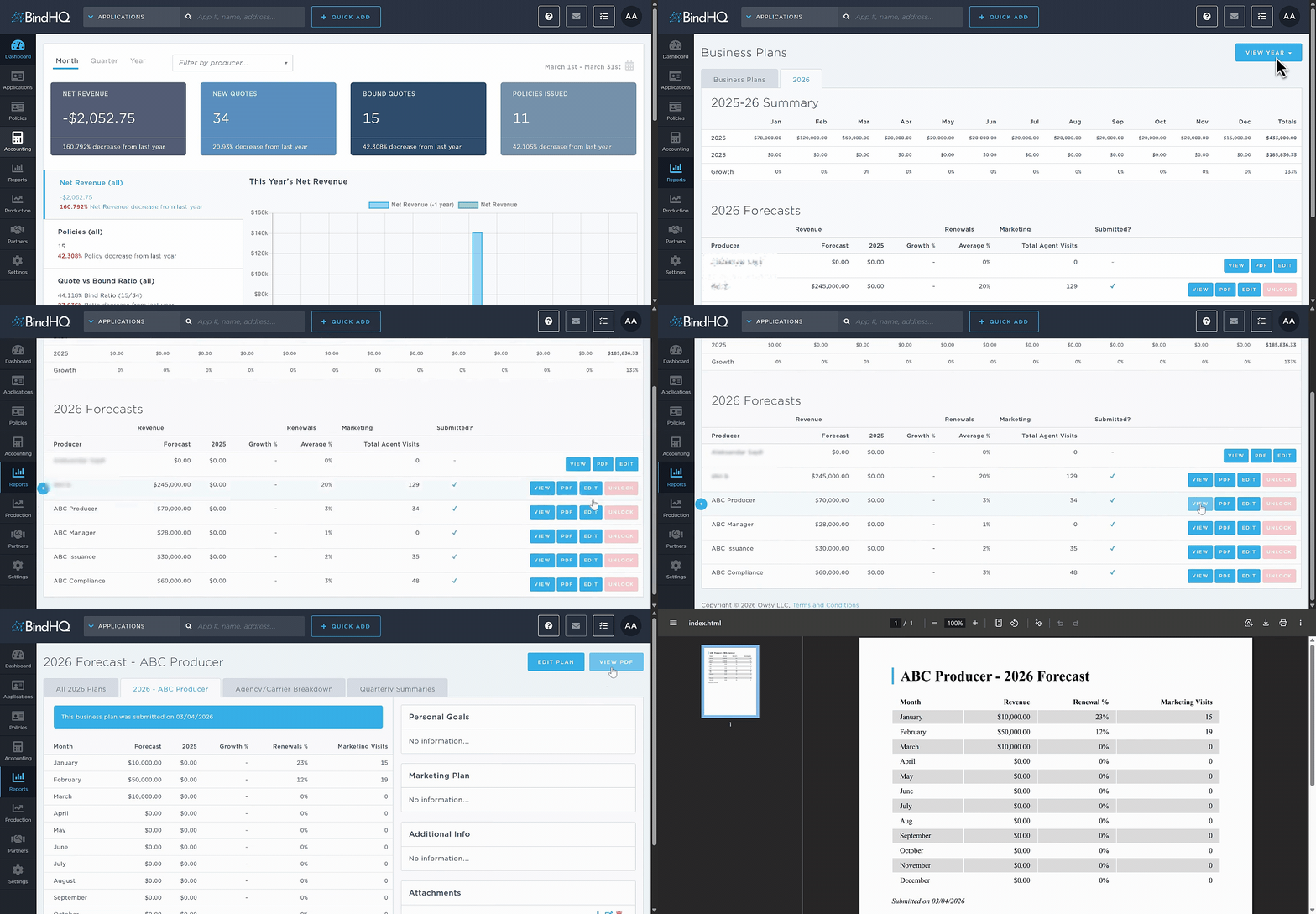
To view Business Plans as an Administrator:
Go to the Reports tab in the left sidebar.
Select Production.
Click Business Plans under Managing Your Team.
Use the View Year option in the upper-right corner to select the year you want to review.
The report displays a monthly summary for two consecutive years.
For example, selecting 2026 will display data for 2025 and 2026, including:
Growth percentage
Totals
Under the Year Forecast section, you will see the following information for each producer:
Producer
Revenue Forecast
Renewals (Growth % and Average %)
Marketing (Total Agent Visits)
Submitted status
At the end of each row, four actions are available:
View
PDF
Edit
Unlock
The Unlock option is only available for plans that have already been submitted.
Editing a Business Plan
Editing a Submitted Plan
A submitted business plan can be edited by an administrator or unlocked by an administrator so the original creator can make changes.
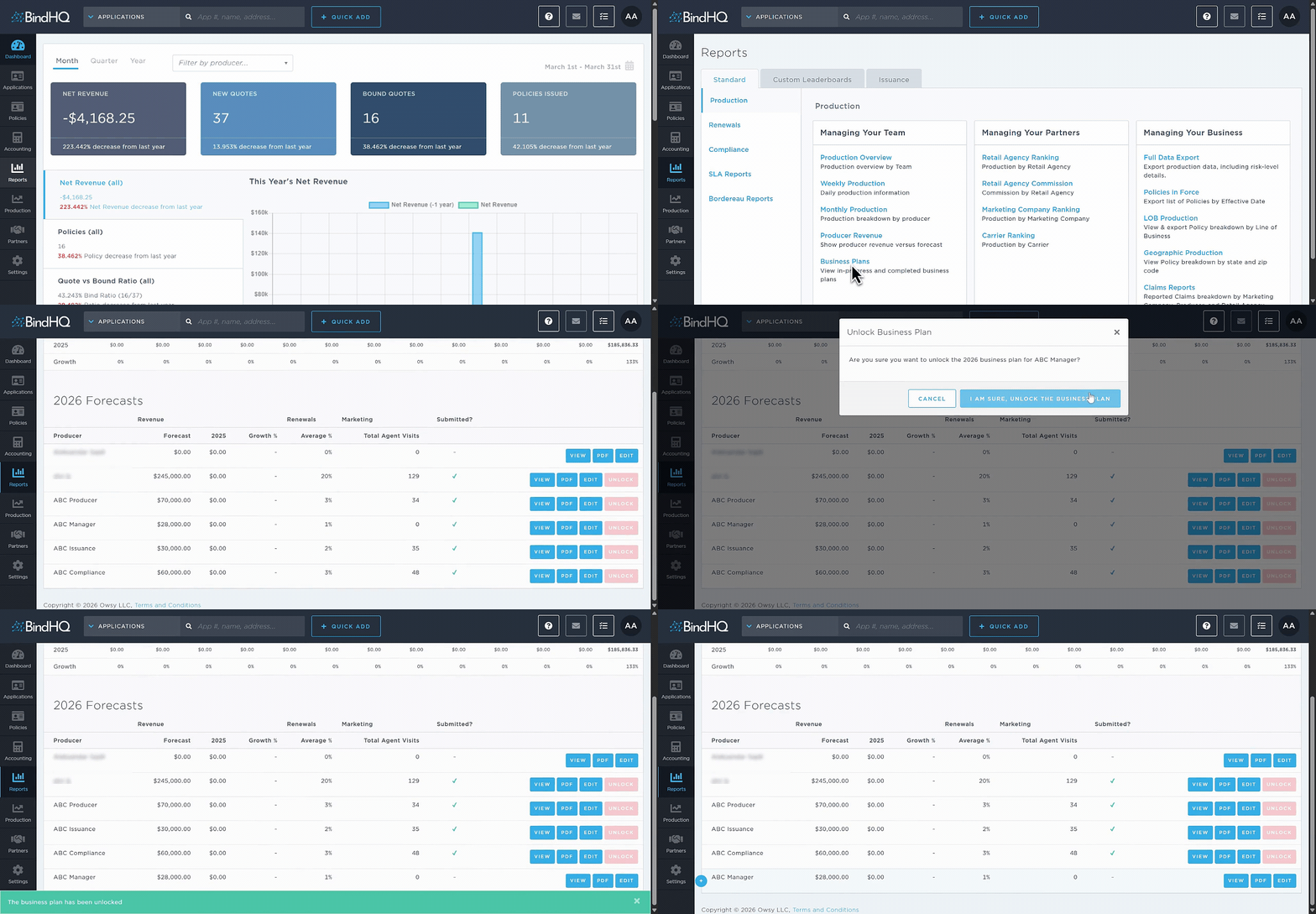
To allow the original creator to edit a submitted plan, an administrator must first unlock it.
To unlock a plan:
Go to Reports.
Select Production.
Click Business Plans under Managing Your Team.
Choose the appropriate View Year.
Under Year Forecast, click Unlock for the producer’s plan.
Once unlocked, the original creator can edit and resubmit the business plan.
Editing an Unsubmitted Plan
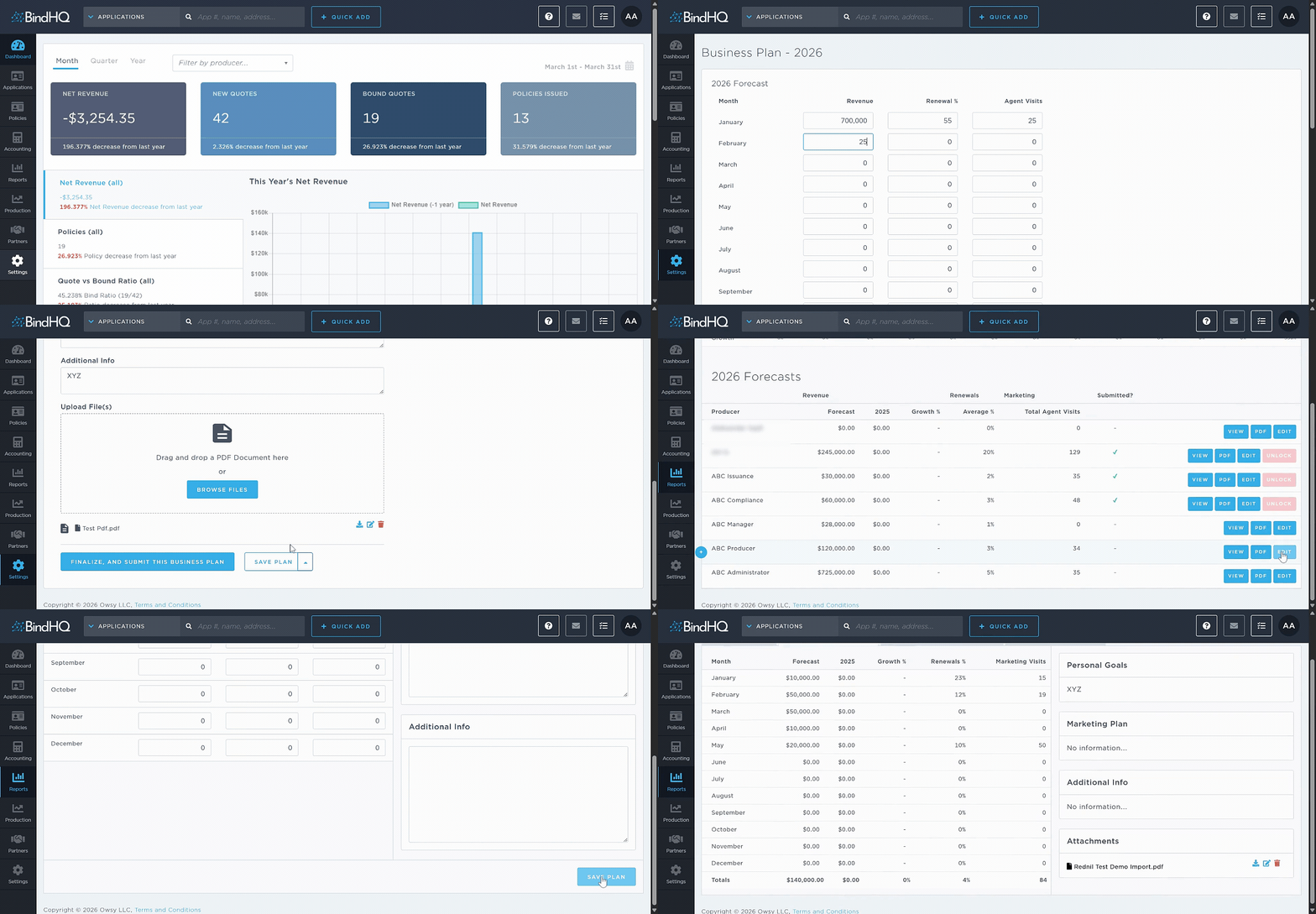
Unsubmitted business plans can be edited by the user who created them.
To edit:
Go to Settings.
Select My Account.
Under Business Plans, click Manage Business Plans.
Select the business plan you want to edit.
After editing, you can finalize and submit the plan.
Administrators can also edit unsubmitted plans from the report:
Go to Reports.
Select Production.
Click Business Plans under Managing Your Team.
Choose the appropriate View Year.
Under Year Forecast, click Edit for the relevant producer.
Administrators can save edits, but the plan must still be submitted by the original creator.
Last Update: March 2026