Using the Create a New Bill Credit page
Last updated: July 5, 2025
You can use the Create a New Bill Credit page to create a new bill credit.
Applies to: Accountants, Accounting Assistants
This article explains how you can create a new bill credit in BindHQ. You are required to enter certain information into the UI to ensure the correct posting of the bill credit within the general ledger.
You can find this page by going to the “Accounting” tab in the side navbar, then going to “General”, and then selecting “Create a New Bill Credit” from the Accounts Payable tab
You can use this page to answer the following questions:
- How can I create a new bill credit?
To enter a new Bill Credit you must enter the following information:
- Division
- Payee -you can search for the Payee within the UI. It can be any one of the following entities:
- Insureds
- Retail Agencies
- Marketing Companies
- Suppliers
- AP Account - you can choose from any one of the following AP accounts in your Chart of Accounts
- Policy - You can search for the Policy # within the UI
- Posted at - this is set to today’s date
- Due at - you can set this at any date in the future
- Reference - this is a free text field for your internal purposes
- Memo - this is a free text field for your internal purposes
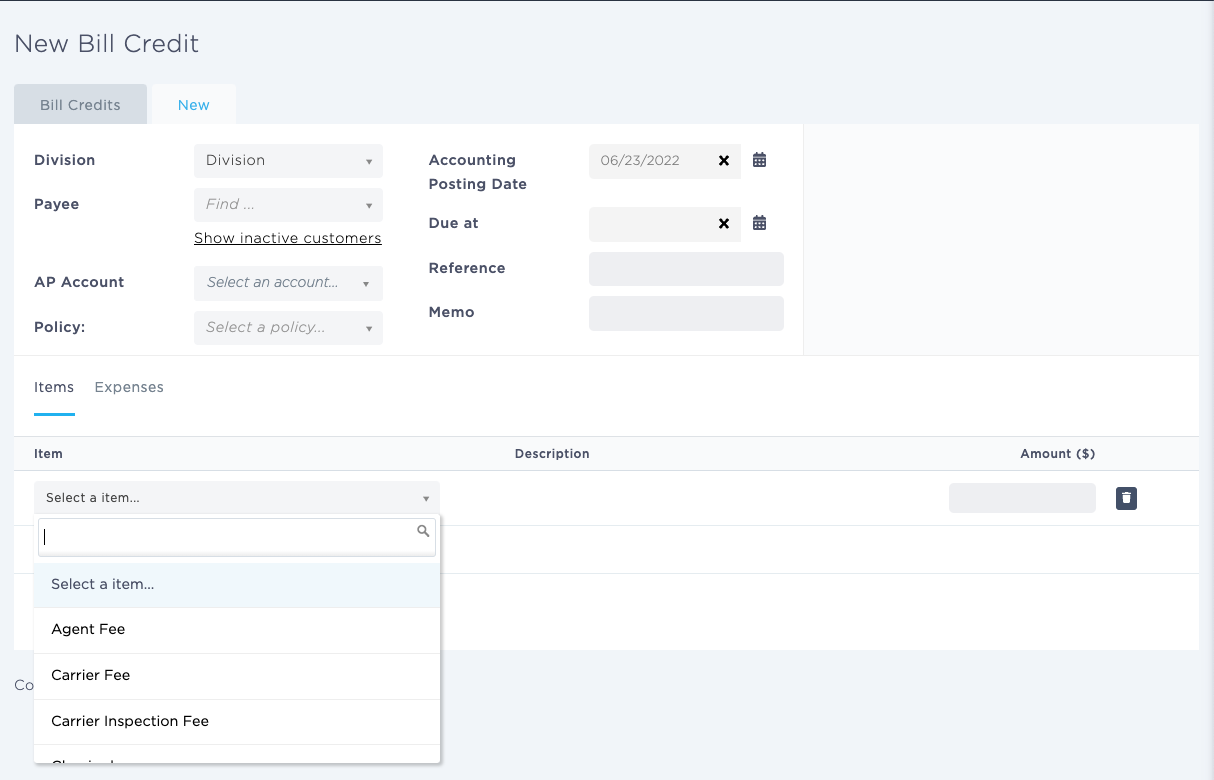
You can also add Items and/or Expenses.
Once you have entered all the required information, you must click on the ‘Submit Bill Credit’ button.