Using the Make a New Payment page
Last updated: June 15, 2026
Introduction
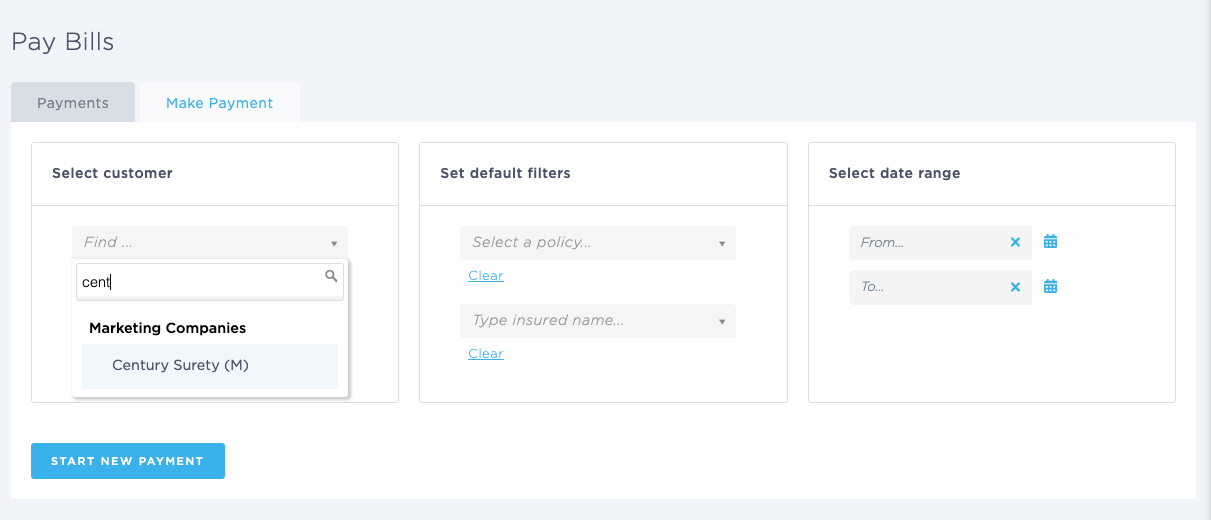
The Make a New Payment page allows you to create payments for outstanding bills and transactions within BindHQ. You can search for transactions by customer, policy, insured, and date range before creating and processing a payment.
Accessing the Make a New Payment Page
To access the Make a New Payment page:
Navigate to Accounting from the left navigation menu.
Select Accounts Payable.
Click Make a New Payment.
Creating a New Payment
Before creating a payment, you must identify the transactions you want to pay.
Step 1: Select a Customer
Choose the customer for whom the payment is being created.
Available customer types include:
Insureds
Retail Agencies
Marketing Companies
Suppliers
Step 2: Apply Filters (Optional)
Use the available filters to narrow your search results.
Policy
Search for transactions associated with a specific policy.
Insured
Search for transactions associated with a specific insured.
Date Range
Filter transactions within a specific date range by entering:
From Date
To Date
Reviewing Outstanding Transactions
After selecting a customer and applying any desired filters, BindHQ will display the outstanding transactions available for payment.
Review the list and select the transaction(s) you want to include in the payment.
Completing the Payment
Once the desired transactions have been selected:
Click Start New Payment.
Enter the required payment details, such as:
Payment Date
Payment Method
Bank Account
Reference Number
Memo (optional)
Verify the payment amount and selected transactions.
Save the payment.
The payment will be recorded and applied to the selected transactions.
Creating Payments from Customer Records
In addition to using the Make a New Payment page, payments can be created directly from a Marketing Company, Retail Agency, or Supplier/Vendor record.
Creating a Payment from a Marketing Company
Open the desired Marketing Company page.
Navigate to the Accounting tab.
Review the outstanding transactions.
Select the transaction(s) you want to pay.
Click Make Payment or select With These Transactions → Make Payment.
Complete the payment details and save the payment.
The payment will automatically be associated with the selected Marketing Company and transactions.
Creating a Payment from a Retail Agency
Open the desired Retail Agency page.
Navigate to the Accounting tab.
Review the outstanding transactions.
Select the transaction(s) to be paid.
Click Make Payment or select With These Transactions → Make Payment.
Enter the payment information and save.
The payment will be linked to the selected Retail Agency and the associated transactions.
Creating a Payment from an Insured
Open the desired Insured page.
Navigate to the Accounting tab.
Review the outstanding bills or transactions.
Select the transaction(s) to include in the payment.
Click Make Payment or select With These Transactions → Make Payment.
Complete the payment details and save.
Printing Checks
When creating a payment from either the Make a New Payment page or directly from a customer record:
Complete the payment details.
Select Print Check.
Verify the payee, payment amount, and bank account information.
Save the payment.
BindHQ will generate a check that can be printed immediately. If available, a check remittance will also be generated for inclusion with the payment.
Last Update: June 2026