Adding New Users
Last updated: February 19, 2026
Introduction
Admins can add new users to BindHQ and set them up with the right role, access rights, and permissions. This article walks you through creating a user and configuring what they can see and do in the system.
Before Adding a User
Before creating new users in BindHQ:
Create user accounts (email and password) with the company’s domain name.
If your company integrates BindHQ with Google Suite or Microsoft 365, add new Users there first.
Click here to add a user in Google Suite or click here to add a user in Microsoft 365.
How to Add Users
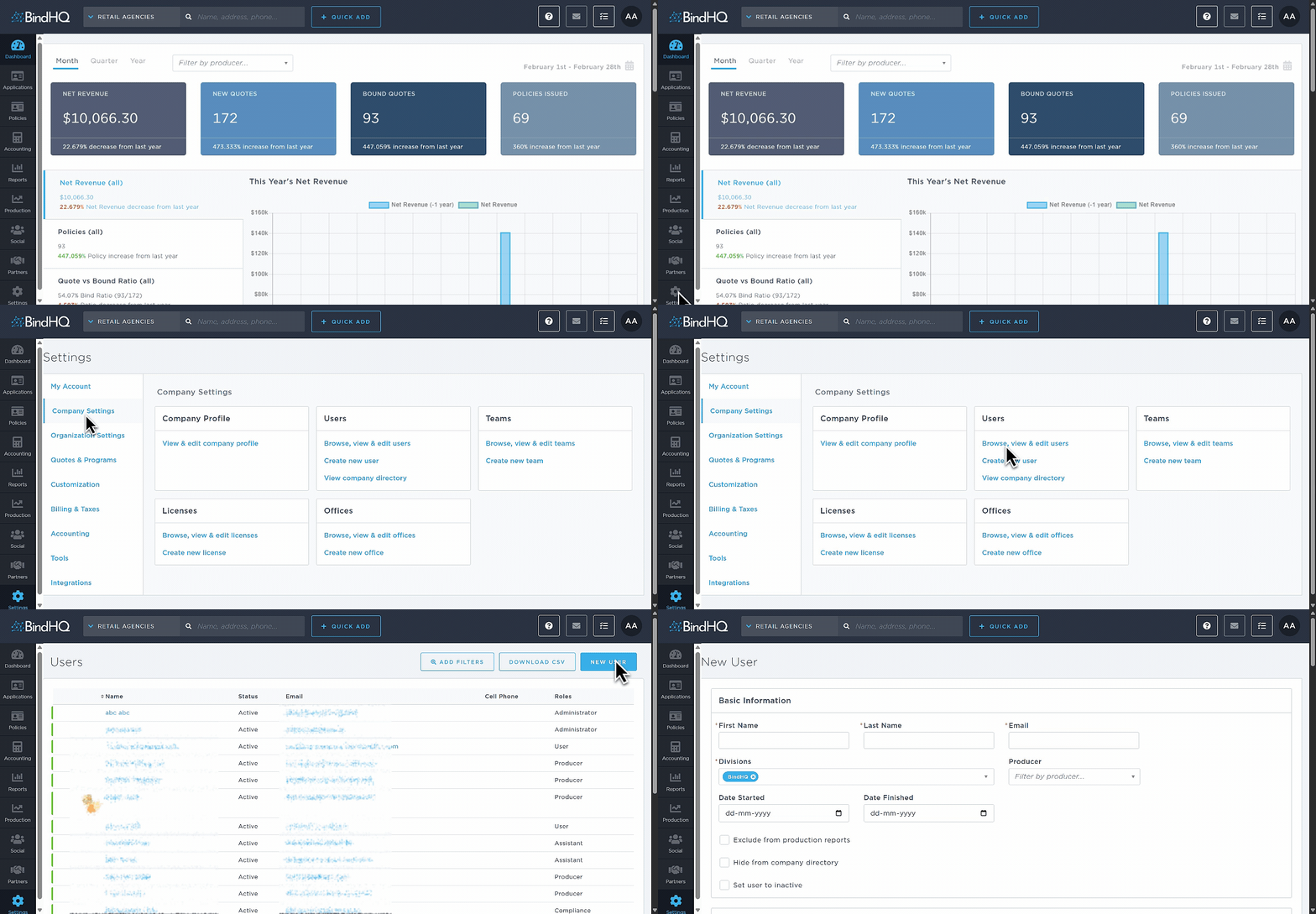
Navigate to Settings and ensure the Company Settings tab is selected.
In the Users section, do one of the following (both options lead to the same page):
Click Browse, view, & edit users (available only to system administrators), then click New User in the top-right corner of the page.
OR
Click Create new user.
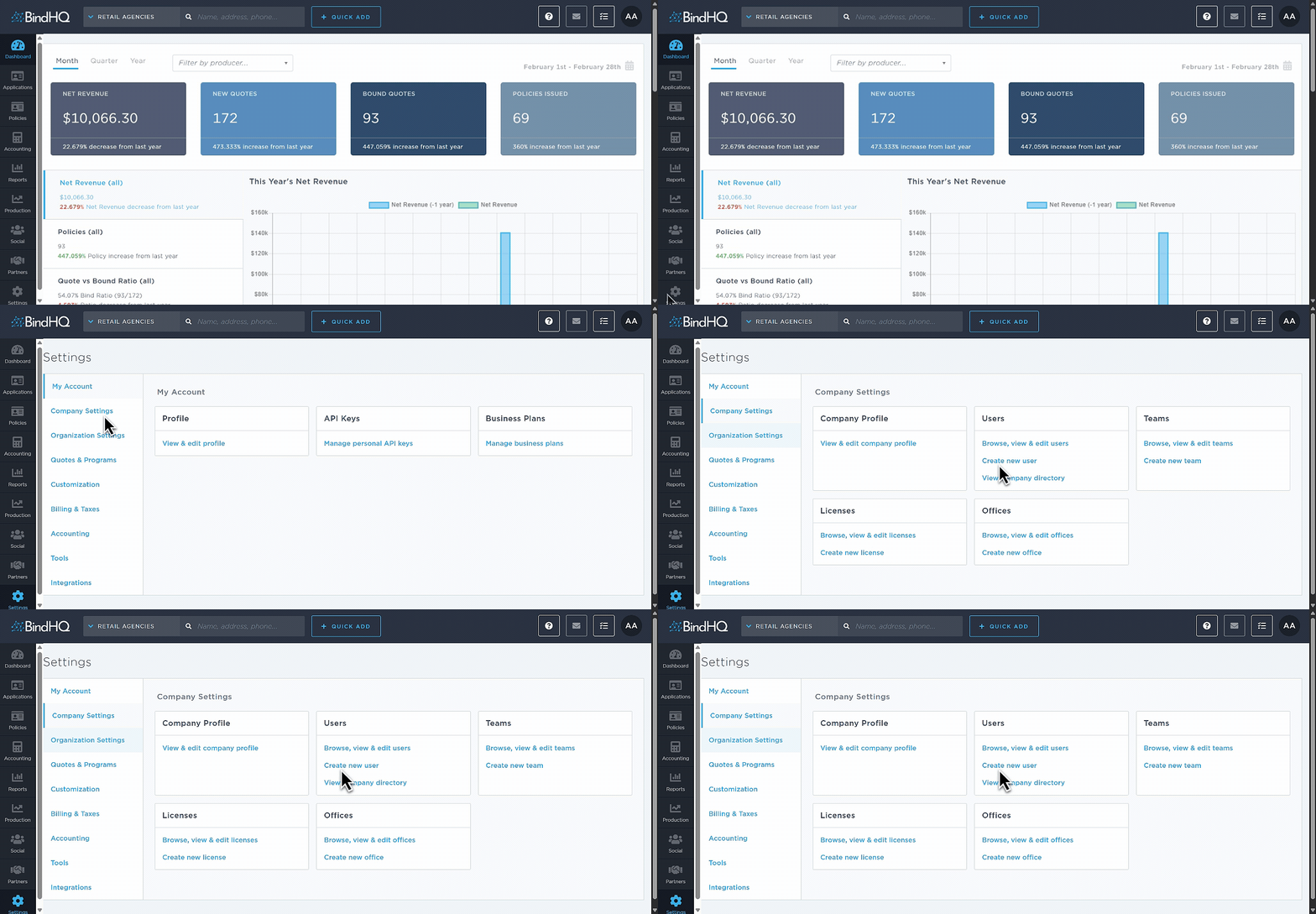
3. Enter the user details and assign the appropriate user role and permissions.
4. After selecting a user role, you can either:
Click Set Default Features to automatically apply the default permissions for that role, or
Manually select or deselect individual features to customize access.
Scroll to the bottom of the page and click Create User.

Last Update: February 2026