Using the Payment Detail page
Last updated: July 5, 2025
You can use the Payment Detail page to make a new payment.
Applies to: Accountants, Accounting Assistants
This article explains how you can view an individual Payment. You can filter by [-]
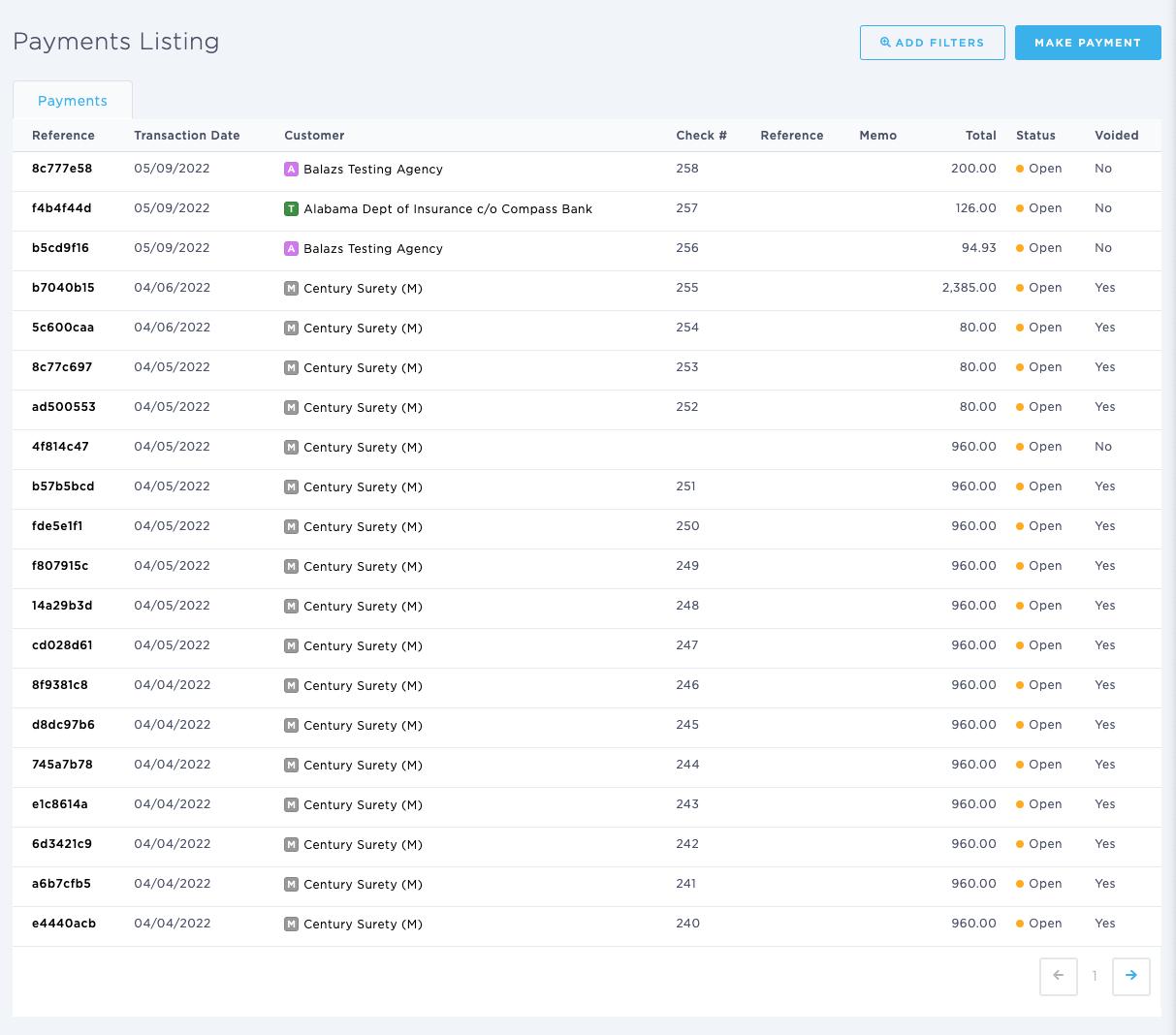
You can find this page by going to the “Accounting” tab in the side navbar, then going to “General”, and then selecting “Browse & View Payments” from the Accounts Payable tab. You can then select an individual Payment and click on the Reference hyperlink
You can use this page to answer the following questions:
- What are the details of a payment that has already been made?
- How can I make a new payment in BindHQ?
- Where can I void an individual payment?
- How can I generate an individual remittance [document] for the payment?
The Payment Detail page displays the following information:
- Supplier / Agency / Marketing Company / Tax Authority - this will default to the Customer type of the Payment
- Transaction Date - this the date the Payment is made in BindHQ
- Posted Date - this is the Accounting Posting Date
- Payee - this is likely simply your agency, but larger agencies may have two or more agency entities which are selected when making the Payment
- Bank Account - this is the bank account selected for the Payment
- Memo - this shows any copy entered into the ‘Memo’ field when making the payment
- Payment Method - this is the payment method selected when making payment.
- Status
- Created By - this is the agency employee who made the Payment
- Print Check
- Reference - this shows any copy entered into the ‘Reference’ field when making the payment
You will also see a Summary box showing:
- Total Amount - this is the dollar amount of the Payment
- Check Number - this is the specific check number of the Payment
You can take the following actions from the Payment Detail page:
- Print Check
- New Payment - start a new payment [See Make a New Payment]
- Download CSV - this downloads a richer data set of that set out in the Applies subtab detailed below
- Remittance - this creates a Remittance document.
- Void Payment - you can void the Payment in the Payment Detail.