Using the Browse & View ACH Batches page
Last updated: July 5, 2025
You can use the Browse & View ACH Batches page to look at ACH Batches for your agency.
Applies to:
-
Accountants
-
Accounting Assistants
Last Updated: July 2024
This article explains how to browse and view ACH Batches for your agency.
BindHQ includes a feature called 'ACH Batches' that can generate NACHA files. These standard files can be processed by most banks to transfer funds to your partners. To facilitate ACH transfers, you need to capture a bank's routing number and the recipient's account number.
You can use this page to answer the following question:
- How can I look at ACH Batches for my agency?
- How can I add new batches?
- How can I create a NACHA file?
To find the batches page, go to the “Accounting” tab in the sidebar navigation, select “General,” and then choose “Browse & View ACH Batches” from the Bank tab. You can filter batches by internal ID, external ID, from date, and to date.
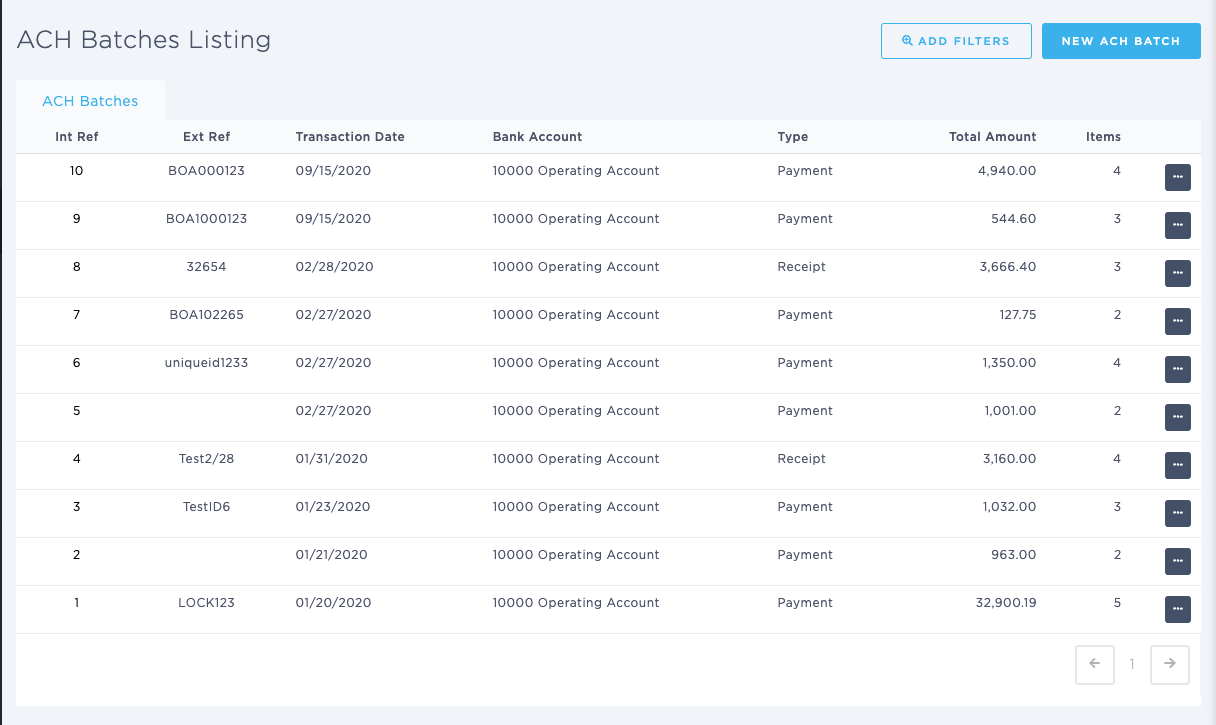
In this page it is also possible to create new batches.
Additionally, when clicking in the elipsis symbol (...) on the right side of each batch, it is possible to:
- view batch
- edit batch
- download NACHA file
Here's how to create a NACHA file:
- Ensure that partners have provided their banking information, including the bank's routing number and the account number.
- Create one or multiple payments to partners, selecting ACH as the payment method.
- Navigate to Accounting / Bank / Browse to view each batch.
- Create a new ACH batch by adding the payments to one batch.
- Download the NACHA file.
This file can then be uploaded to your bank for execution through the ACH network.