Understanding User Roles
Last updated: April 1, 2026
Introduction
This article explains how BindHQ divides its Users into different categories with varying permissions and rights based on their job functionality.
Each role has default permissions to ensure Users can only view and manage aspects of the system related to their job. However, Administrators can grant additional permissions to individual Users depending on their needs.
User Types
Administrators can use these roles to configure Users.
Administrator - Full system access; responsible for maintaining the BindHQ environment. Cannot add themselves as Producers on transactions or records.
Assistant - Designed for sales support or policy support staff.
Compliance - For users responsible for surplus lines tax reporting and tax entity management.
Issuance - For back-office staff handling policy processing and policy number administration. Cannot add themselves as Producers.
Manager - For non-sales managers; includes selected operational and review permissions.
Producer - Assigned to salespeople, brokers, and underwriters. Includes endorsement editing by default.
User - Foundational authenticated access role that provides basic platform access. Typically combined with a functional role for job-specific permissions.
Default Permissions
Each role includes optional default permissions that restrict access based on the needs of the role.
How to Enable Default Permissions
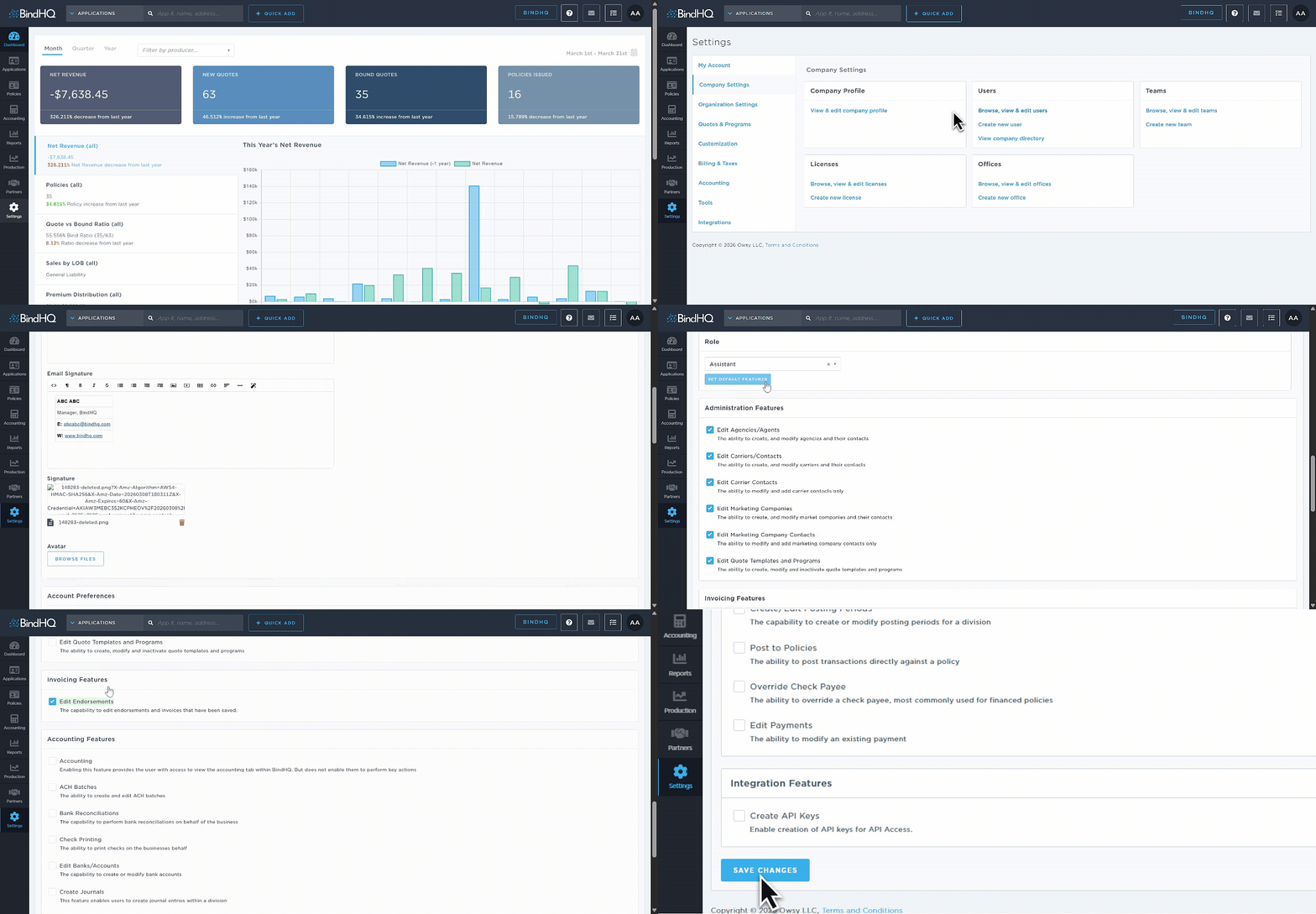
Add a new User or select an existing User.
Use the Role dropdown to choose a role.
Click Set Default Features.
The system automatically enables that role’s default permissions.
Review permissions in the Features section and customize using checkboxes as needed.
Scroll down and click Save Changes for the permissions to take effect.
Default Role Behavior
Administrator – Has all system permissions enabled by default.
Assistant – Includes Edit Endorsements, allowing users to edit saved endorsements and invoices.
Compliance – No default permissions enabled.
Issuance – No default permissions enabled.
Manager – Includes:
Edit Carriers/Contacts (create and modify carriers and their contacts)
Edit Carrier Contacts (modify and add carrier contacts only)
Edit Marketing Companies (create and modify marketing companies and their contacts)
Edit Endorsements (edit saved endorsements and invoices)
Producer – Includes Edit Endorsements, allowing users to edit saved endorsements and invoices.
User – No default permissions enabled.
Administrators can adjust any default permissions at the individual user level.
User Options
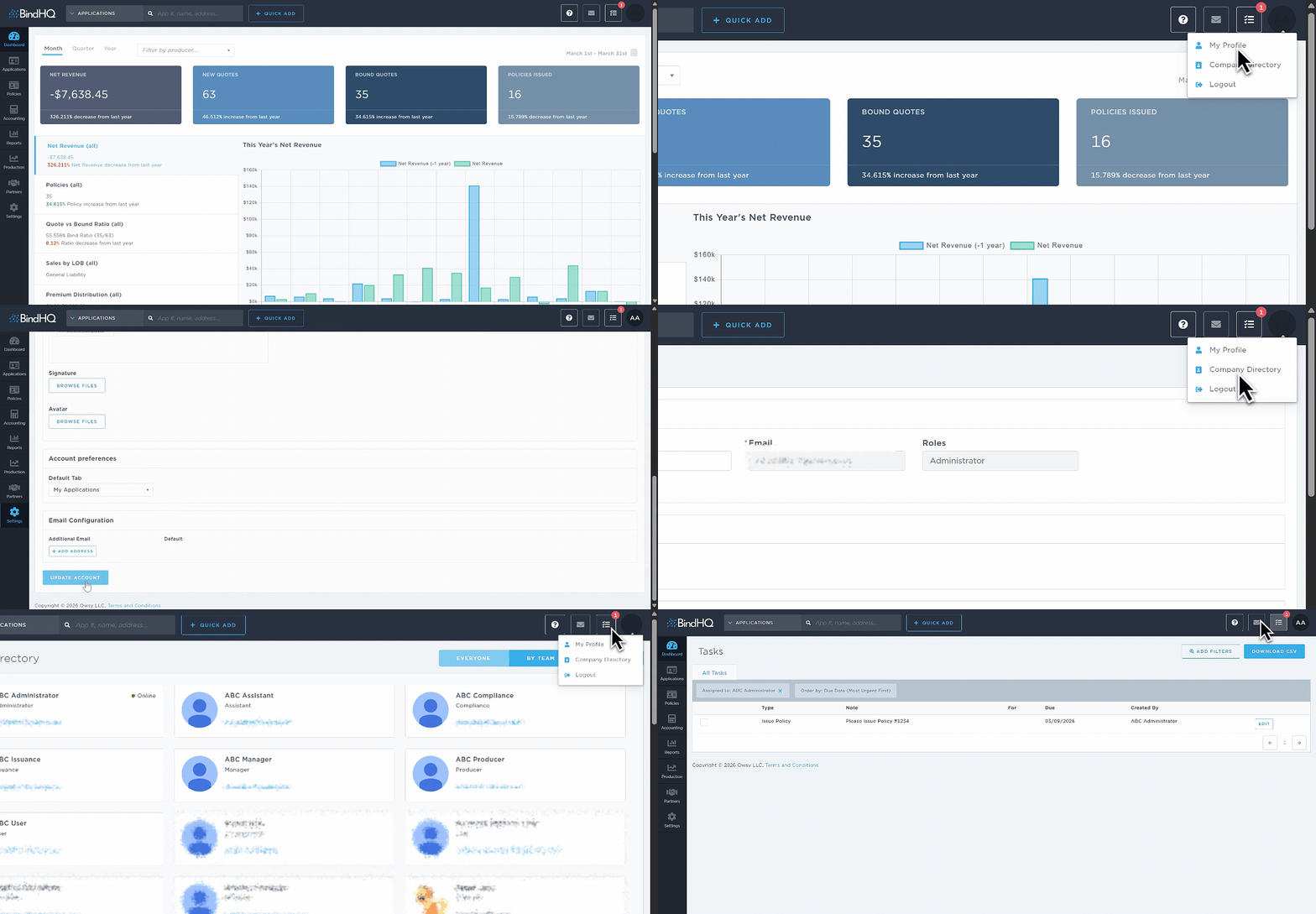
The user menu (top-right corner) is streamlined to core account actions:
My Profile
Company Directory
Logout
This menu provides quick access to personal settings, internal contact lookup, and secure sign-out.
Quick actions such as Email and View Tasks appear as icons beside the user avatar in the top bar.
Quick Role Selection Examples
These examples illustrate how roles are commonly combined:
Policy Support Coordinator: Assistant + only required edit features
Broker / Underwriter: Producer + any needed additional features
Issuance Specialist: Issuance + issuance-related features
Compliance Lead: Compliance + required reporting features
Operations Leader: Manager + selected admin/accounting features
System Owner: Administrator
Last Update: March 2026