Using the Payables Report in Accounting Tab
Last updated: July 5, 2025
Review and download Payables Reports from the Accounting Tab in BindHQ
Applies to:
- Accounting
- Administrator
Last Updated: September 2020
This article explains how to access, review and download reports from the Payables Tab sub-section in the Accounting Tab
The Payables Reports Tab has the following Reports
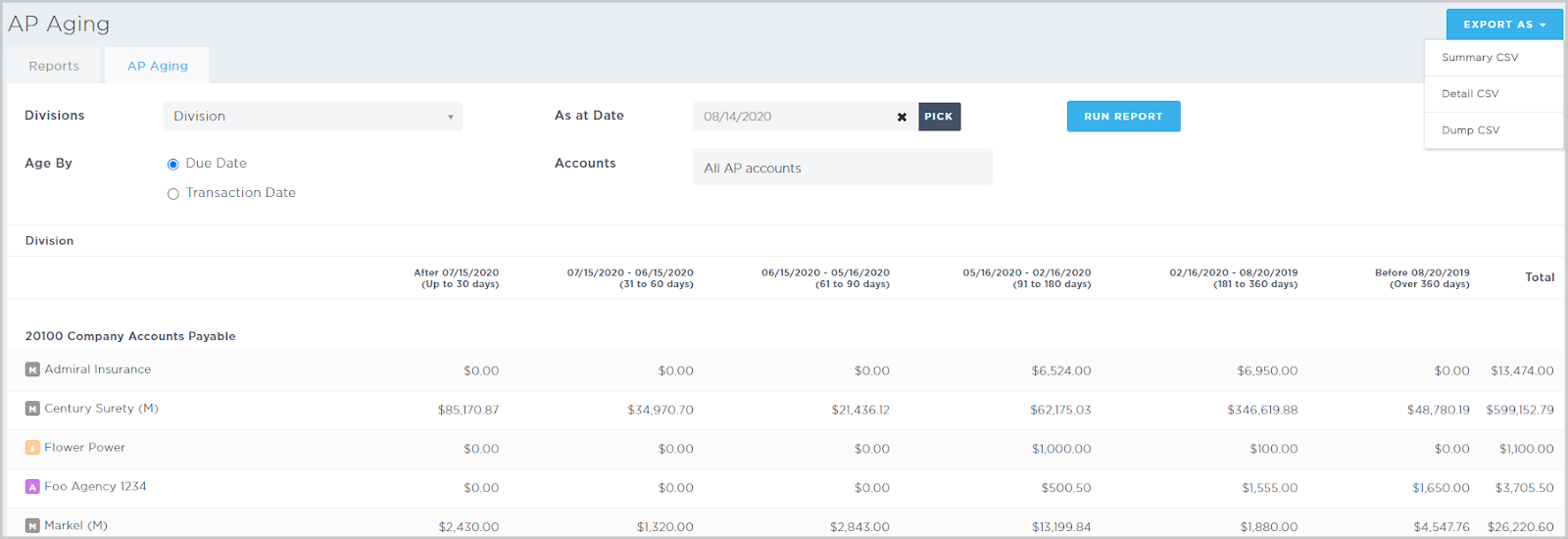
AP Aging Summary Report
- Shows any unpaid AP invoices and unused credits, by aged period.
- Select a division, date (including due date or transaction date), and accounts, then click Run Report.
- The report displays customers’ AP details by 30, 60, 90, 180, 360, 360+, and total amounts.
- To export the report, click the Export As drop-down and select Summary CSV, Detail CSV, or Dump CSV.
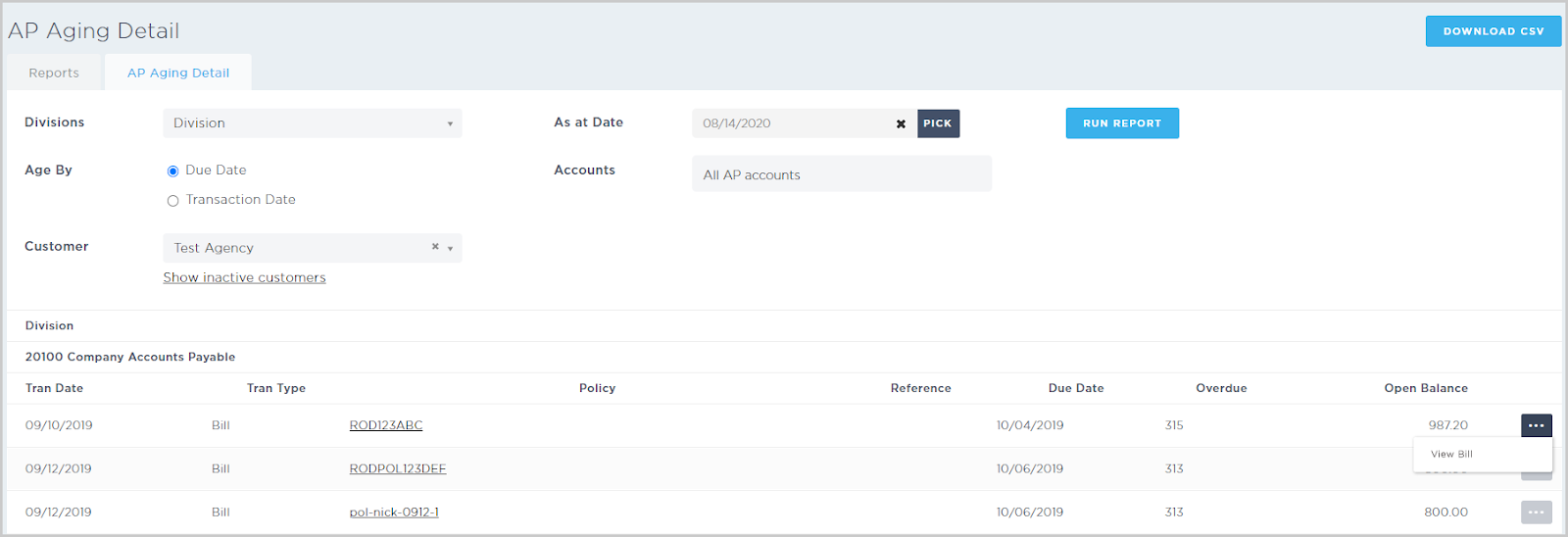
AP Aging Detail Report
- Shows the transaction details for AP aging.
- Select a division, date (including due date or transaction date), accounts, and customer (required).
- The report displays the AP aging transaction details by division and account.
- Click the Policy hyperlink to view an associated policy or click the ellipsis icon to the far right to view an invoice.
- To download the report, click Download CSV in the top right corner.
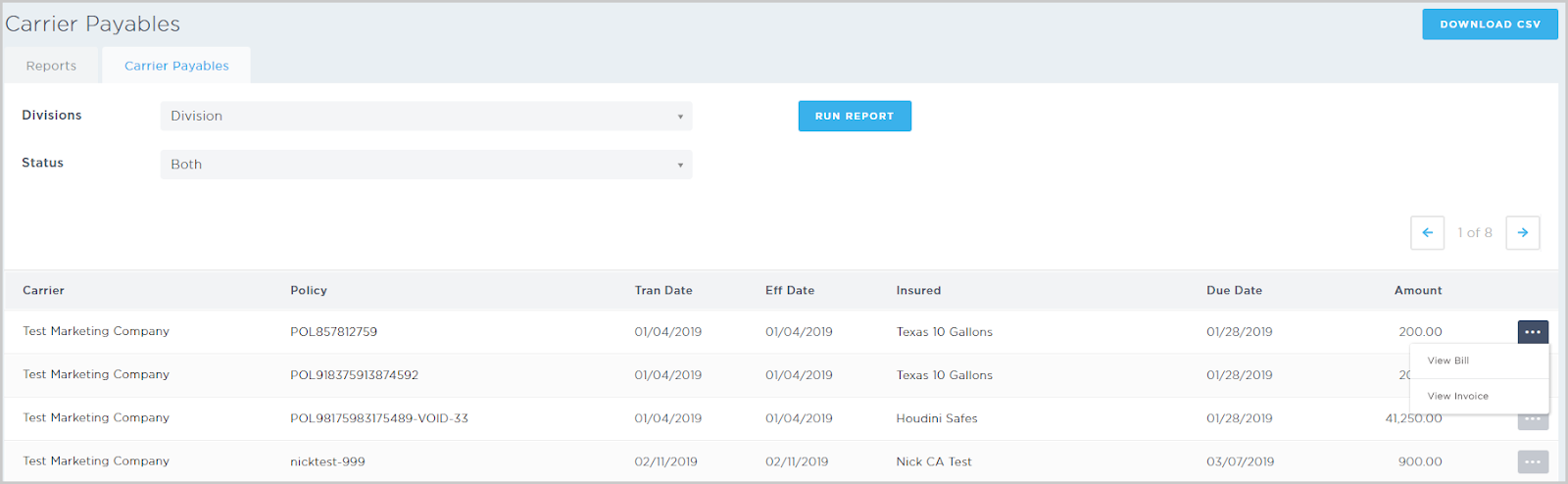
Carrier Payables
- Shows the paid carrier invoices.
- Select the divisions and status (payment OK, money not received, or both), then click Run Report.
- The report may take a moment to load. From the results list, you can click the Carrier, Policy, or Insured hyperlinks.
- You can also click the ellipsis icon on the far right to view a bill or an invoice.
- To download the report, click Download CSV in the top right corner.
Agency Payables (Agency Bill)
- Shows the received agency bill credits.
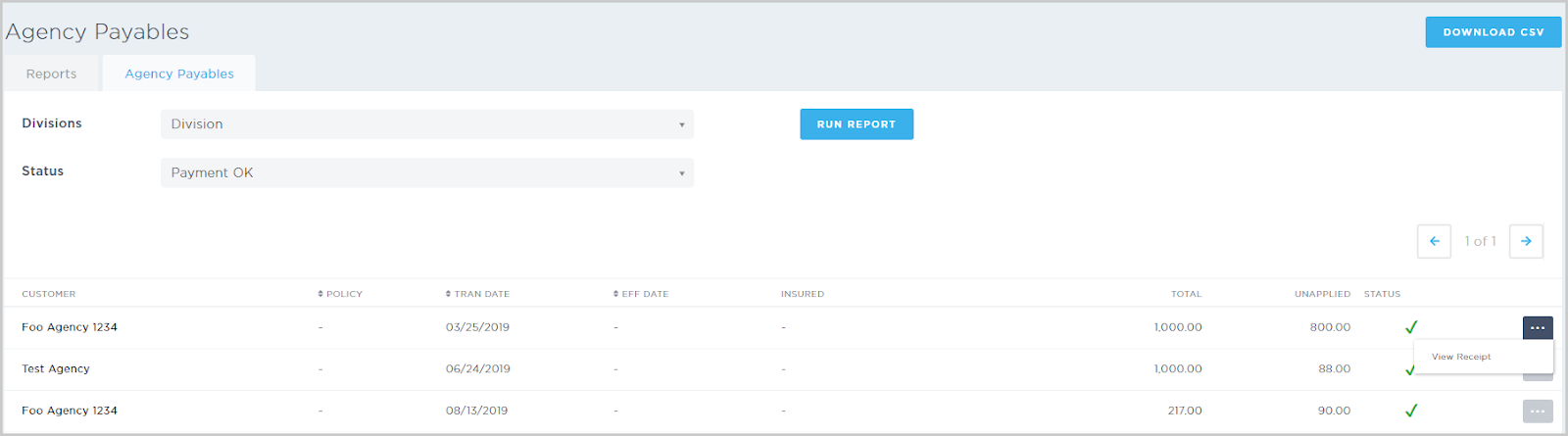
- Select the divisions and status (payment OK, money not received, or both), then click Run Report.
- The report may take a moment to load, and displays the credit details for the selected divisions and status.
- Select the Customer hyperlink to view a customer’s details.
- You can also click the ellipsis icon on the far right to view a receipt.
- To download the report, click Download CSV in the top right corner.
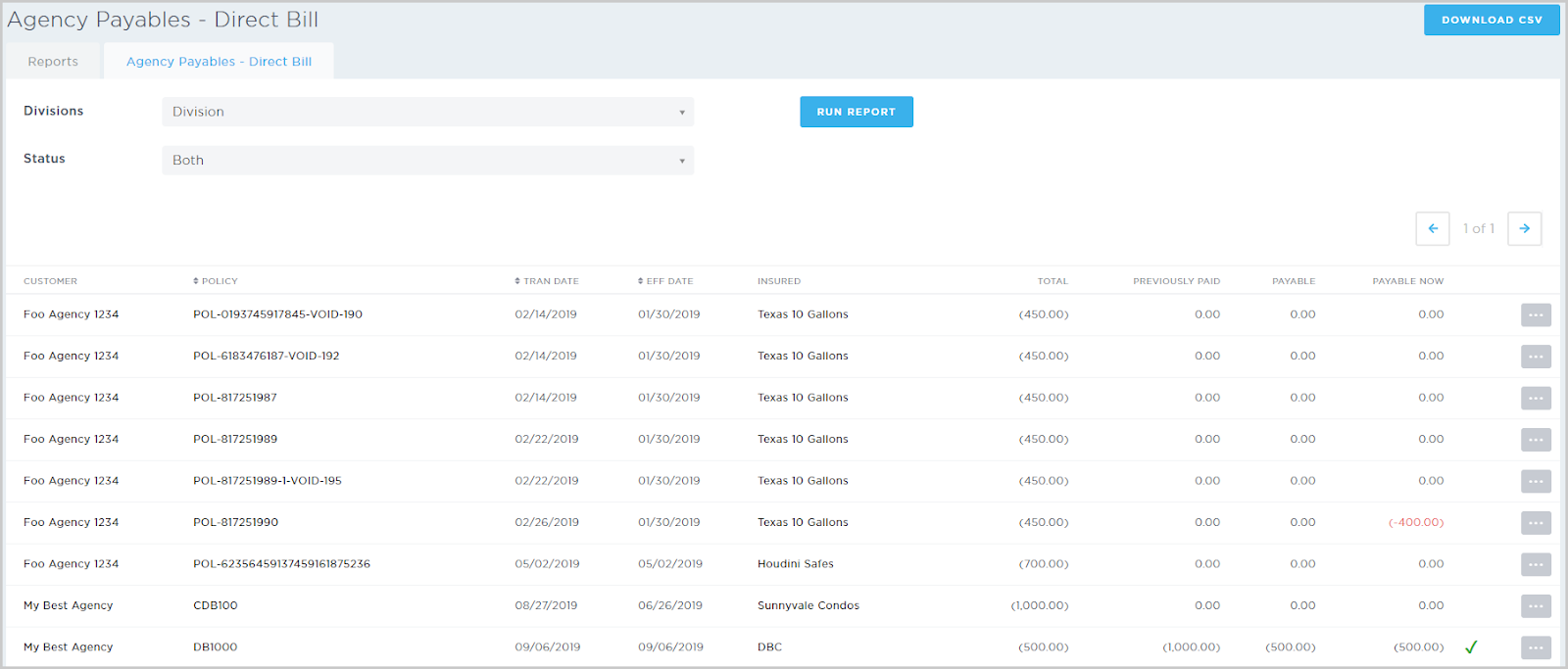
Agency Payables (Direct Bill)
- Shows the received direct bill credits.
- Select the divisions and status (payment OK, money not received, or both), then click Run Report.
- The report displays the credit details for the selected divisions and status. Select the Customer hyperlink to view a customer’s details.
- You can also click the ellipsis icon on the far right to view a receipt.
- To download the report, click Download CSV in the top right corner. The CSV file also includes a "Producer" column to show the policy producer.